Rev AB How to Delete a Job from the Jobs Database 6-21
Videojet 8520 Operator Manual
How to Delete a Job from the Jobs Database
To remove jobs that are no longer required, proceed as follows:
1 Touch the Tools button on the Home screen.
2 Touch the Database button on the Tools screen to open the Database
screen.
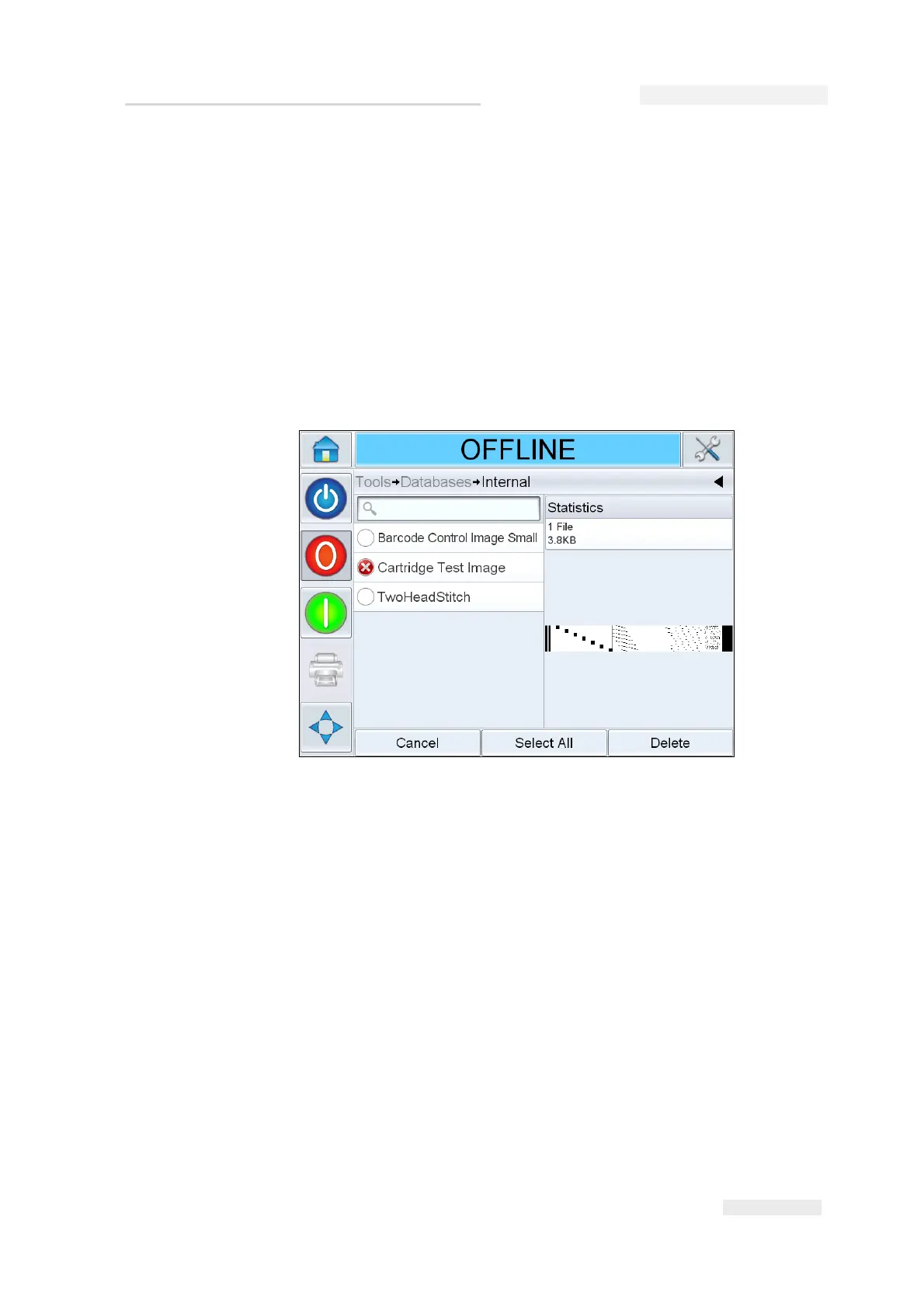
3 Select the required database (internal or external) and touch Edit to go
to the deletion screen (see Figure 6-26). This screen contains a list of all
the available print jobs along with details of the space available for the
storage of new jobs.
4 Touch the name of the job that you want to remove from the list of
jobs. The job image appears in the preview window. Ensure that the
job is the one that you want to delete.
5 Touch Delete to delete the job.
Figure 6-26: Database Delete Window



 To Next Page