VIVOTEK - A Leading Provider of Multimedia Communication Solutions
User's Manual - 249
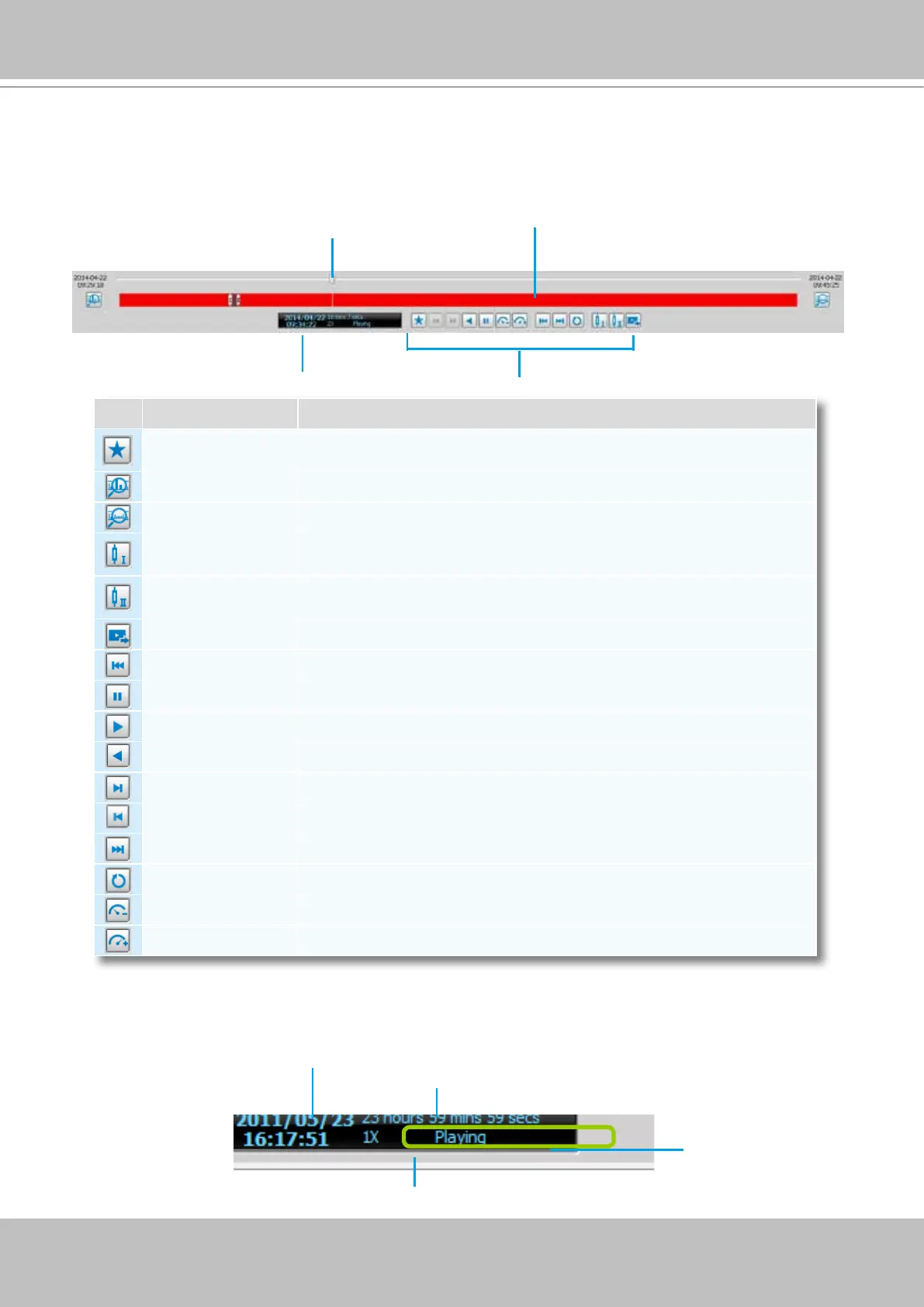
Playback Control Panel
When you double-click a video clip to play, the playback control panel will be enabled for you to
use.
Icon Function Description
Add Bookmark
Manually add a bookmark to pinpoint and extract a 20-second video clip
from an existing recording
Histogram Zoom In Zoom in on the displayed period of time of the histogram
Histogram Zoom Out Zoom out of the displayed period of time of the histogram
Marker I
If you want to export part of the recorded video clip, click to set marker I
on the histogram, which will be the start time of the exported media
Marker II
If you want to export part of the recorded video clip, click to set marker II
on the histogram, which will be the end time of the exported media
Export Media Click to export the selected section of video clip
Last Time Interval Go to the previous video clip on the video clips list
Pause Pause playback the selected video clip
Play Start to playback the selected video clip
Rewind Reversely plays back the current video
Next Frame Go to the next video frame of the selected video clip
Previous Frame Displays the previous frame
Next Time Interval Go to the next video clip on the video clips list
Repeat Mode Playback the selected video clip repeatly
Slow Down Slow down the playback rate
Speed Up Speed up the playback rate
Current time of the video clip
Total length of the histogram
The playback status
(Stop/Playing)
The playing rate can be 1/8, 1/4, 1/2, 1X, 2X, 4X, 8X, 16X, 32X, and 64X.
Playback Timeline Slider
Playback Status Panel
Playback Control Buttons
Playback Histogram
(Displays the period of time of the
video clip being played back)


 To Next Page