VIVOTEK - A Leading Provider of Multimedia Communication Solutions
260 - User's Manual
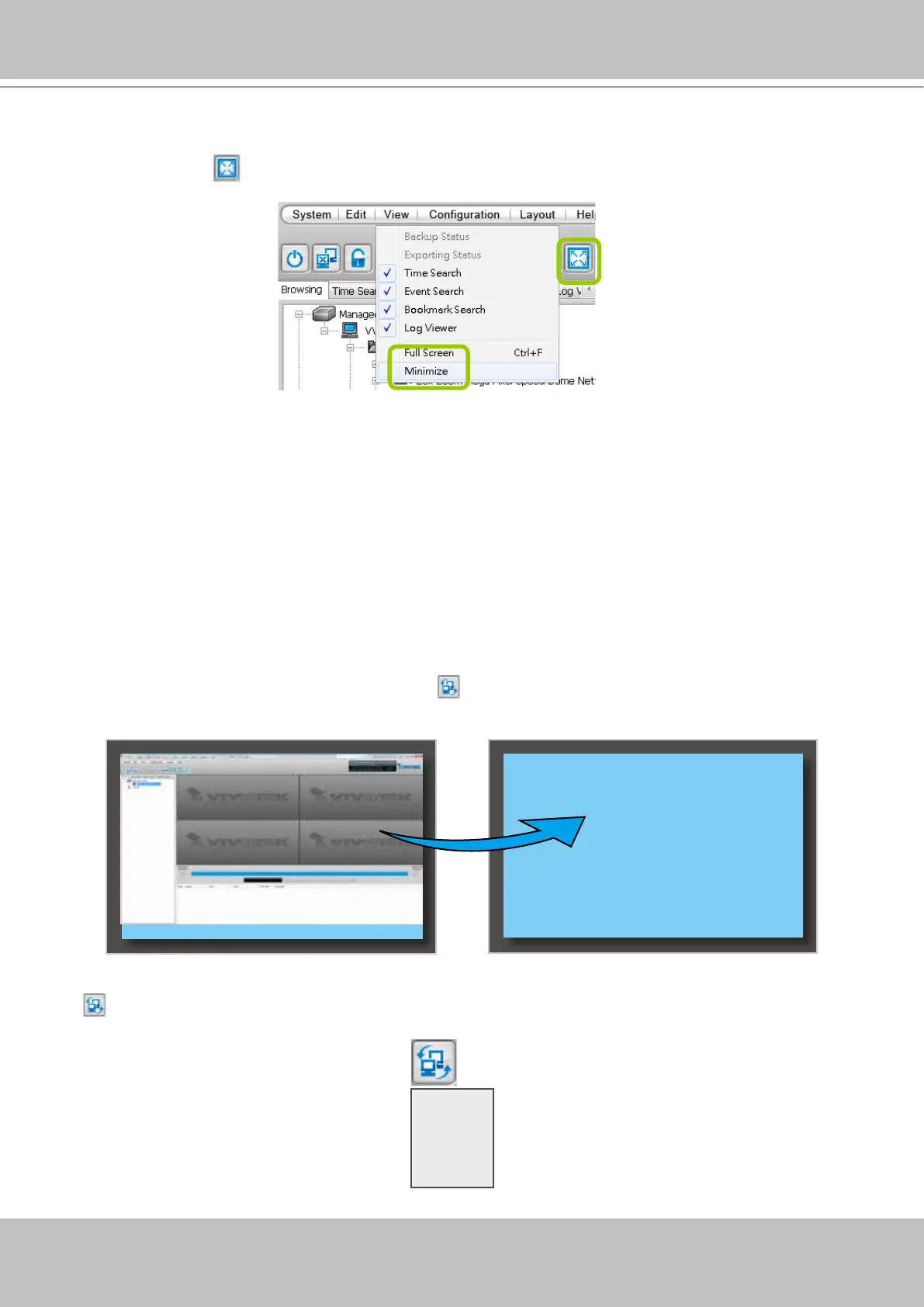
Full Screen: to maxmize the video playback window to the entire screen
Click Full Screen on the quick access bar or right-click the video cell and select Full Screen.
In addition, you can also click View > Full Screen on the menu bar to maximize the recorded video
playback window.
To restore to the original layout, right-click the video cell and uncheck Full Screen. You also can press
the Esc button on the keyboard to leave the full screen mode.
Minimize:
If you click View > Minimize on the menu bar, the Playback window will minimize
to the Windows tool bar.
View Recorded Video with Multiple Monitors
If you have multiple screens in your control center, you can switch the VAST Playback Window
among these screens.
If you have two monitors, click Switch Screen on the menu bar, the Playback window of monitor 1
will switch to monitor 2.
If you have three or more monitors, a drop-down list will be displayed when you click Switch Screen
on the menu bar. The number of options on this list depends on the number of your screens. Select
a desired screen from the drop-down list and the Playback Window will then switch to the specied
screen.
Monitor 1 Monitor 2
Monitor 1
Monitor 2
Monitor 3
......



 To Next Page