VIVOTEK - A Leading Provider of Multimedia Communication Solutions
User's Manual - 285
Import and Export Utility
VAST supports import and export utility for user to keep record of all server settings. You can
use the export le to copy the conguration on another host.
Export Utility
Please follow the steps below to export the server settings:
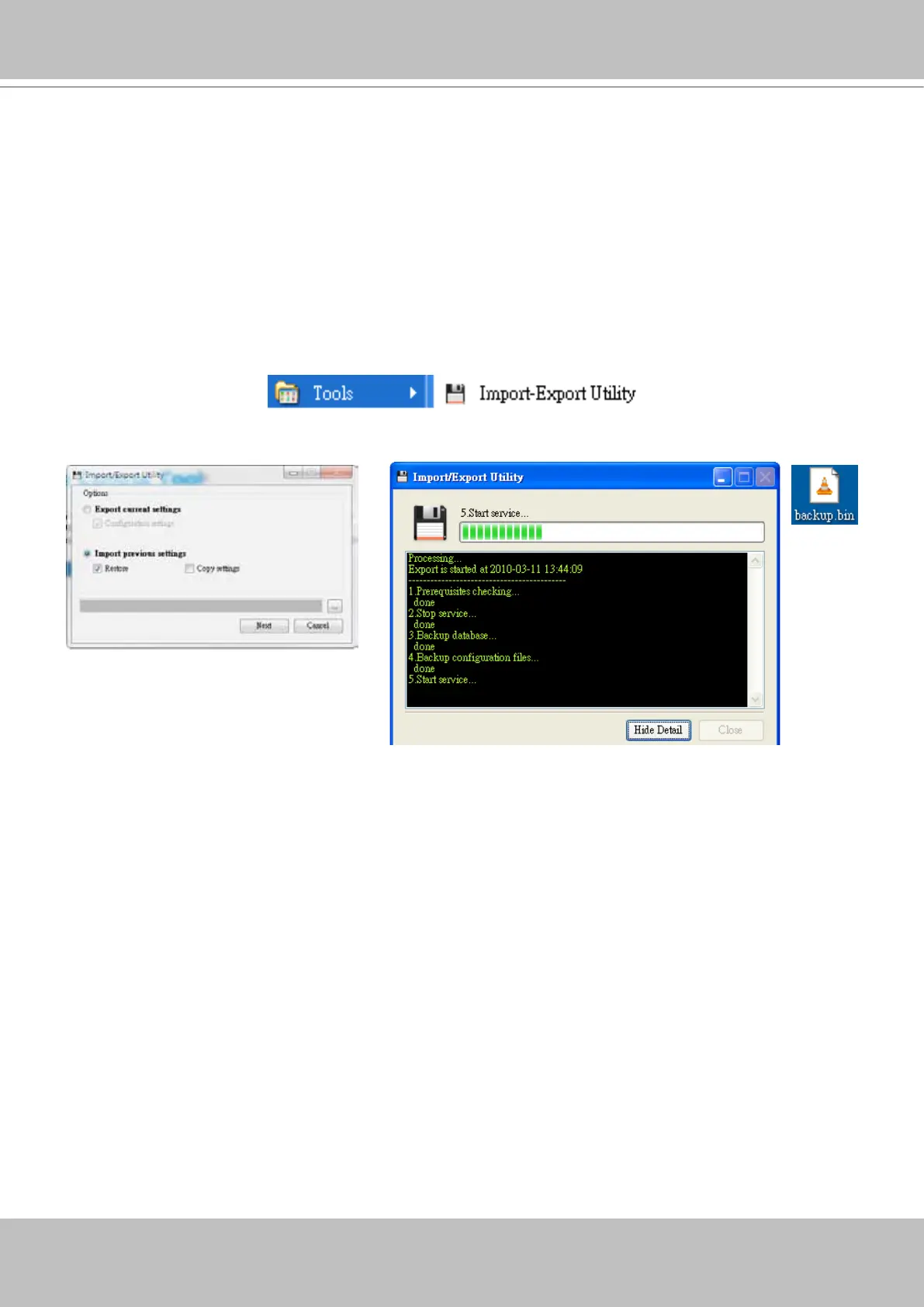
a. Under Microsoft Windows, choose "Start > All Programs > VIVOTEK Inc > VAST > Tools > Import-
export Utility."
b. The Import/Export Utility window will pop up. Click Export and select a target folder. The system will
start to export a .bin le.
Import Utility
Please follow the steps below to import the server settings:
a. Under Microsoft Windows, choose "Start > All Programs > VIVOTEK Inc > VAST > Tools > Import-
export Utility."
b. The Import/Export Utility window will pop up. Click Import and select the export le. The system will
start to import the le.
You should then select the Restore or Copy settings options.
Restore: If this is selected, the VAST server GUID will also be restored. This option applies when
you need to restore as crashed server.
Copy Settings: This applies you use the exported prole to duplicate your conguration to mul-
tiple computers. A new server GUID will be generated.


 To Next Page