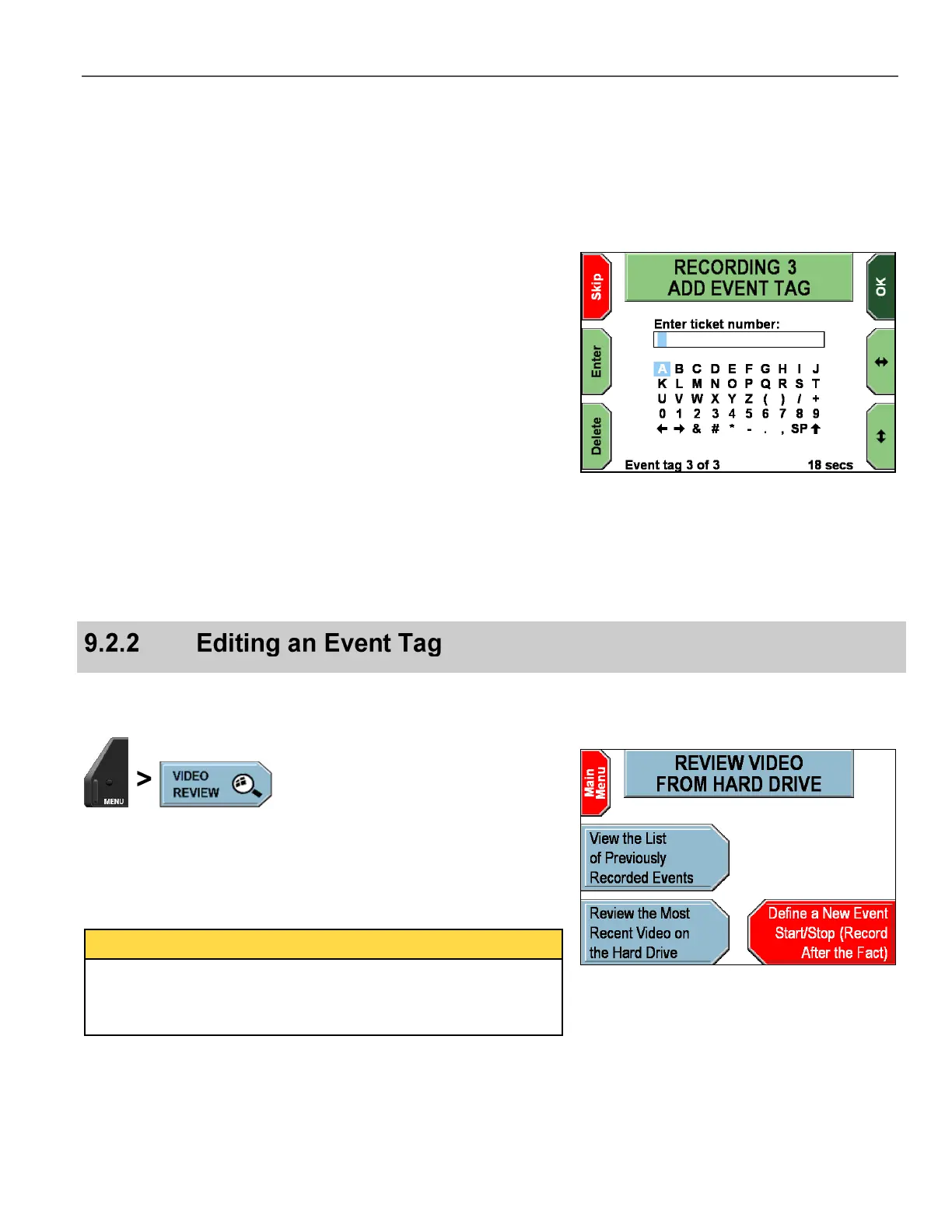
The next ADD EVENT TAG screen is displayed.
On this example screen, the event tag is optional. Optional event tags
display the Skip key, allowing the officer to manually skip the screen.
Optional event tags also allow a response timeout to be configured, if
desired. On this screen, a timeout has been configured, indicated
where it reads 18 secs. Response timeouts can be configured from
10 to 300 seconds, in 10-second increments. When the screen is
displayed, the timer begins counting down. When no response occurs
before the timeout period expires, the screen advances automatically.
To make an entry on this example screen, the officer must press the
and keys to navigate to the character(s) desired, and then
press Enter to select. To erase an undesired character, press
Delete.
Special characters are as follows:
SP – Space bar
– Uppercase/lowercase letters toggle
and arrows – Move the cursor left and right to allow
character insertion
Press OK. If there are more event tags configured, the screen will
advance to the next one, up to a maximum of 6 event tags.
To edit an event tag, the officer must navigate to the desired
recorded event from Video Review mode.
Press MENU > VIDEO REVIEW.
On the video review screen, press View the List of Previously
Recorded Events to display a list of recorded events.
The DV-1 can playback events while simultaneously recording new
events (both active or intentional recording plus background
recording). However, the DVD drive will pause any burning activity
while in Video Review mode.



 To Next Page