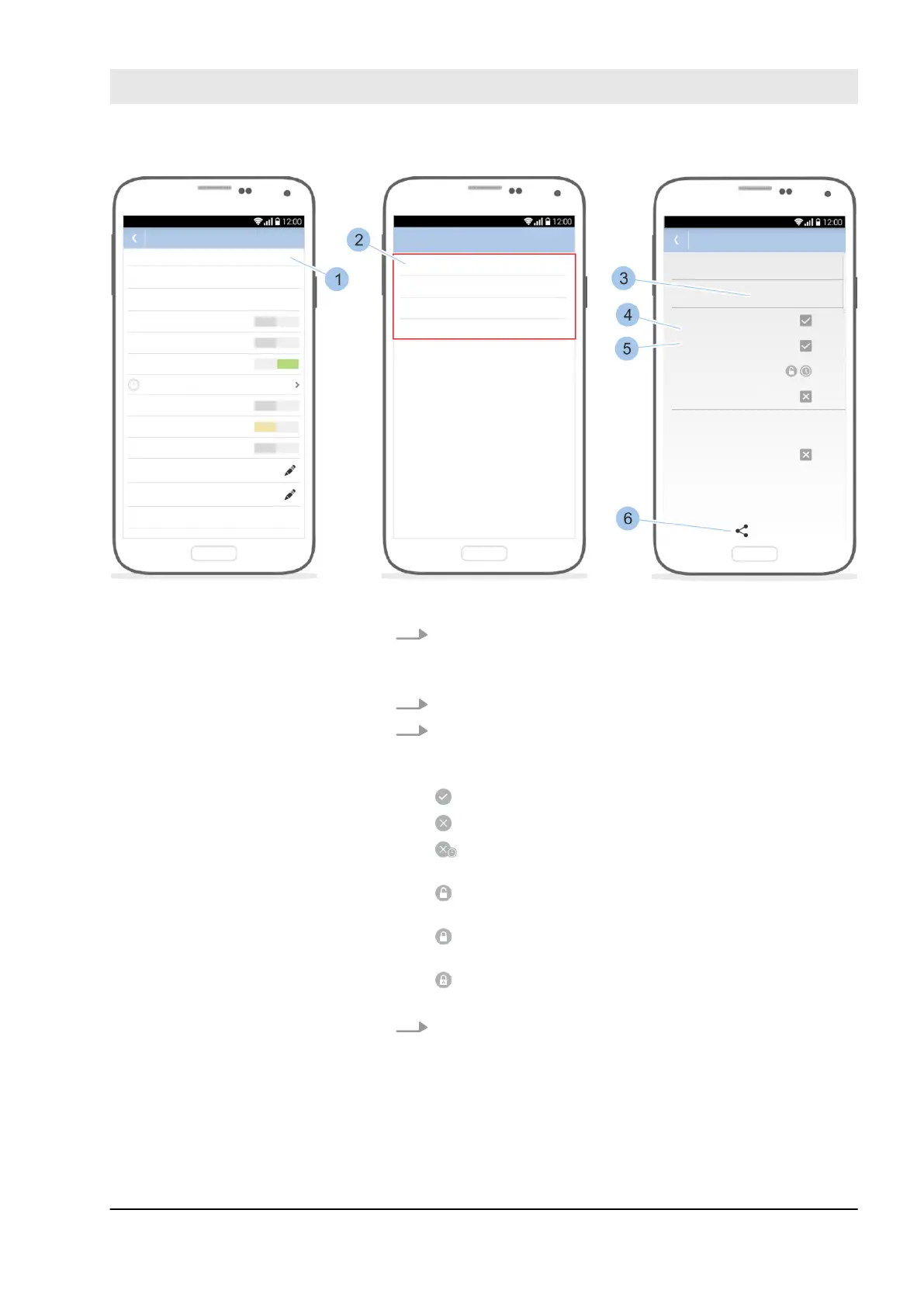
Fig. 99: Open locking events
3. Touch the Share (1) symbol.
ð
The selection of intervals (2) for locking events will
appear.
4. Select required interval (2).
5. The locking events are displayed with their respective
key (3), date (4) and time (5).
The type of locking authorisation is still shown:
The key was authorised to lock.
The key was not authorised to lock.
The key was generally authorised to lock via a time
profile, but not at this time.
The permanent release has been activated on the
reader.
The permanent release has been deactivated on the
reader.
The permanent release has been deactivated auto-
matically on the reader.
6. Touch the Parts button (6).
ð
The locking events can be forwarded in the same
way as the locking plan.
Ä
Chapter 7.8.1 “Forward locking plan manually”
on page 126 –
Ä
Chapter 7.8.2 “Create a locking
plan change reminder” on page 129
Send locking events
Manage locking system
23.03.2020 blueCompact electronic locking system 123


 To Next Page