Need help?
Do you have a question about the XAG V40 and is the answer not in the manual?
Legal notice about reading the manual and user responsibility for product use.
Critical safety advice for product operation and intended use.
Guidelines for safe and effective pesticide application.
Precautions to protect the environment during operations.
Procedures and rules for safe and effective drone flight.
Details on the aircraft's waterproof and dustproof rating.
Procedures for maintaining the aircraft and ensuring optimal performance.
Key regulations for drone flight altitude, proximity, and privacy.
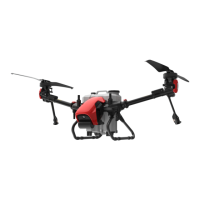
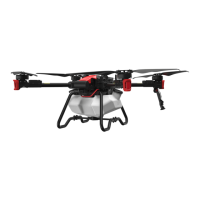
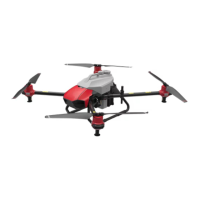
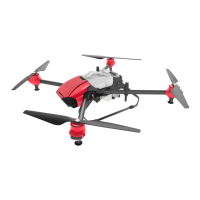
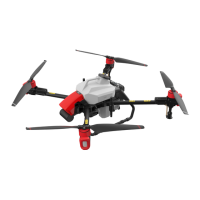
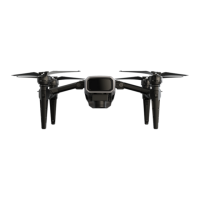
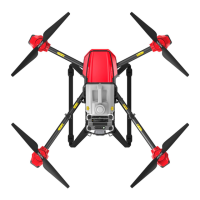
Overview of the V40 Agricultural RPA, its features, and capabilities.
Inventory of components included in the V40 package.
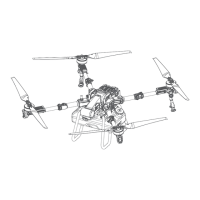
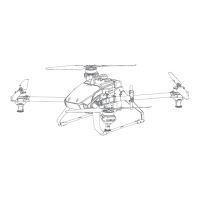
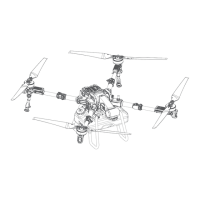
Detailed diagram and labeling of the V40 aircraft components.
Diagram illustrating the wiring connections for the aircraft systems.
Explanation of status indicators for FC, Cloud, Wireless, and System.
Explains the LED indicators on the motor bases for spray status.
Explains the LED indicators on the rear of the aircraft for flight status.
Step-by-step guide to unfolding and securing the aircraft arms.
Instructions on how to unfold the spray nozzles.
Guide on unfolding and securing the aircraft propellers.
Verification of correct propeller attachment for safe operation.
Procedure for installing and connecting the liquid tank.
Instructions for installing the RealTerra module.
Procedure for installing the aircraft battery.
Steps to power the aircraft on and off.
Inventory of components for the Local Network Terminal.
Detailed diagram and labeling of the Local Network Terminal components.
Step-by-step instructions for setting up the Local Network Terminal.
Procedure for powering the Local Network Terminal on and off.
Explanation of indicator lights for Power, WLAN, WAN, and System.
Inventory of components for the ACS2G Remote Controller.
Detailed diagram of the ACS2G Remote Controller's front, rear, and bottom views.
Detailed description of each component and function of the remote controller.
Explains battery level and status indicators on the remote controller.
Indicates the connection status with a smart device.
Indicates device, control mode, terminal, and RTK connection status.
Procedure for inserting a nano-SIM card into the remote controller.
Instructions on how to charge the remote controller.
Steps to power the remote controller on and off.
Controls for RPA take-off, landing, and altitude adjustments.
Controls for RPA motion, hovering, mode switching, and speed adjustment.
Controls for spray, terrain following, and mapping modes.
Instructions for attaching and detaching the ACS2 RTK Module.
Diagram and labeling of the B13960S Smart Battery components and indicators.
Guidelines and precautions for using the smart battery.
How to check the battery level when the battery is ON or OFF.
Interpretation of battery status indicators and fault codes.
Procedure to turn the smart battery on and off.
Instructions and precautions for charging the smart battery.
Guidelines for storing smart batteries to maintain health.
Inventory of components for the GNSS XRTK4 Mobile Station.
Diagram and labeling of the GNSS XRTK4 Mobile Station components.
Details about the console, its buttons, and indicators.
How the battery charges and what indicators mean.
Interpretation of the battery status indicators.
Explanation of the console's indicators for operation, network, and positioning.
Information on how to download and system requirements for the XAG One APP.
Overview of the main screen of the XAG One APP operation interface.
Explanation of aircraft name, signal strength, RTK, battery, and liquid status.
Explanation of map data, position, ruler, height, speed, and location features.
Basic information and options for the selected aircraft.
Displays data link status and network health.
Information on the aircraft's positioning system and RTK connection.
Information related to the aircraft's battery status and RTL settings.
Options related to the attached task system (e.g., RealTerra, RevoSpray).
Information on propulsion system and motor test procedures.
Information and settings for sensor modules like Terrain Radar, Obstacle Avoidance, PSL Camera.
Procedure to bind and add devices to the system.
Steps to set up the Local Network Terminal and connect it to Wi-Fi.
Logging into the LNT module and accessing network settings.
Setting up Wi-Fi hotspot and external Wi-Fi connection for the LNT.
Procedure to bind the RTK Mobile Station with the XAG One APP.
Connecting to the RTK Module Wi-Fi and entering settings.
Confirming LNT network name and password for device addition.
Adding the RTK module by serial number or QR code.
Confirming successful addition of the RTK module.
Prerequisite and steps to bind the remote controller with LNT.
Connecting to the ACS2 Wi-Fi and entering LNT details.
Confirming LNT network name and password for remote controller addition.
Adding the remote controller via QR code or serial number.
Confirming successful addition of the remote controller.
Prerequisite and steps to bind the aircraft with LNT.
Connecting to the Aircraft Wi-Fi and entering LNT details.
Confirming LNT network name and password for aircraft addition.
Adding the aircraft by QR code or serial number.
Confirming successful addition of the aircraft.
Criteria for selecting an optimal location for the GNSS RTK4 Mobile Station.
Step-by-step guide for assembling the GNSS XRTK4 Mobile Station.
Setting up datum and ensuring RTK positioning status.
Prerequisite and steps for preparing the ACS2G Remote Controller.
Setting up the base station for the ACS2G Remote Controller.
Confirming connection to the mobile station and RTK status.
Prerequisite and steps to pair the aircraft with the GNSS XRTK4 Mobile Station.
Selecting and connecting to a nearby RTK base station.
Prerequisite and steps to pair the aircraft with the ACS2G Remote Controller.
Selecting the remote controller and confirming successful pairing.
Prerequisite and steps to set an aircraft as an operation device.
Confirming the aircraft is set as an operation device.
How to import field data or HD maps into the XAG One APP.
Selecting and importing field data from previous records.
Instructions on creating a new field using satellite or HD map data.
Adding boundary, obstacles, and non-spraying zones to define a field.
Saving the created field and reviewing the list.
Prerequisite and steps for planning a field using Rover Mode.
Enabling mapping mode and adding field points using the remote controller or app.
Entering field information and saving the created field.
Options for managing existing fields, including editing and pre-planning routes.
Detailed instructions on adding, moving, or deleting points for field boundaries, obstacles, and zones.
Setting up standard or custom routes and defining parameters like direction and spacing.
Comprehensive checklist before initiating an aerial flight operation.
Information about the RealTerra aerial survey feature.
Prerequisite steps and initiating an aerial spraying operation.
Steps for assigning the aircraft, setting parameters, and starting the spraying operation.
Configuration options for spraying amount, droplet atomization, and nozzle selection.
Configuration of entry/exit routes, flight height, speed, and safe point planning.
Settings for flight height, speed, direction, interval, and safety distances.
Configuration of operation area, terrain following, and obstacle avoidance.
How to perform emergency controls via the APP and the remote controller.
Procedures for cleaning the aircraft after use, especially after pesticide application.
Features and controls for operating multiple aircraft simultaneously.
Details about communication modules, protocols, and frequencies.

 To Next Page
 General