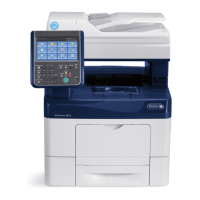
Faxing
Sending a Fax from the Printer
1. At the printer control panel, press the Home button, then touch Fax.
2. Enter a recipient fax number manually, or select an individual or group from the fax address book.
− To enter a fax number manually using the touch keypad, touch Enter Fax Number. Type the
number, then press Enter.
Note: To insert a pause as needed, touch the Special Characters icon, then touch Dial Pause.
To enter longer pauses, touch Dial Pause multiple times.
− To add a number from the fax address book, touch the Address Book icon. Touch Favorites or
Contacts, then select the contact.
3. Adjust fax settings as needed.
− To adjust brightness, touch Lighten/Darken, then adjust as needed. Darken light original
images such as pencil images, and lighten dark images such as halftone images from
newspapers or magazines.
− To scan both sides of your original document, touch 2-Sided Scanning, then touch 2-Sided.
4. Touch Send.
5. If you are scanning from the document glass, when prompted, to finish, touch Done, or to scan
another page, touch Add Page.
Note: If you are scanning a document from the automatic document feeder, a prompt does not
appear.
6. To return to the Home screen, press the Home button.
Note: You can configure the printer to print a Confirmation Report after it transmits a fax. For details,
refer to Configuring Fax Defaults and Settings on page 161.
146 Xerox
®
WorkCentre
®
6515 Color Multifunction Printer
User Guide


 To Next Page
 Loading...