XT2640OperatingManual 13July2016 Page66of187
IfnotracesareenabledtobeshownonthechartthenNOTRACESSELECTEDisdisplayedonthechartandthechartis
blank.
Youmaychangethetraceselectionsasrequiredwithouthavingtocapturefurtherdata.AllsignalswithintheVPAare
alwayscapturedwithfullresolution,allowingthetracecolors,thetracesignals,orthetracescalingandoffsettobealtered
atwillafterthecapture.
ThescalingforthetracesmaybealteredtoensurethebestfitonthechartbypressingtheAUTOSCALEbuttonontheSCOPEVIEW
screen.Whenpressed,theXT2640changestheconfiguredscalingtotheoptimum1/2/5scalingtojustmaintaineachtracewithin
theextentsofthechart.
12.10.2.4.1 UsingtheCursoran dZoomingtheView
Averticallydrawncursormaybeplacedontothechartbyyou.Therearethreewaysofachievingthis–
PressingtheCURSORbuttonatthetopofthescreen,thisactionplacesacursoratthelastusedpositionofthecursororat
thetriggerpositionifthecursorhasnotbeenusedbefore.
Or,pressinganywhereonthechart,thisactionplacesacursoratthepositionpressed.Youmaydragthecursorinthis
manner,ormayrepositionthecursorbypressingsomewhereelseonthechart.
Or,usingtheINRUSHcapturemode.Thisautomaticallyplacesacursoratthemaximumsignaloftrace1.
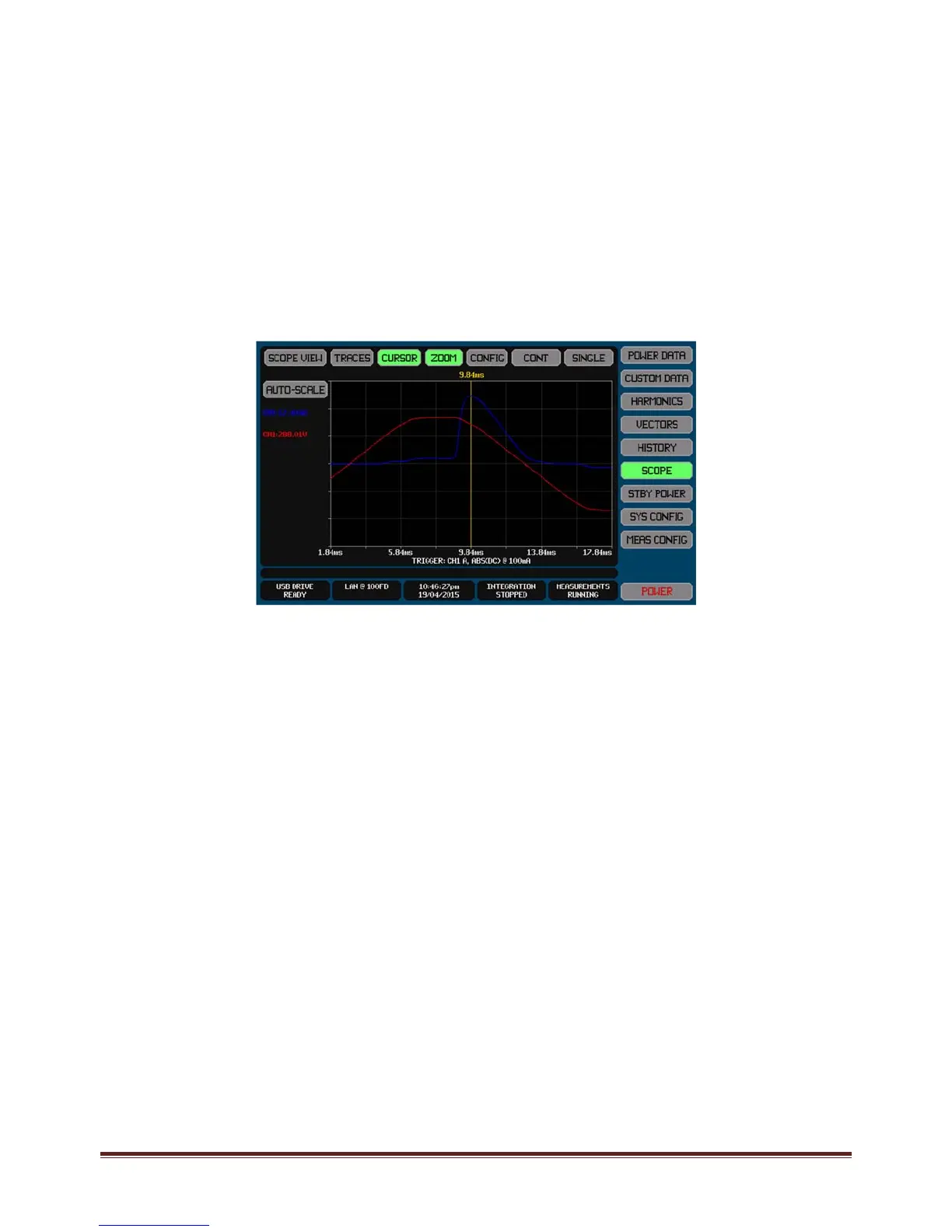
Thescreenbelowshowsthecaptureofaninrushcurrentzoomedinontheinitialinrushpeak.
Whenthecursorisshown–
TheCURSORbuttonishighlightedcoloredgreen
Thetimepositionofthecursorisshownabovethecursorline
Thetextualdataintheleftsideofthescreenchangestoshowthesignallevelcapturedforeachtraceatthetimeofthe
presentcursorposition.
YoumayzoomthecharthorizontallybypressingtheZOOMbutton;whenpressedyouarepromptedtheselectthezoom
timebase.Whilezoomed–
WhentheZOOMbuttonispressedthecursorpositioniscenteredinthescreen.
TheZOOMbuttonishighlightedcoloredgreen.
Thecursorremainssettothesametimeasitwaspriortozooming,butitmaystillbemovedwithinthetimespan
ofthezoomedchartbypressingatthedesiredlocationwithinthechart.
Thecursormaybemovedbeyondtheleftandrightendsofthetimespanbeingviewedbydraggingitbeyond
thoseedges,inthatcasethecursorremainsattheedgeandthecharttimespanbeingshownischanged.This
enablesyouto‘drag’thetimespanbeingviewedwithouthavingtozoombackout.
Anyzoomcanbecancelledandthescreenreturnedtothenon‐zoomedstatewithoutacursoratanytimebypressingthe
CURSORbuttonwhileitishighlighted.
12.10 .2.5 EXPORTINGORRECORDINGSCOPEVIEWDATA
Themethodsforperformingthisarefullydescribedinsection23.
TheSCOPEVIEWdatacanbeexportedtoa.CSVformattextualfileonanexternalUSBdriveattachedtothefrontpanelUSBport.
ThisfilecontainsatabulationofthepointsineachSCOPEVIEWwaveformforallchannels.
Briefly,thisisperformedby–
1. InsertthedriveintothefrontpanelUSBportandwaitforittobeREADY.
2. PresstheDRIVEINFOareaofthescreen,thescreenshowsthefileexport/importscreen.
3. PresstheSCOPEDATAbutton.Thescreenchangestoallowingyoutoenterafilename.
4. Enterthedesiredfilename(theextensionisautomaticallyprovided).
5. Ifthefilealreadyexiststhenyouarepromptedtorespondifyouwishtooverwriteitornot.
6. Thefileisthenwritten.



 To Next Page