ZCube-21 User Guide
DOC-USR-0253-01
______________________________________________________________________________________
Z3 Technology, LLC ♦ 100 N 8
th
ST, STE 250 ♦ Lincoln, NE 68508-1369 USA ♦ +1.402.323.0702
5.1.2 Run VLC to View UDP Stream
Note: Verify your PC is set up to handle decode of H.265 content at 4K resolutions. See Section 8.1, “PC
Configuration for 4K HEVC/H.265 Decode”, for more information.
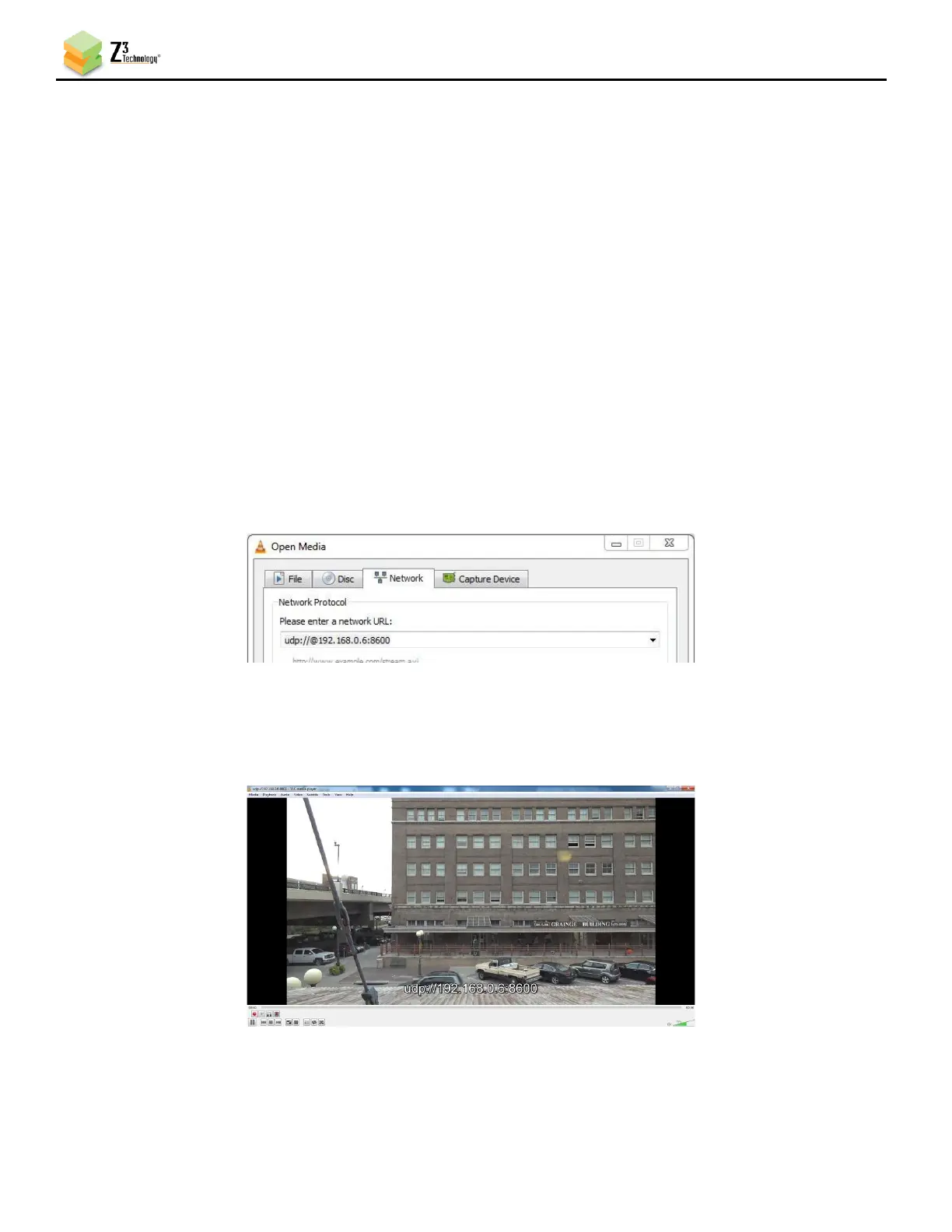
(1) Open the VLC media player on your PC.
(2) Select the Media menu.
(3) Select Open Network Stream.
(4) Under the Network tab, enter “udp://@Dest_Address:Dest_Port” for the network URL.
c. Dest_Address will be values of the IP address or multicast address entered in the Dest
Address field in the user interface CH1 tab. The IP address used in this example is
192.168.0.6.
d. Dest_Port will match the value found in the Dest Port field in the Encoder tab. The default
value is 8600.
e. In this example, the full network URL would be “udp://@192.168.0.6:8600”.
(5) Press Enter or click Play. You will see your camera’s video streaming to VLC.


 To Next Page