ZCube-21 User Guide
DOC-USR-0253-01
______________________________________________________________________________________
Z3 Technology, LLC ♦ 100 N 8
th
ST, STE 250 ♦ Lincoln, NE 68508-1369 USA ♦ +1.402.323.0702
Note: By default a limited selection of video encoding settings are available in the user interface. See Section
7.2, “Advanced Settings Mode”, for more information on accessing additional settings including Video
Rate Control and GOP Size.
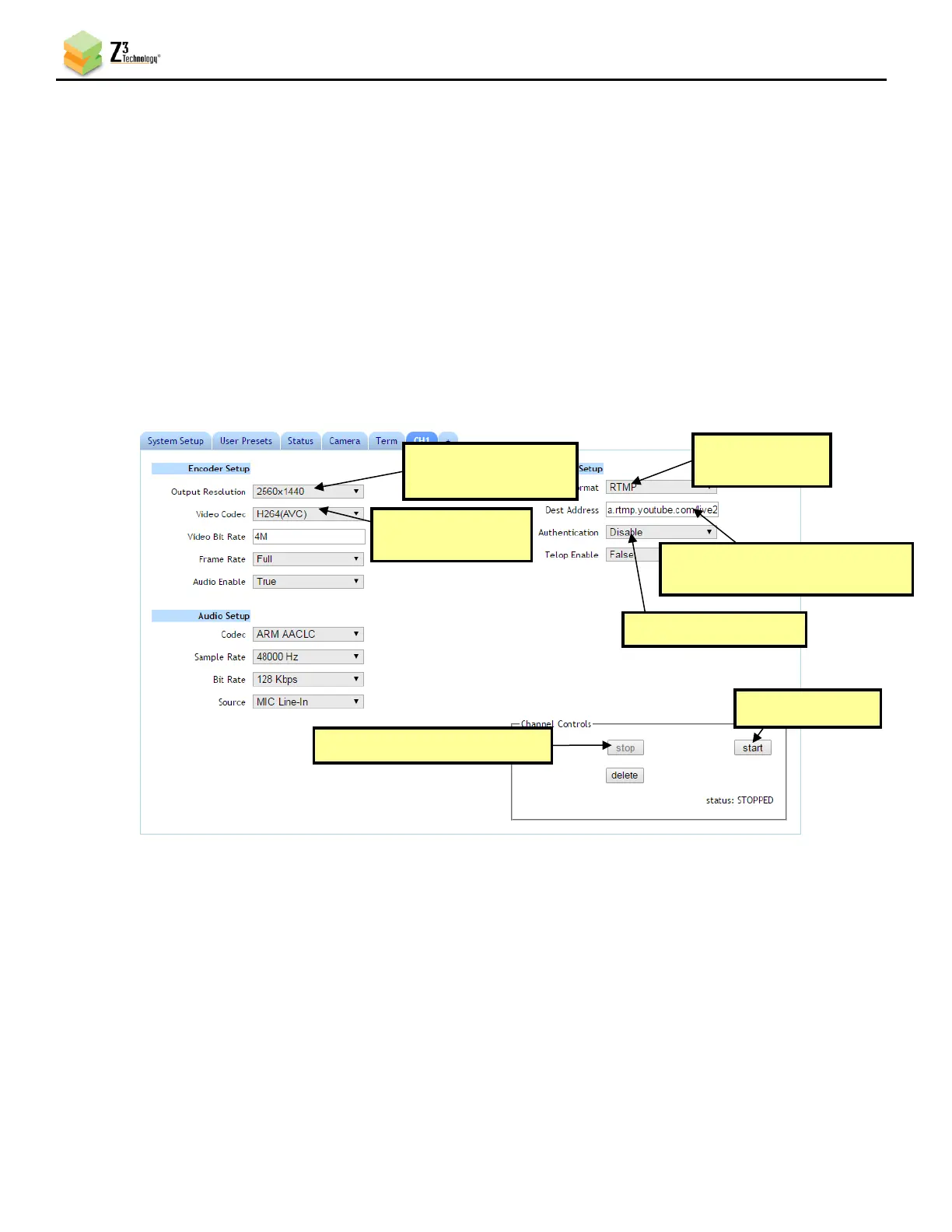
(10) Consult the YouTube live stream setup documentation available in YouTube’s online Live
streaming guide for recommended bit rates for your resolution.
(11) Set Authentication to Disable as this field is not applicable to YouTube.
(12) Click on the Start button. After a moment, the encoder status will change to RUNNING and the
fields above will appear in dark grey. The status LED on the unit will blink green when streaming.
(13) Allow a few seconds for your video to appear in your YouTube live dashboard.
5.4.3 Facebook Live
(1) If you haven’t already, ensure you have an active Facebook account and page if broadcasting for an
organization.
(2) Point your browser to Facebook’s main URL: facebook.com and navigate to the page management
interface for your page, if desired. Select the Live Video link at the top of the Create Post dialog
box near the top of the page.


 To Next Page