ZCube-21 User Guide
DOC-USR-0253-01
______________________________________________________________________________________
Z3 Technology, LLC ♦ 100 N 8
th
ST, STE 250 ♦ Lincoln, NE 68508-1369 USA ♦ +1.402.323.0702
Note: By default a limited selection of video encoding settings are available in the user interface. See Section
7.2, “Advanced Settings Mode”, for more information on accessing additional settings.
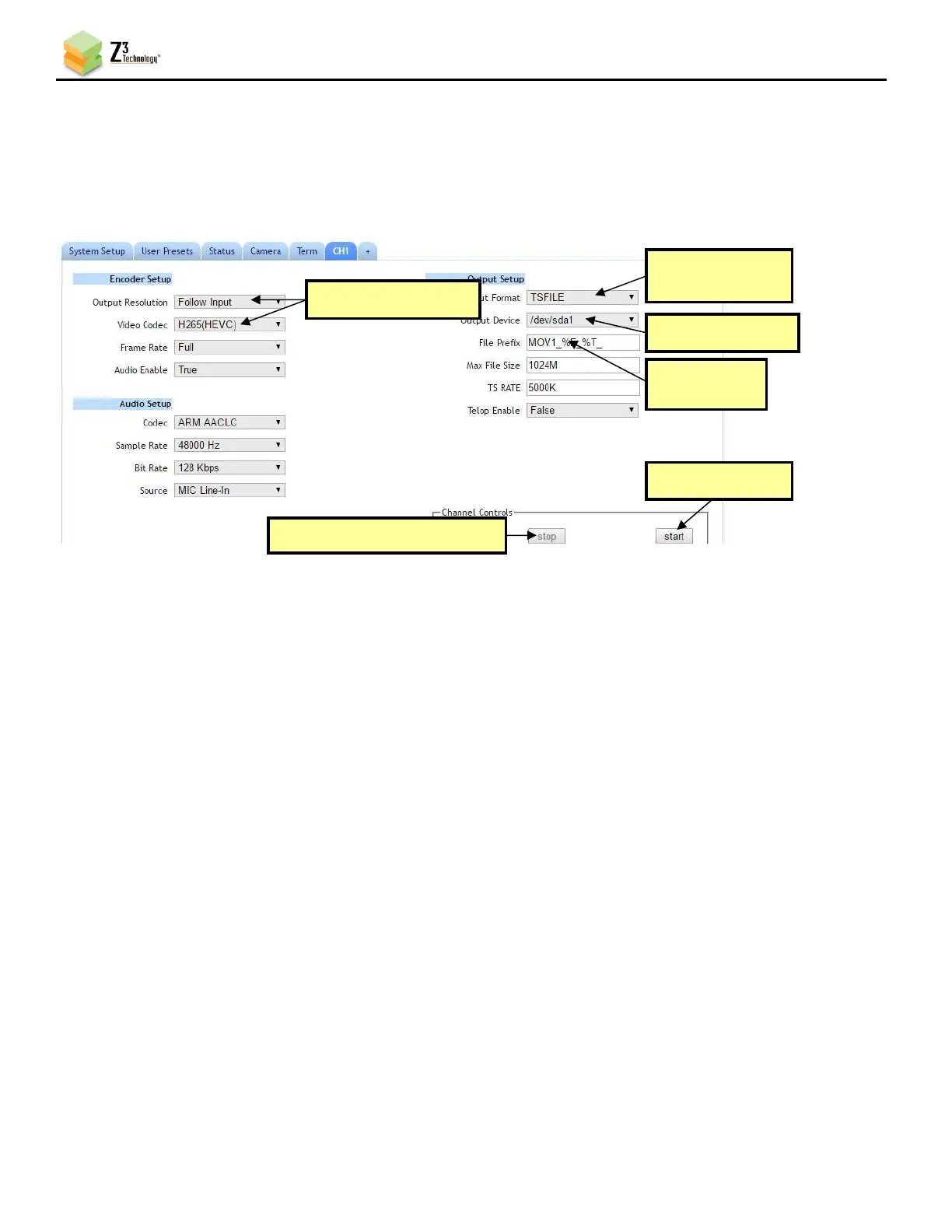
(8) Click on the Start button. After a moment, the encoder status will change to RUNNING and the
fields above will appear in dark grey. The status LED on the unit will blink green when streaming.
(9) When your desired recording length has been reached, click on the Stop button.
Verify the status light has stopped blinking green and wait at least 10 seconds after stopping the
encoding before disconnecting the USB storage device to ensure that all buffered data is completely
transferred.
Note: If less space is available on the USB device than the Max File Size specified in the user interface, the
oldest files will be removed until there is sufficient space or no files remain. This check for available
space is performed when start is clicked and every time a new file is created.
(10) You can verify your recording by connecting the USB device to your PC and opening the newly
created .ts file in VLC media player.
Note: The PC should be at least a quadcore or 8-core PC. If the PC is too slow, frame skips and possibly video
artifacts will be observed upon playback. VLC should be version 2.1.3 or newer.


 To Next Page