ZCube-21 User Guide
DOC-USR-0253-01
______________________________________________________________________________________
Z3 Technology, LLC ♦ 100 N 8
th
ST, STE 250 ♦ Lincoln, NE 68508-1369 USA ♦ +1.402.323.0702
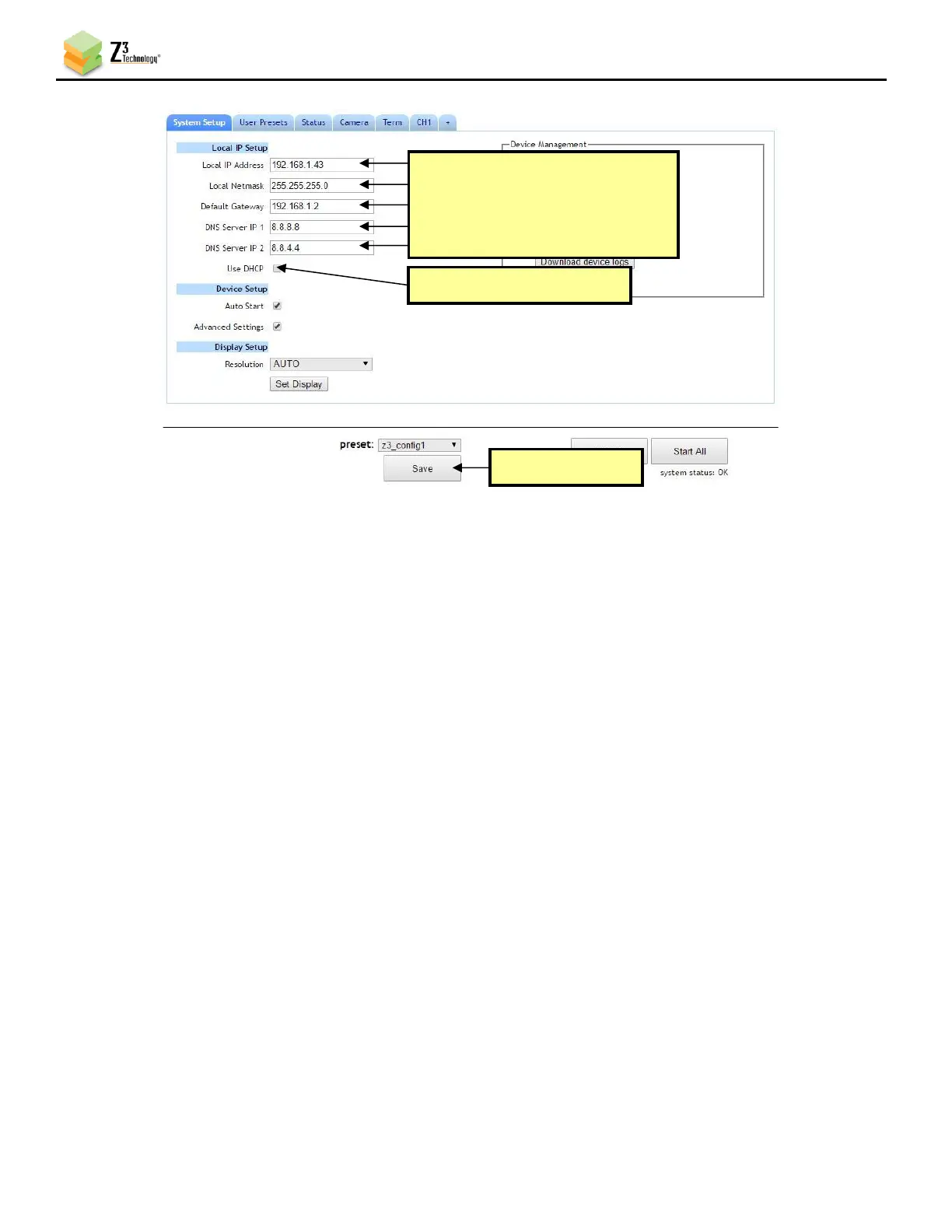
(4) A pop-up window appears with a reminder that changes to network settings require a reboot in
order to take effect. Click OK to reboot the unit. Wait 45-60 seconds for the unit to boot up.
(5) You can return to the use of DHCP by checking Use DHCP in the System Setup tab and saving that to
the preset.
7.4.3 Open the User Interface Using ZFinder
(1) Run the ZFinder PC Utility on your Windows PC. The ZFinder window appears. ZFinder does a scan
of the network and lists the location of all Z3 systems connected to the network. The ZCube-21
appears with your manually entered IP address.
(2) Select the Z3Cam-4K.
(3) Click Open Device to reach the user interface.
7.4.4 Open the User Interface Manually
You can also access the user interface by manually typing your unit’s static IP address into a web
browser on any computer connected to the same network as the unit.


 To Next Page