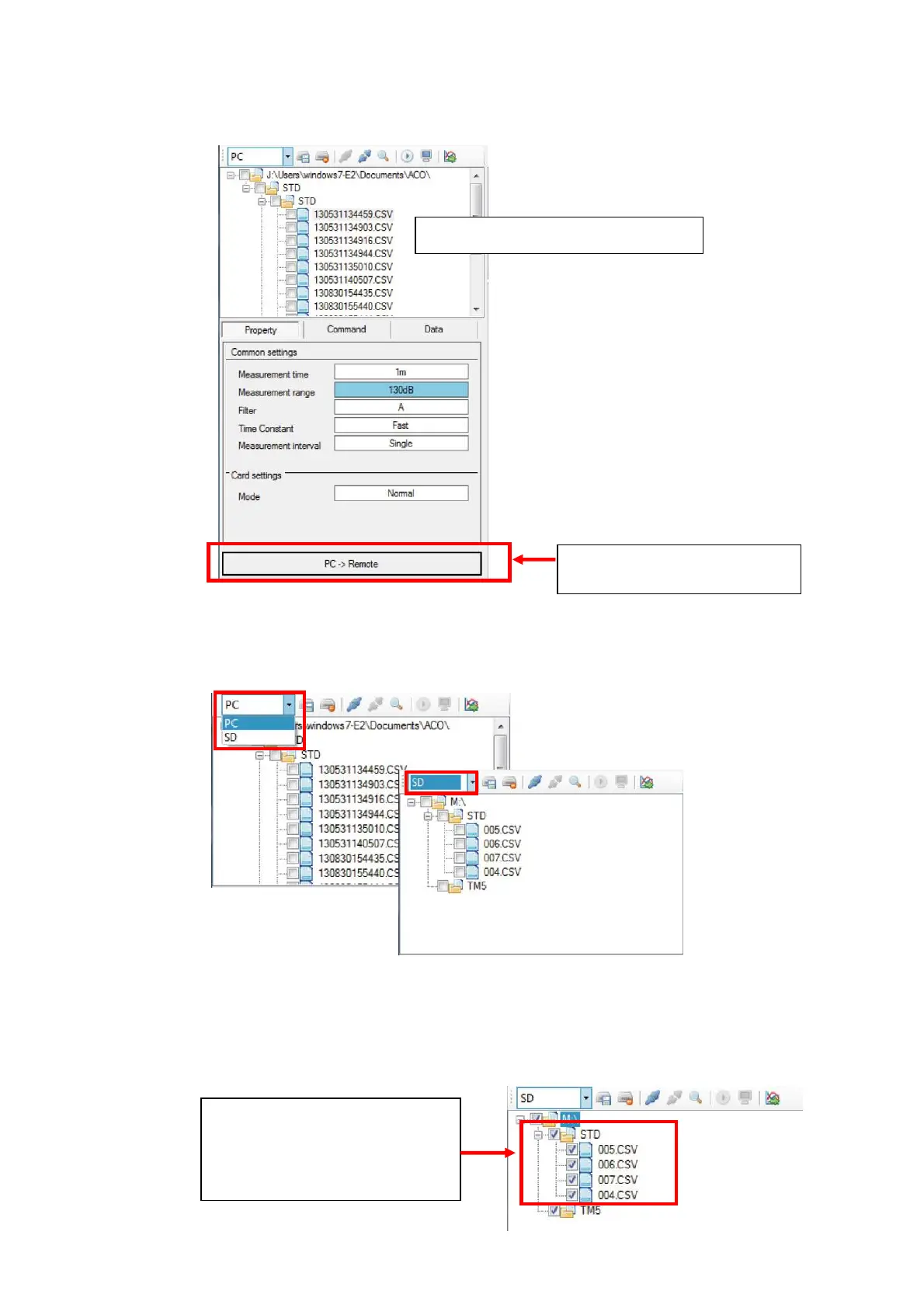
3. Click [File management/remote control] to display file management panel.
The display is file management panel right after the start up of the Data Management
Software.
4. Change tree display on the file management panel to 「SD」.
The tree display is 「PC」 right after the start up of the Data Management Software.
5. Select measurement data file/folder on the file management panel to display desired
measurement data (multiple data can be selected) Selection is made by clicking the check
box of the data in the tree display. Check mark in the box shows selected data. Check
mark for certain folder means that all the data in the folder is selected. To clear the
selection, click check marked box again and the check mark disappears.
File management/remote
Display file management panel
Click the check box for the
folder and all the data in such
folder becomes selected
condition.


 To Next Page