Administrator’s Handbook
18
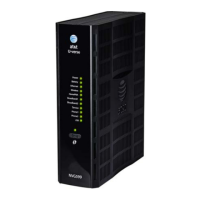
Set up the ARRIS Gateway
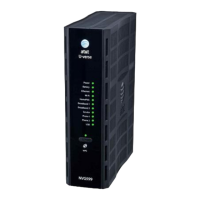
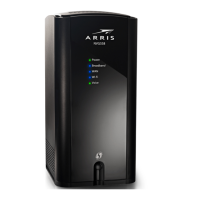
Refer to your Quick Start Guide for instructions on how to connect your NVG599 to your power source, PC, or
local area network, and your Internet access point, whether it is a dedicated DSL outlet or a DSL or cable
modem. Be sure to enable dynamic addressing on your PC. To set up the gateway, complete the following
steps:
Microsoft Windows:
1. Navigate to the TCP/IP Properties control panel to configure the IP address using one of the suggested path-
ways that follow. Note that Windows Vista and Windows 7 obtain an IP address automatically by default.
You may not need to configure it at all.
Windows 7 follows a path like this: Start menu -> Control Panel -> Network and Sharing Center -> Change
adapter settings -> Local Area Connection -> Change settings of this connection -> Local Area Connection
Properties -> Internet Protocol (TCP/IP) -> Properties
Windows XP follows a path like this: Start menu -> Settings -> Control Panel -> Network Connections -> Local
Area Connection -> Internet Protocol [TCP/IP] -> Properties
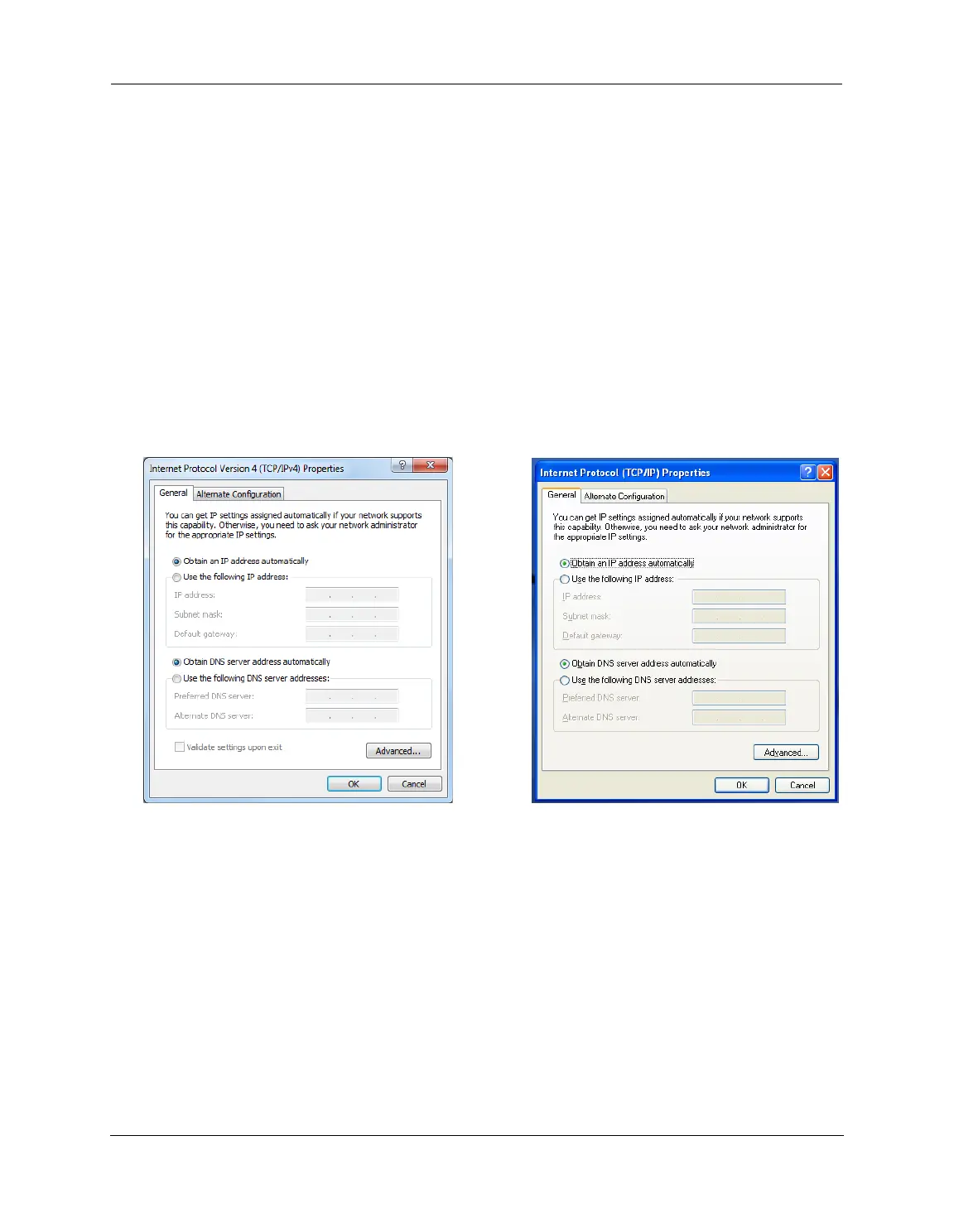
2. Select Obtain an IP address automatically.
3. Select Obtain DNS server address automatically, if available.
4. Remove any previously configured gateways, if available.
5. OK the settings. Restart if prompted.
To check:
1. Open the Networking control panel and select Internet Protocol Version 4 (TCP/IPv4).
2. Click the Properties button. The Internet Protocol Version 4 (TCP/IPv4) Properties window should appear as
shown.



 To Next Page