83
Link: Update
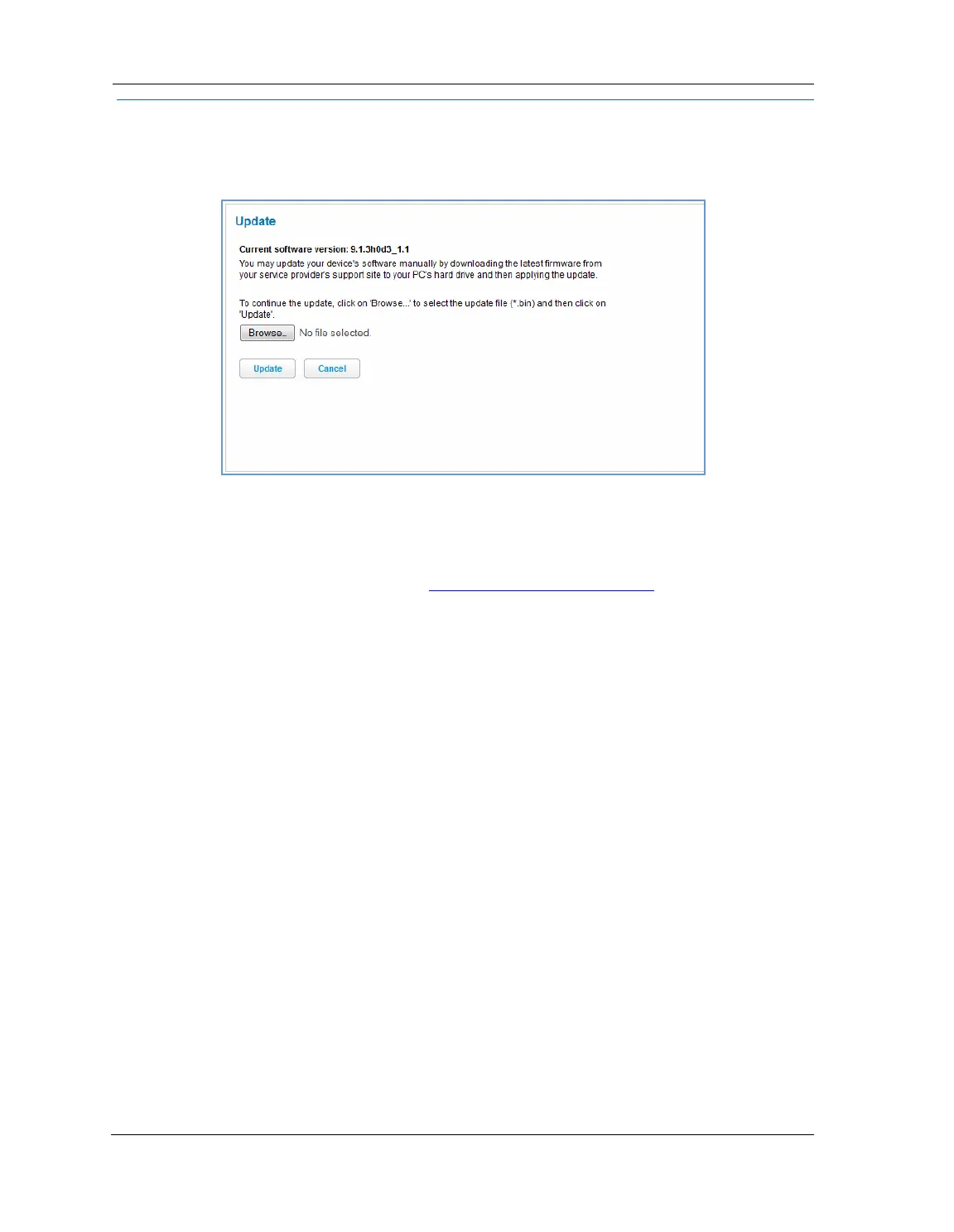
When you click Update, the Update page appears.
Operating system software is what makes your NVG599 device run, and occasionally it needs to be updated.
Your Current software version is displayed at the top of the page.
To update your software from a file on your PC, you must first download the software from your service
provider's support site to your PC's hard drive.
1.
Browse your computer for the operating system file you downloaded and select the file.
2. Click the
Update button.
The LEDs will operate normally as described in “
Status Indicator Lights” on page 88.
3. The installation may take a few minutes and the Web page will indicate a 3-part countdown before returning
you to the Home page; wait for it to complete. During the software installation, you will lose Internet and
phone service. The LEDs will function as follows:
•
The Power LED will flash Orange/Amber during firmware upgrade (flash writing to memory) and all
other LEDs will be off.
4. The Gateway will restart automatically.
As the device reboots, the LEDs display power-on behavior.
5. Your new operating system will then be running.



 To Next Page