31
Link: Remote Access
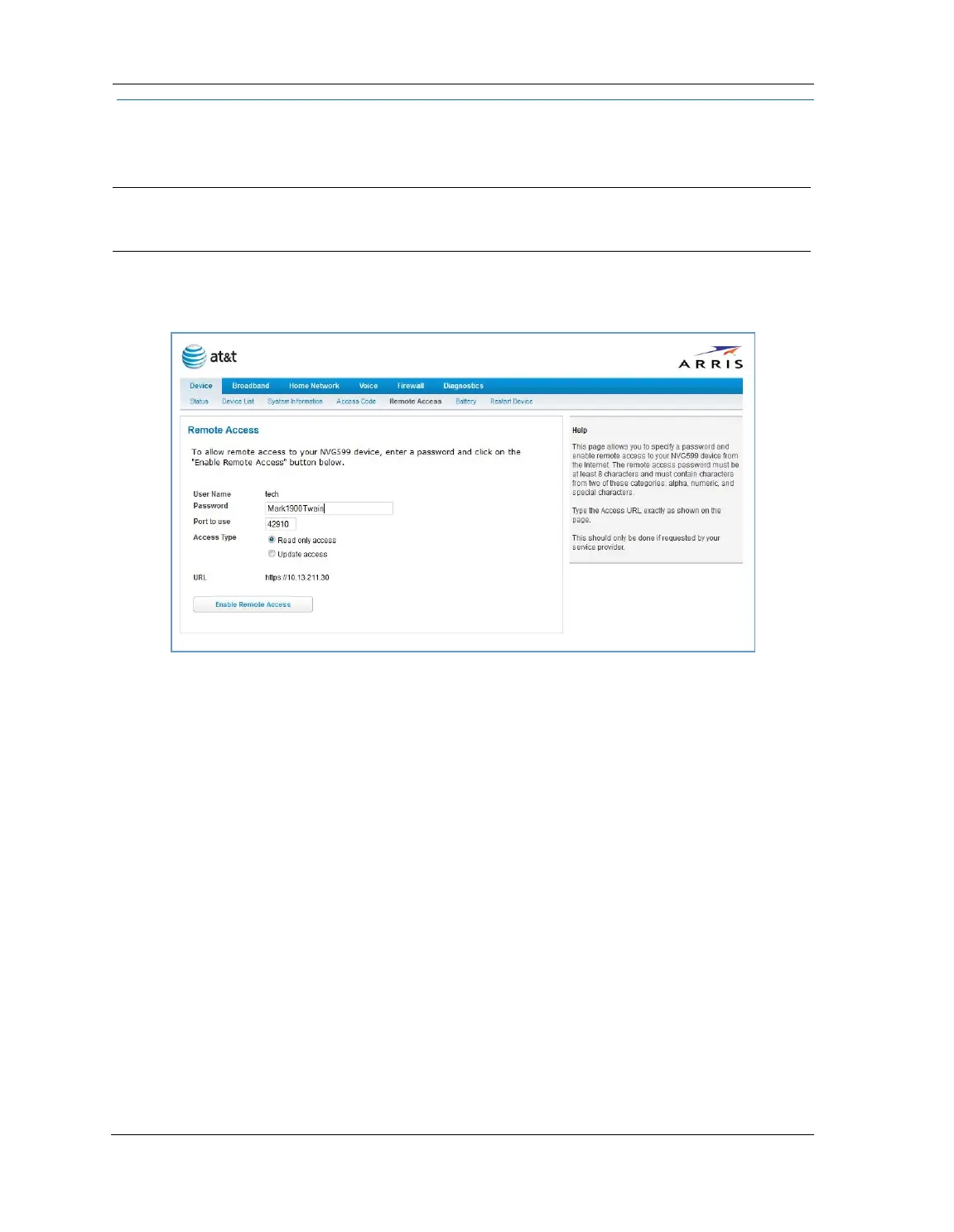
The Remote Access page lets you grant access to your NVG599 device to other users on the WAN. This
function can be used for advanced troubleshooting or remote configuration.
If remote access is not currently enabled, the Remote Access page will let you configure and enable it. If
remote access has been enabled, the Remote Access page will indicate that, and provides a button to disable
it.
To enable remote access:
1. Type a password in the Password field. This password must be at least 8 characters long, and must include at
least two of the following types of characters:
Alphabetic (letter) characters
Numeric (number) characters
Special characters (! @ # $ % ^ & * , etc)
2. If necessary, set a custom port number for secure HTTP access to the NVG599 remote access session in the
Port Value field.
3. Click the radio button that describes the type of remote access to allow:
Read only access - to allow the remote access session to view, but not change, the configuration and col-
lected statistics of the gateway.
Update access - to allow the session to make changes to the gateway’s configuration.
4. Click the
Enable Remote Access button.
The NVG599 updates the Remote Access page and displays the current remote access settings, shows the URL
that a remote access client must use to connect to the remote access session, and provides a button for ending
the remote access session. The remote access client will need to connect to the URL shown on the Remote
Access page, and will need to log in with the user name “tech” and with the password configured when access
was enabled.
WARNING:
Enabling remote access allows anyone who knows or can determine the password, port ID, and URL
(address) of your NVG599 device to view any configuration settings or change the operation of your gateway.



 To Next Page