Artec Leo
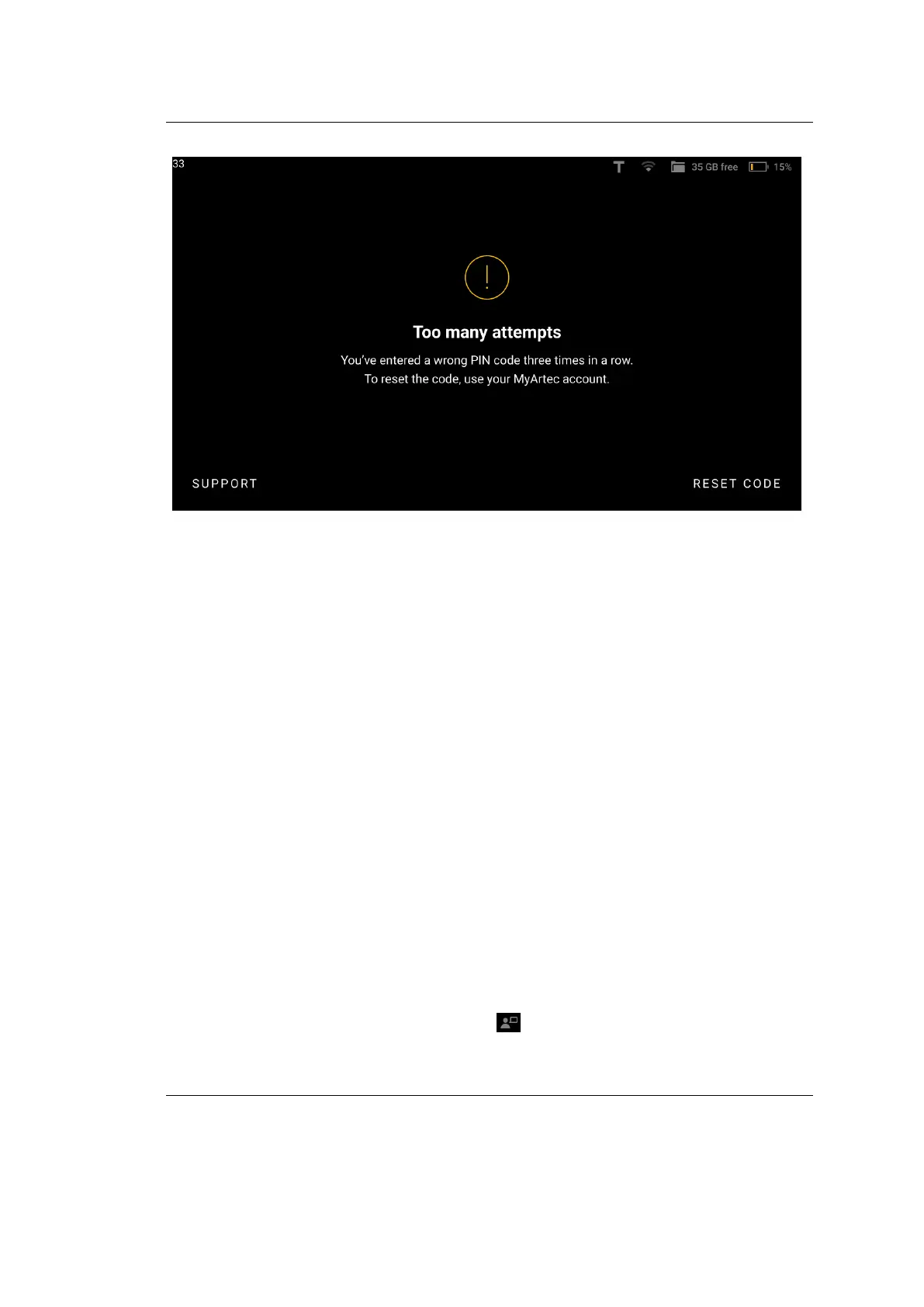
Figure 54: Reset your PIN Code.
3. Now, on the Leo error message screen, tap on :Reset code. A reset code will
be generated and displayed on your Leo screen.
4. Enter the reset code generated from Leo on your computer and click on Get
response code. A response code will be generated and displayed on your
computer screen.
5. Now, enter this response code on your Leo device.
6. Click on Proceed.
7. Reset your PIN Code and conrm it.
8.3 Enable Support Access
Some cases may require for the support team to have an access to your Leo. To
enable this access, use the procedure below:
1. In the Project screen, tap Settings.
2. Select the Support section.
3. Tap Allow remote access. The icon will appear in the status bar.
106 Chapter 8. Get Support


 To Next Page