Artec Leo
7. Tap Settings
8. Then select Scanner → General → System.
9. Tap Renew in the Scanner conguration eld.
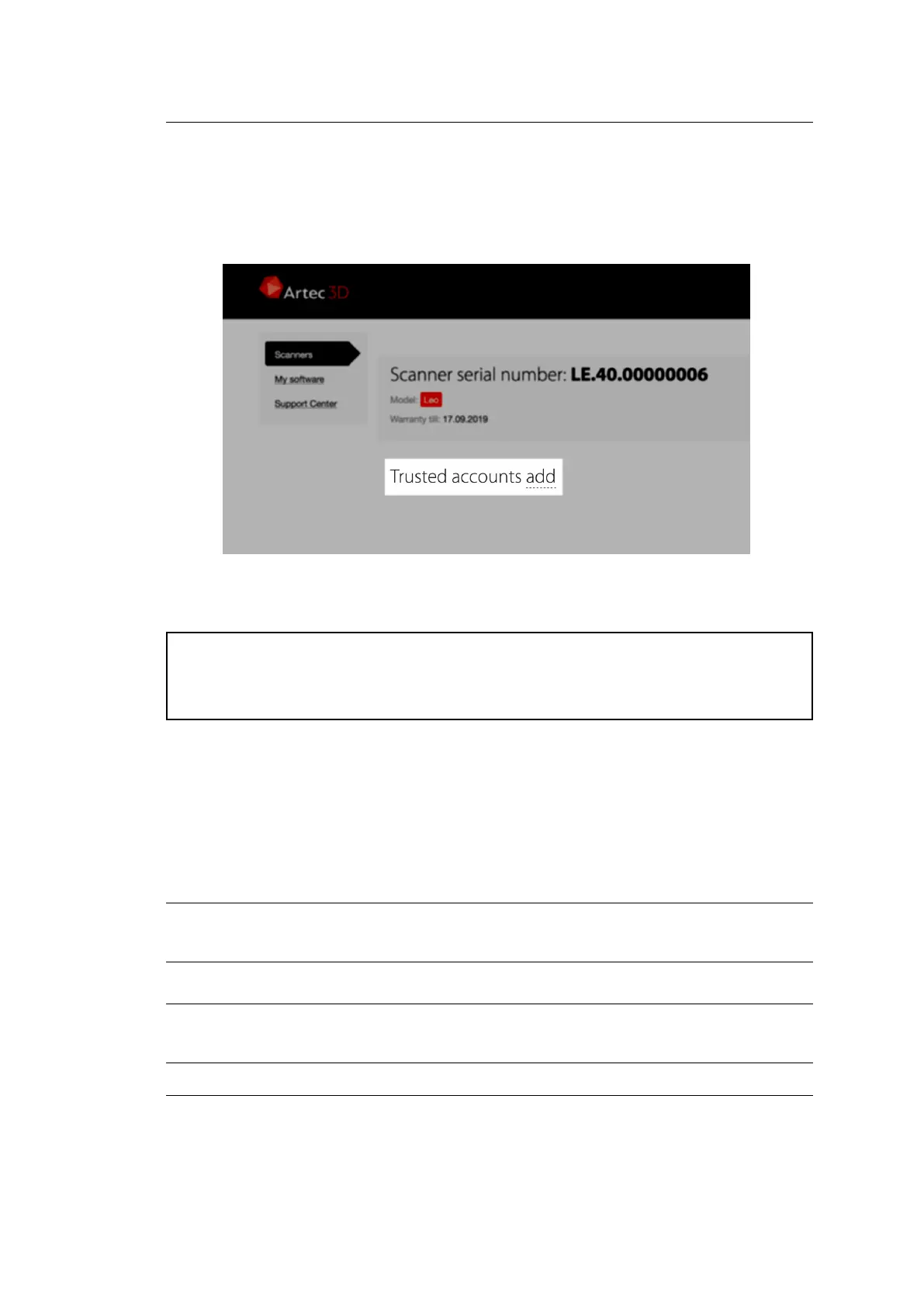
Figure 18: Trusted accounts for Leo.
Attention: If you plan to share a project with someone from the Trusted
accounts list by copying a project to a microSD card, rst ensure that you have
renewed the scanner conguration.
3.10 Open Project in Artec Studio
Leo produces raw scans that you can process in Artec Studio no older than version
13. It is possible to import projects from Artec Leo either over a network (Direct
Import in Artec Studio) or using a microSD card.
Important: The account you use in Artec Installation Center must be either
the same as on Leo scanner or one of the Trusted accounts list at my.artec3d.
Important: If you scanned with the Remove base enabled, ensure that the
Launch base removal for Leo scans checkbox is selected in Artec Studio settings.
38 Chapter 3. Projects and Scans


 To Next Page