Artec Leo
6. Scan the object from all possible sides.
7. Tap or press the start/stop button
file:///C:/Users/admin/ld/_build/latex/red_but.svg
.
8. Rotate or turn the object upside down to scan the missing regions (go to
step 3).
9. Tap in the upper-left corner if you are done with the scan.
Once you have recorded a scan, it is added to the project (see Project Structure).
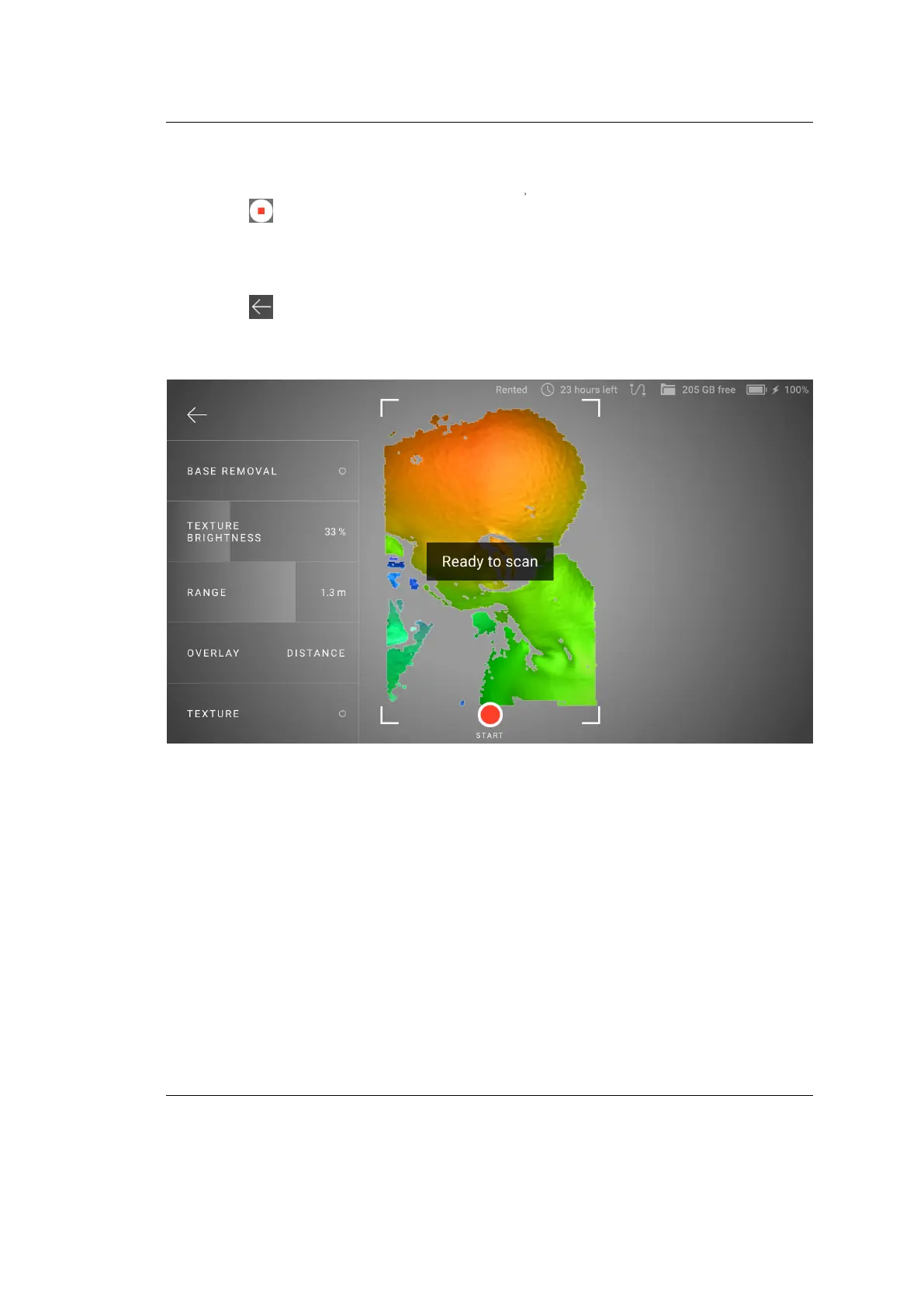
Figure 3: Scan screen.
2.2.1 Losing and Resuming Tracking
As you move the scanner, it captures a series of frames. Leo uses features in
overlapping areas of these frames to automatically align them. This process is
called tracking. If Leo becomes unable to continue building an object surface, it
enters the tracking lost mode. It may happen, if:
• You move the scanner very fast.
• Scanner’s eld of view contains insucient surface area.
Leo in the lost tracking mode displays message: Point at scanned area.
16 Chapter 2. Scan


 To Next Page