Artec Leo
See also:
Scanning Range.
2.4 Target-Assisted Scanning
To perform scanning with targets, a target le with information about the targets
to use must rst be uploaded into Leo and selected as the default one (see Enable
Target-Assisted Scanning for details).
Then follow these steps:
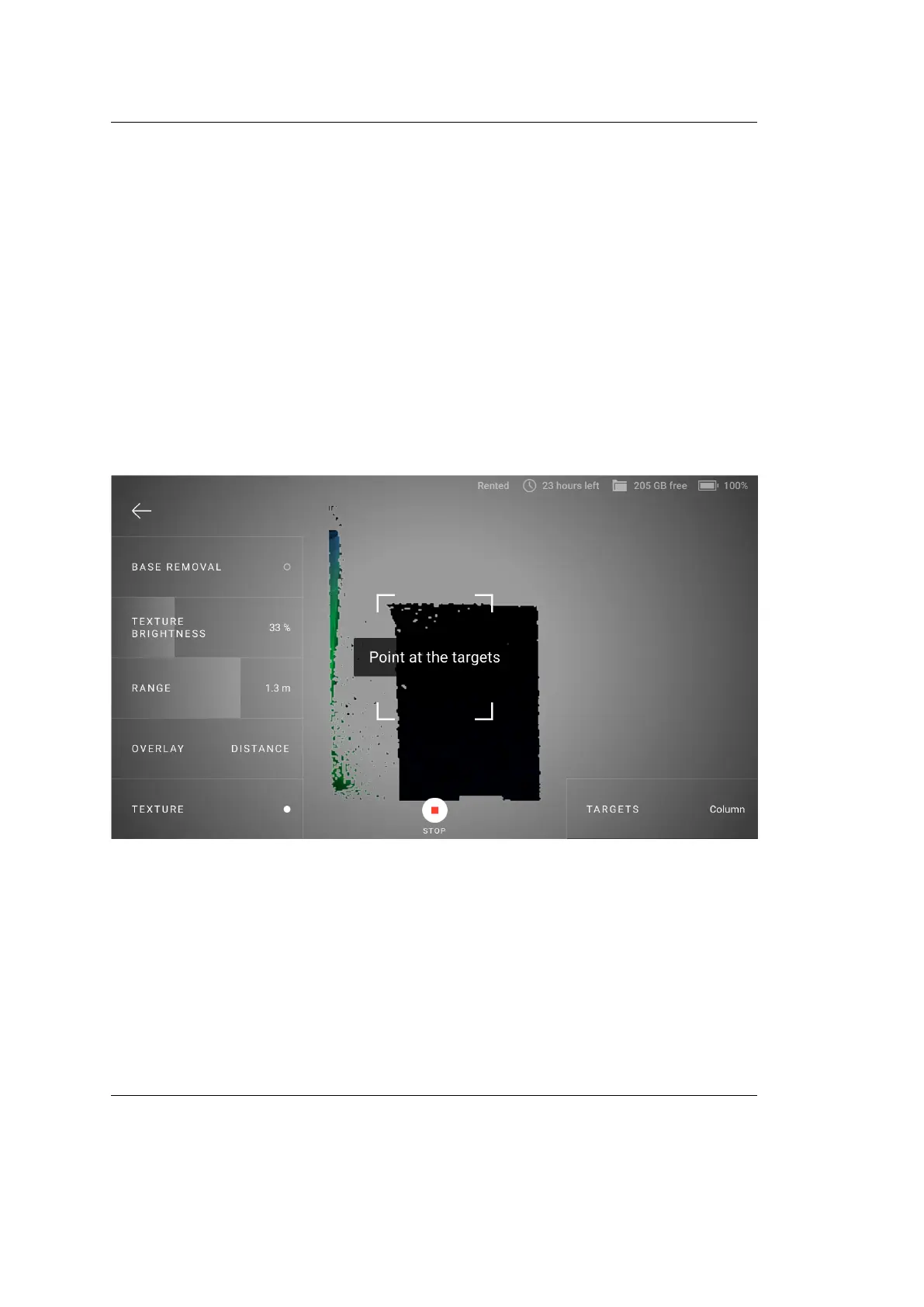
1. Until Leo does not see the targets from the selected target le in its eld of
view, its screen will be like the one presented in Figure ??.
Figure 10: Target-assisted scanning mode is set but Leo does not see targets in its
eld of view.
Point the scanner at the object with the targets. When Leo rec-
ognizes the targets, you will see them on the preview screen.
2. Before you start scanning, you can select another target le. To do this, tap
Targets at the lower-right corner and then select the desired target le from
the list. Select None to not use targets when scanning.
2.4. Target-Assisted Scanning 27



 To Next Page