Artec Leo
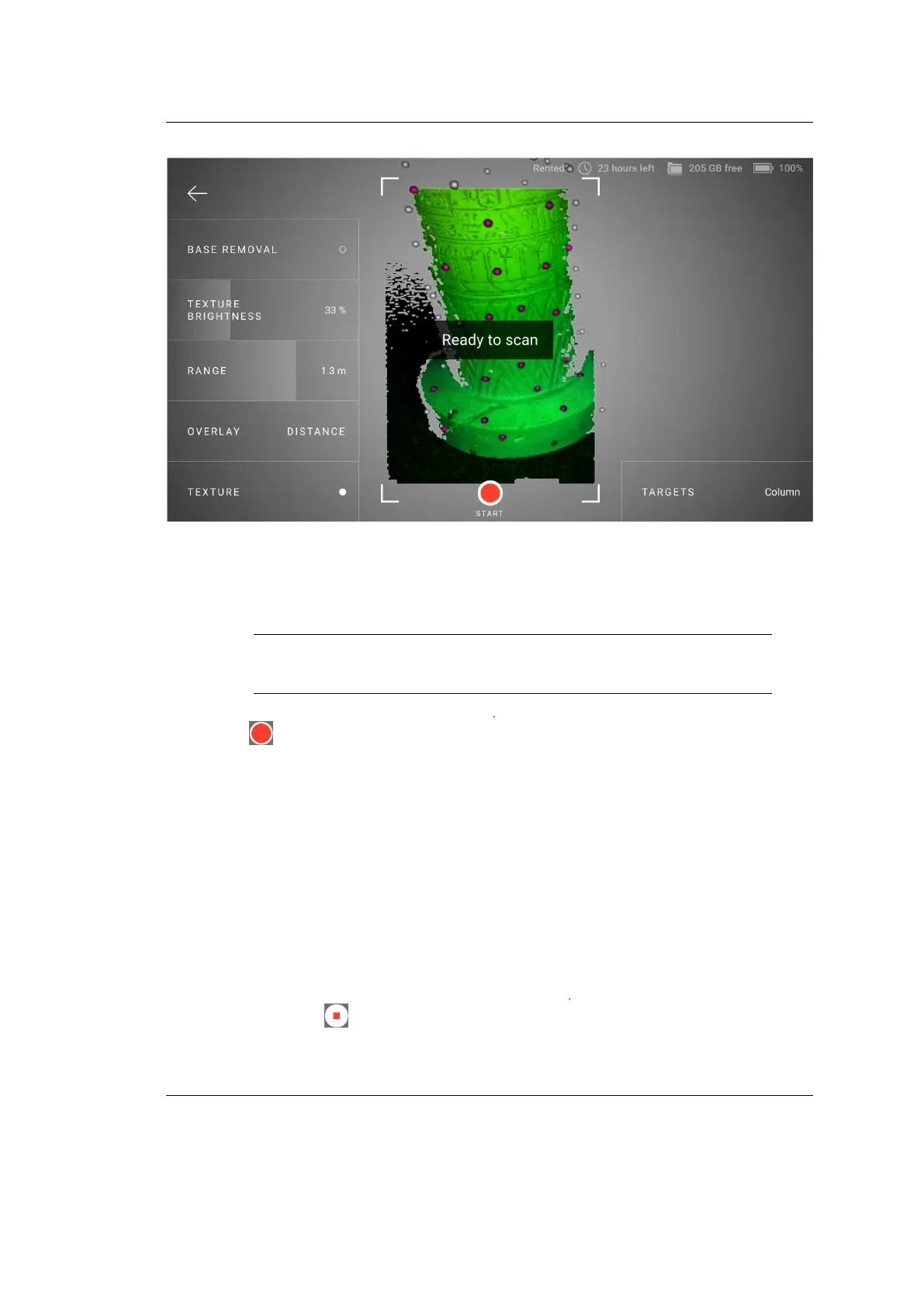
Figure 11: Leo has recognized the targets and is ready to scan.
Note: Once the scanning has started, you will no longer be able
to change the target le: the Targets button will be locked.
3. Tap or press start/stop button
file:///C:/Users/admin/ld/_build/latex/red_but.svg
and start scanning.
During the scanning process, the target marks should be visible on
the screen, as they were on the preview screen (Figure ??). If Leo
does not see the targets in its eld of view, then the tracking will
be lost, the recording will be interrupted and the warning Point
at the scanned area will be displayed.
4. If the tracking is lost, you can do one of the following:
• Point the scanner at the targets again. When Leo recognizes
the targets, its screen will be like the one presented in the
gure below and you can continue scanning.
• Tap or press start/stop button
file:///C:/Users/admin/ld/_build/latex/red_but.svg
to stop scanning.
28 Chapter 2. Scan



 To Next Page