Artec Leo
3.10.1 Direct Import in Artec Studio
To successfully import a project from Leo,
1. Ensure that your computer and Leo are connected to the same network.
2. Ensure that Leo doesn’t displays any 3D data.
• If the device is scanning, cease the session.
• If any project is open, close it.
3. Open Artec Studio.
4. Select File → Import → Leo project (connect to scanner).
5. Choose the scanner from the list and click Connect.
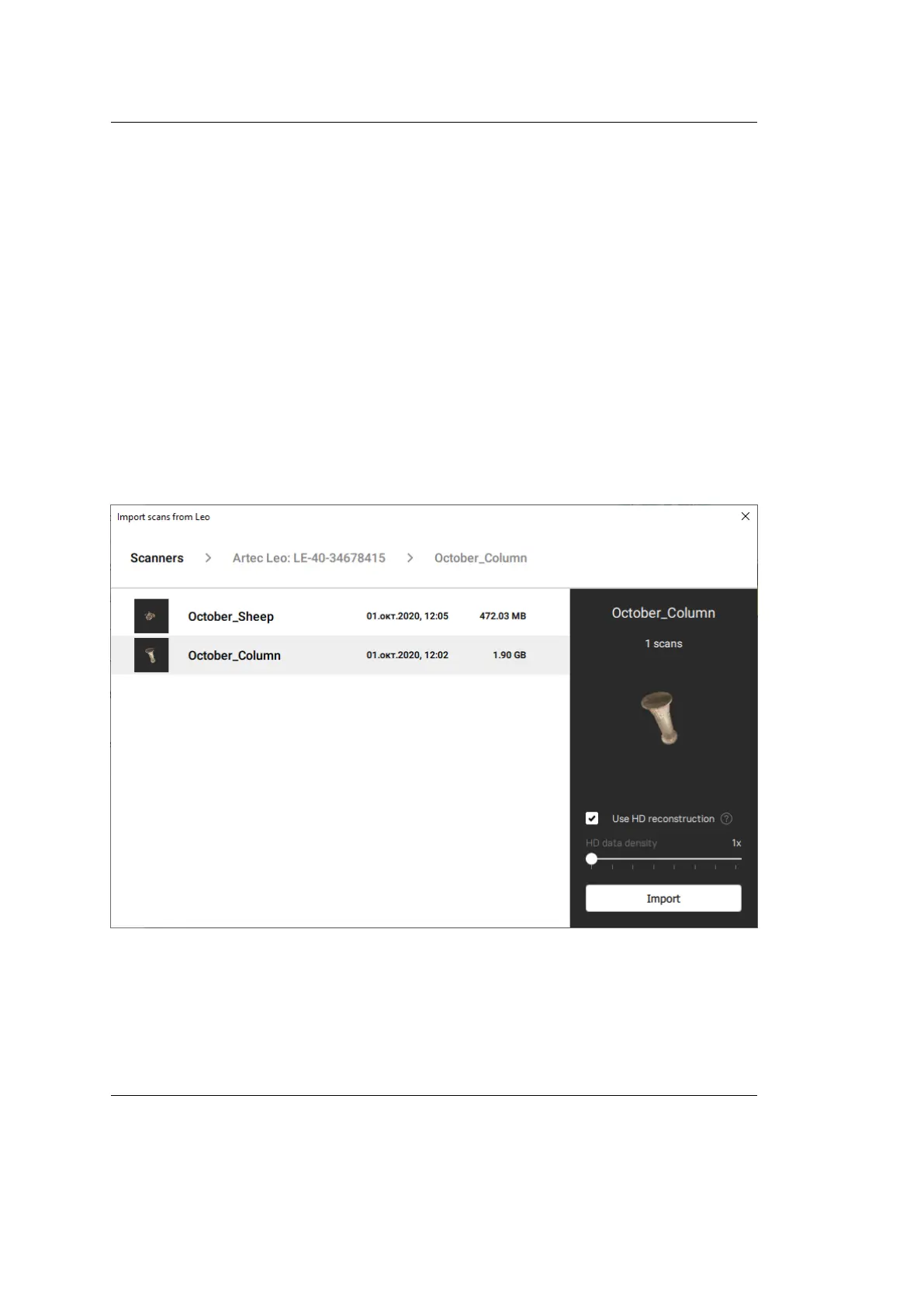
6. Select the required project from the project list and click Import.
Figure 19: Importing project to Artec Studio.
Once the application imports les, scans will appear in the Workspace panel. The
imported project and scans will be automatically grouped — the group with the
3.10. Open Project in Artec Studio 39


 To Next Page