Artec Leo
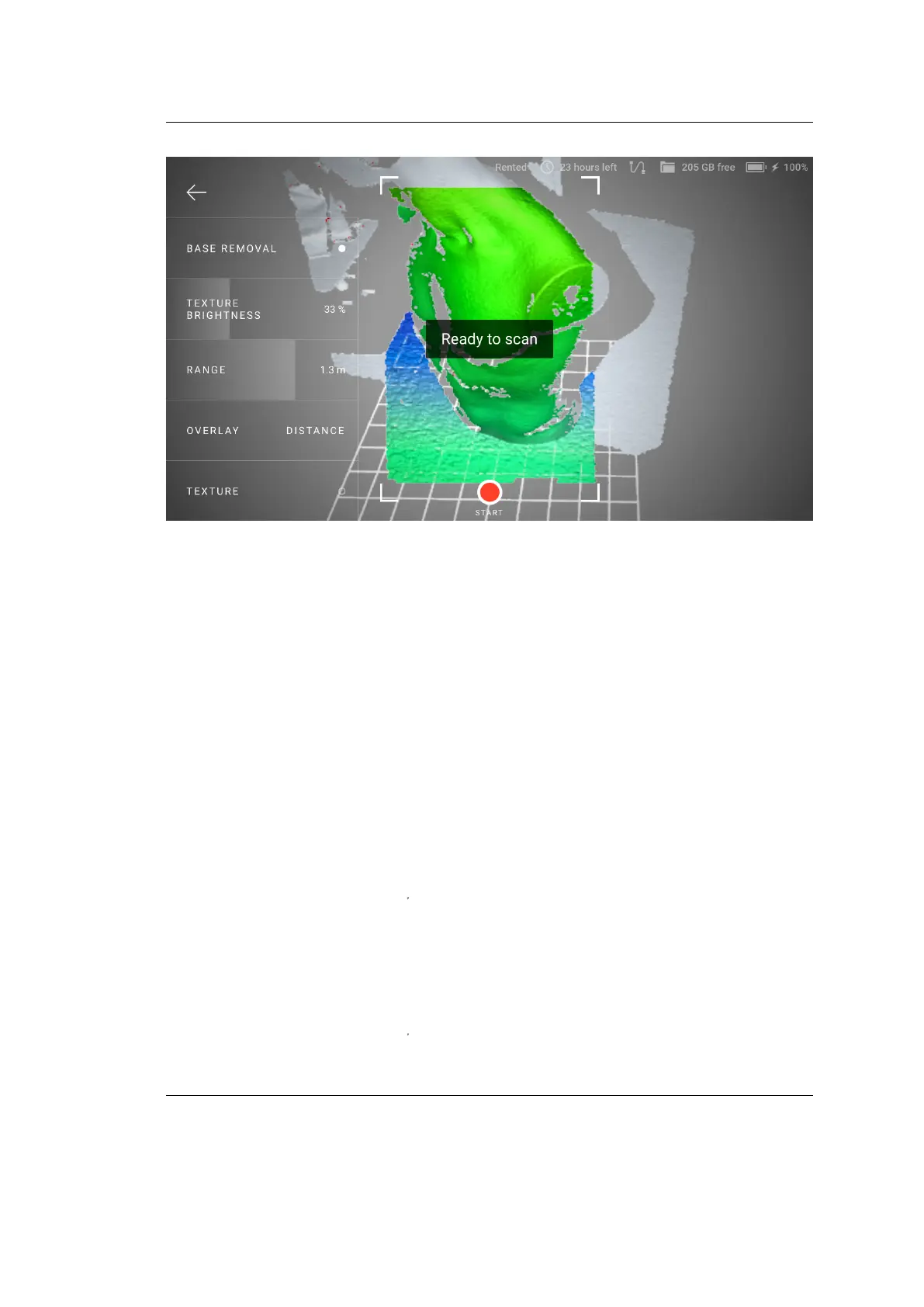
Figure 7: Detected base.
Before you import project, ensure that the Launch base removal for Leo scans
checkbox is selected in Artec Studio settings.
2.3.4 Exclude Background
This feature enables you to remove any unwanted background in the entire 3D
space surrounding the object during scanning. Naturally, the surroundings also
includes the base, and therefore this feature removes the base as well. Note that,
the Base Removal option disappears from Leo screen when this feature is enabled.
To exclude background in your scans:
1. Turn on the Exclude background for new scans in Settings.
2. Press start/stop button
file:///C:/Users/admin/ld/_build/latex/red_but.svg
to start Preview mode.
3. Ensure that Exclude Background is turned on.
4. Direct the scanner at the object you intend to scan. The red areas on the
window are excluded as unwanted background.
5. Press start/stop button
file:///C:/Users/admin/ld/_build/latex/red_but.svg
to start scanning.
22 Chapter 2. Scan


 To Next Page