Artec Leo
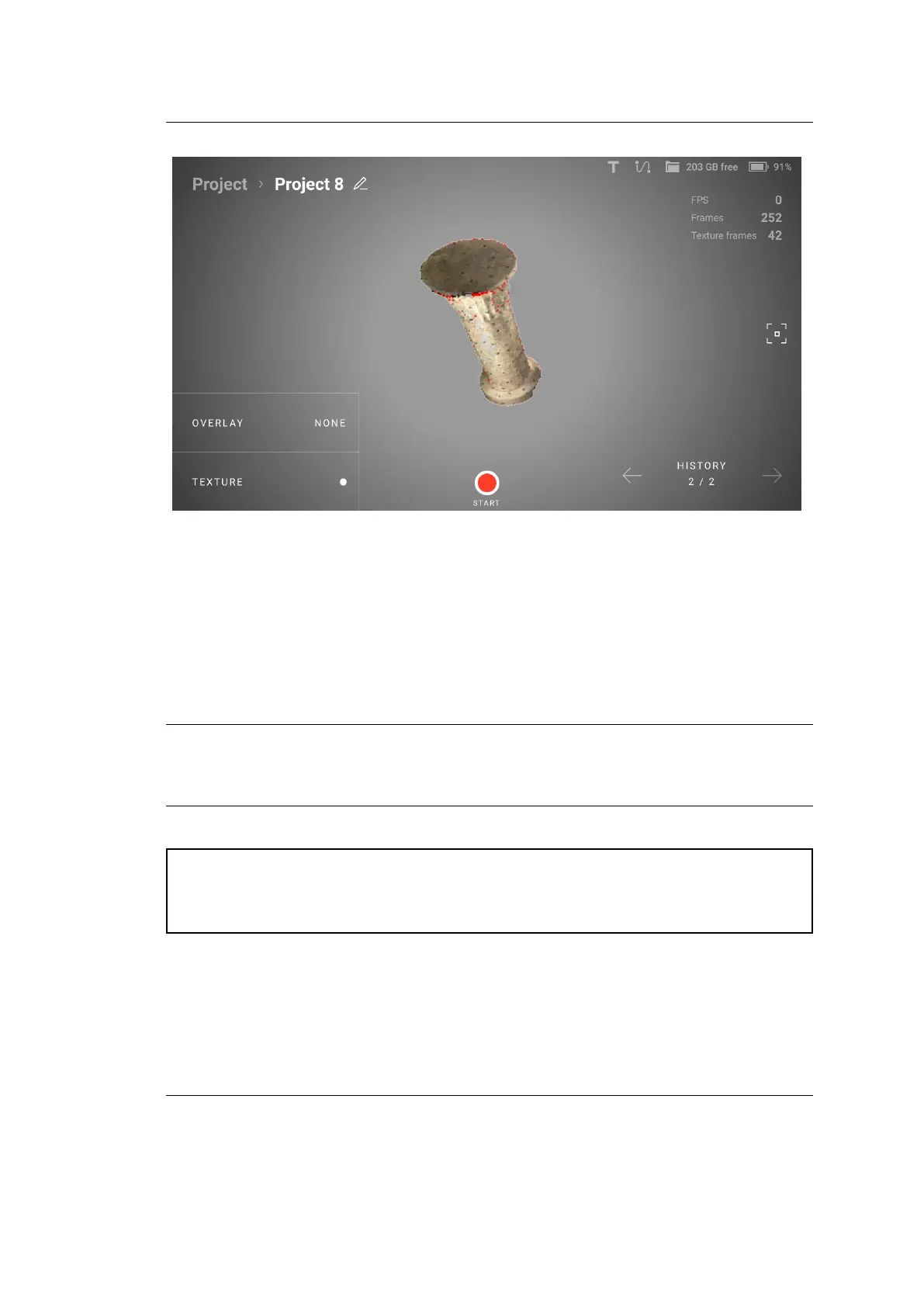
Figure 16: Viewing a project.
2. Tap the Select button.
3. Select the items that you want to upload.
4. Tap Upload to Cloud. Artec Leo will automatically upload the items to your
Artec Cloud account.
Note: Please ensure that your Cloud account has enough storage space before
uploading large projects. Also, make sure Leo is connected to the internet until
the upload is completed.
Attention: The ‘Upload to Cloud’ functionality is available to Artec Cloud
users with a Trial, Collaboration, or Processing license only. Check the Artec
3D website for more information about Artec Cloud licenses.
34 Chapter 3. Projects and Scans



 To Next Page