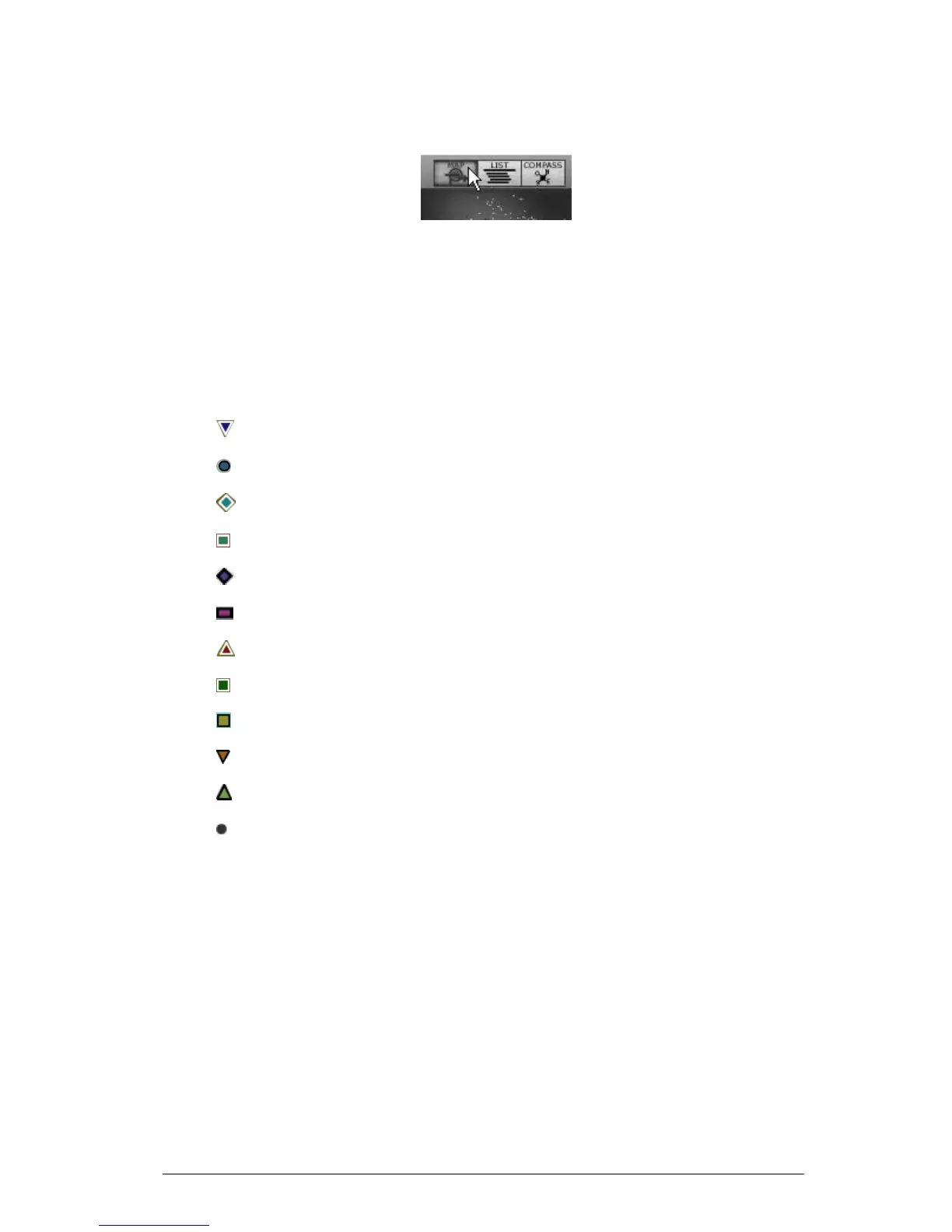
Open the Morphing interface
To return back on the main sound map interface, click on the “MAP” button
Return back on the map interface
4.2.2 The sound map interfaces
4.2.2.1 The sound map main interface
The sound map interface shows a map where are shared out all the presets of the Mini V
organized for their types of sound and their own audio characteristics.
The types of presets are represented by different geometrical characters and colours for
an easy way to locate them:
The “Bass” sounds
The “Brass” sounds
The “EFX” sounds
The “FM” sounds
The “Guitar” sounds
The “Keyboard” sounds
The “Lead” sounds
The “Pad” sounds
The “Percussive” sounds
The “Sequence” sounds
The “Strings” sounds
The “Others” sounds
To select and to listen a preset, directly click on one of the icons, anywhere you
want on the map area. The icon is now highlighted in red. If you hold a few
seconds on the selected preset, a popup appears and indicates the name of the
preset.




 To Next Page