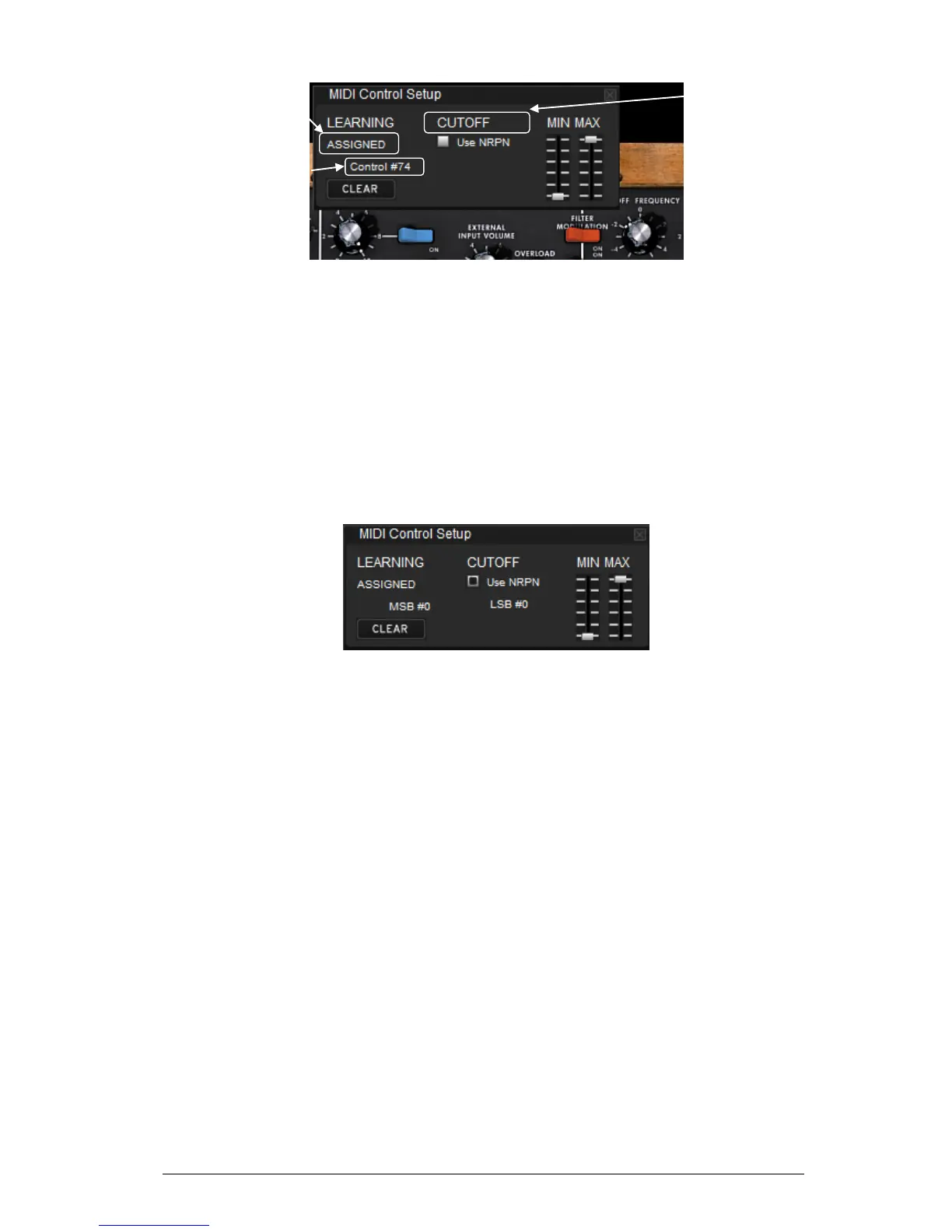
MIDI assignment popup
Learn assignment
First and most easy going way to assign a control is to move it to be recognized by Mini
V.
Hand assignment
It is also possible to change the assigned MIDI control number by clicking on Control#xx
and select another value.
Support for NRPN
In addition to MIDI Control Change messages, NRPNs are now supported: either send
NRPN MIDI control messages to Mini V, or check NRPN, then select LSB# and MSB#
numbers:
MIDI assignment popup, NRPN activated
Remove assignment
Assignment can be removed by clicking “Clear” button. The message “Not assigned” will
then be displayed.
All these operations deal with a single plug-in parameter. In order to setup a complete
configuration, a set of parameters should be configured.
4.3.5.3 Manage configurations
New in Mini V: the possibility to maintain multiple configurations.
Default configuration
By default, Mini V loads configuration for Arturia Analog Experience keyboards.
Select one configuration
A configuration is loaded by clicking the entry in “Learn menu”.
Create a new configuration
A new configuration can be created by performing assignment operations described in
the previous section. This configuration has then to be saved by clicking on “Learn
menu”, “Save As” entry. A popup opens, enter the name of your configuration. A new
entry for your configuration now exists in the list of available configurations.
Remove a configuration




 To Next Page