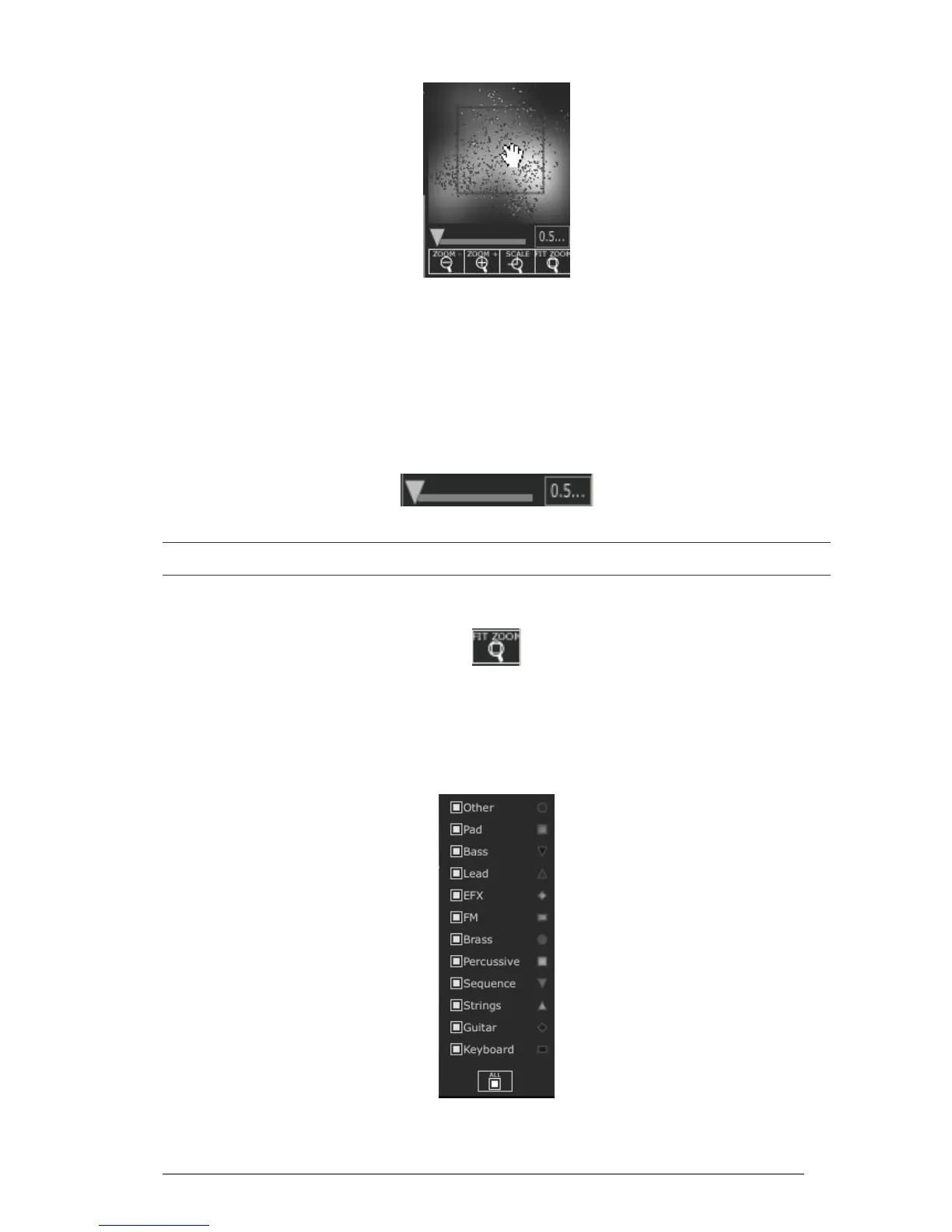
The map overview interface
To navigate into the map, click inside of the red square and drag it on the map
area to view other sections of the Sound map.
To zoom in the view on the sound map, click on the “Zoom” slider, under the
overview window, and drag it on the right to increase the size of the map.
To zoom out the view on the sound map, click on the “Zoom” slider, and drag it
on the left to decrease the size of the map.
The zoom slider
You can also use the “Zoom +” or “Zoom -” buttons, under the slider, to increase or decrease the map size step
by step (by factor 1).
Click on the “FIT zoom” button allows resizing the map to its global size.
The FIT ZOOM button
4.2.2.3 The instrument type filter window
On the right of the map main interface, an instrument type filter window allows you to
choose which type of preset you want to see (or to hide) on the map. By default, all
types of presets are selected.
The instrument type filter




 To Next Page