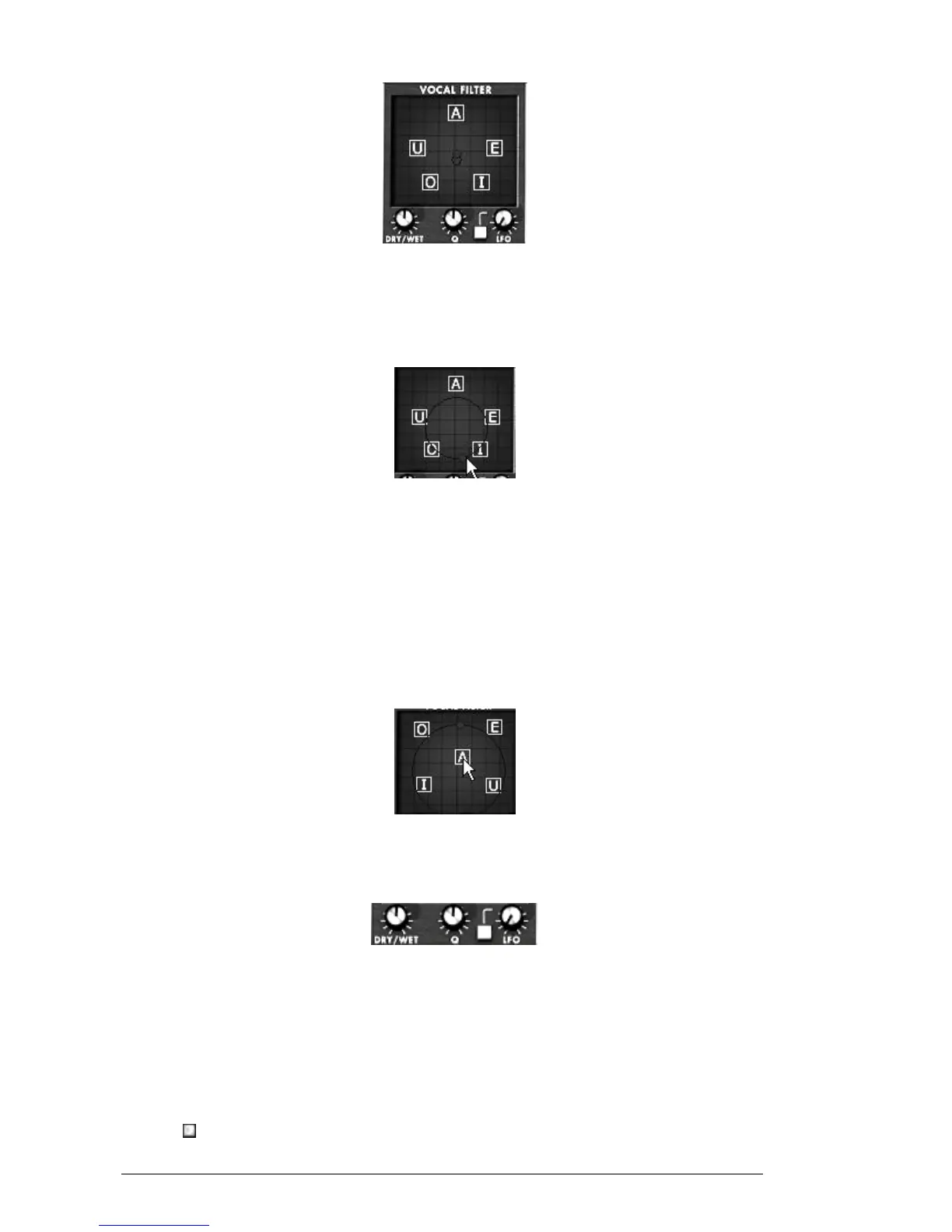
The main interface of the Vocal Filter
The Vocal Filter frequency can be set in real time:
Manually by moving the red ball cursor between five vowels or moving the vowels
letters by dragging them on the screen surface of the Vocal filter.
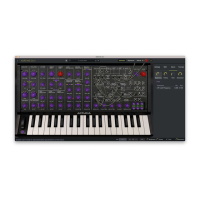
Manually moving the red ball cursor
An LFO is also available to make an automation of the cursor movements.
You can set the radius amplitude of the LFO by clicking on the red ball cursor and
moving it out of its central initial place. This action will set the width of the circle
of the ball movements.
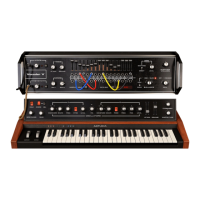
It’s also possible to re-arrange the order of the five vowels on the screen space.
To do this, simply click on one of the 5 letters and drag it on the place you wish
on the screen. Those changes will introduce some interesting variations when you
will modulate your five filters manually or with the LFO.
Re-arrange the order of the vowels
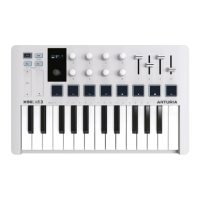
On the bottom of the main screen, three potentiometers and a button allow setting
additional parameters as follow.
The Vocal Filter parameters
From left to right:
Gain ...................... Sets the balance between the dry signal coming from the
Mini V (or from an external audio source) and the vocal filter
signal.
Q ........................... Sets the band width of the 5 band pass filters of the Vocal
Filter. At the right top, it result a very thin audio signal close
to a whistle sound.
LFO ....................... Sets the rate of the Vocal Filter LFO
“ ” button .............. Start or stops the LFO activity




 To Next Page