Conguring Client Settings
Conguring Network Settings
106
4.5.10 Enabling or Disabling the Wireless Interface
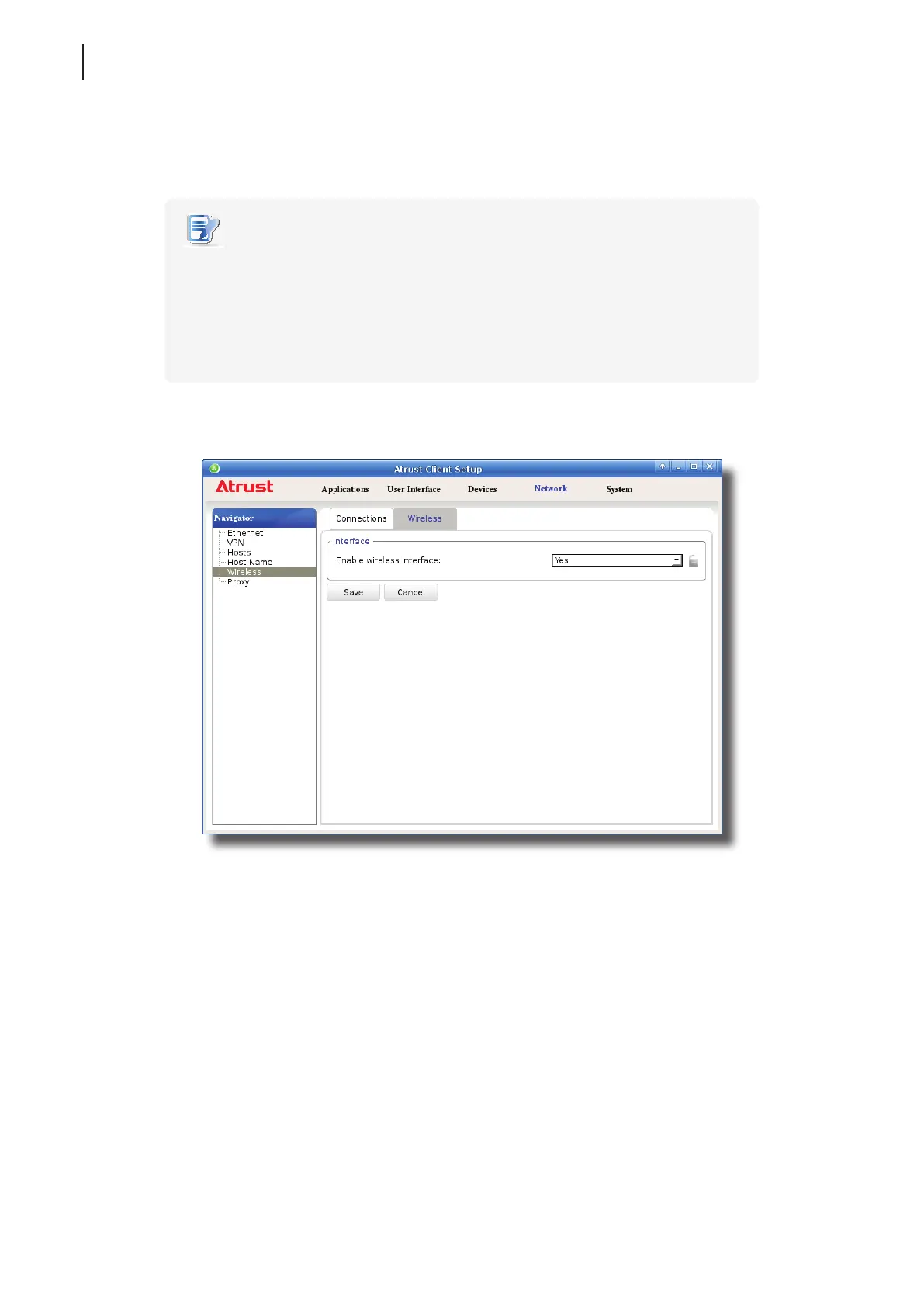
To enable or disable the wireless interface, please do the following:
NOTE
• By default, the wireless interface is enabled. But before you can access available
wireless networks, you need to install an external and USB-based wireless network
adapter for your t180L. Ensure that you have set up the required adapter.
• Your t180L package may not include a wireless network adapter (optional). Please
contact your dealer for compatible adapters if needed. It’s recommended to check
with your dealer rst if you plan to purchase one by yourself.
1. On Atrust Client Setup, click Network > Wireless, and then click Wireless sub-tab.
2. Under the Interface section, click the drop-down menu to enable / disable the wireless network interface.
3. Click Save to apply.



 To Next Page