Conguring Client Settings
Conguring External Device Settings
83
Settings for USB Storage Devices
Item Description
Enable USB Storage
Tick/Untick this checkbox to allow/disallow the access of USB storage devices.
NOTE: To use the locally attached USB storage devices in an RDP / ICA / View
session, the mapping of local USB storage devices must be enabled
in this session’s RDP / ICA / View connection settings. For detailed
instructions and more related settings, please refer to sections:
“4.6.5 Conguring Advanced RDP Connection Settings” on page 131
“4.6.11 Conguring Advanced ICA Connection Settings” on page 169
“4.6.14 Conguring Advanced View Connection Settings” on page 202
Enable Automount
Tick/Untick this checkbox to enable/disable the automount of
USB storage devices.
NOTE: If this setting is disabled, users need to manually mount the attached
USB storage devices. For detailed instructions, please refer to section
“4.4.4 Manually Mount and Eject Attached USB Storage Devices” on page
83.
3. Click Save to save your change.
NOTE
• For your changes to take eect, you need to restart your system.
4.4.4 Manually Mount and Eject Attached USB Storage Devices
To mount/eject an attached USB storage device, please do the following:
NOTE
• If Enable Automount is checked (see section “4.4.3 Conguring Settings for USB
Storage Devices” on page 82), then an attached USB storage device will be
mounted automatically.
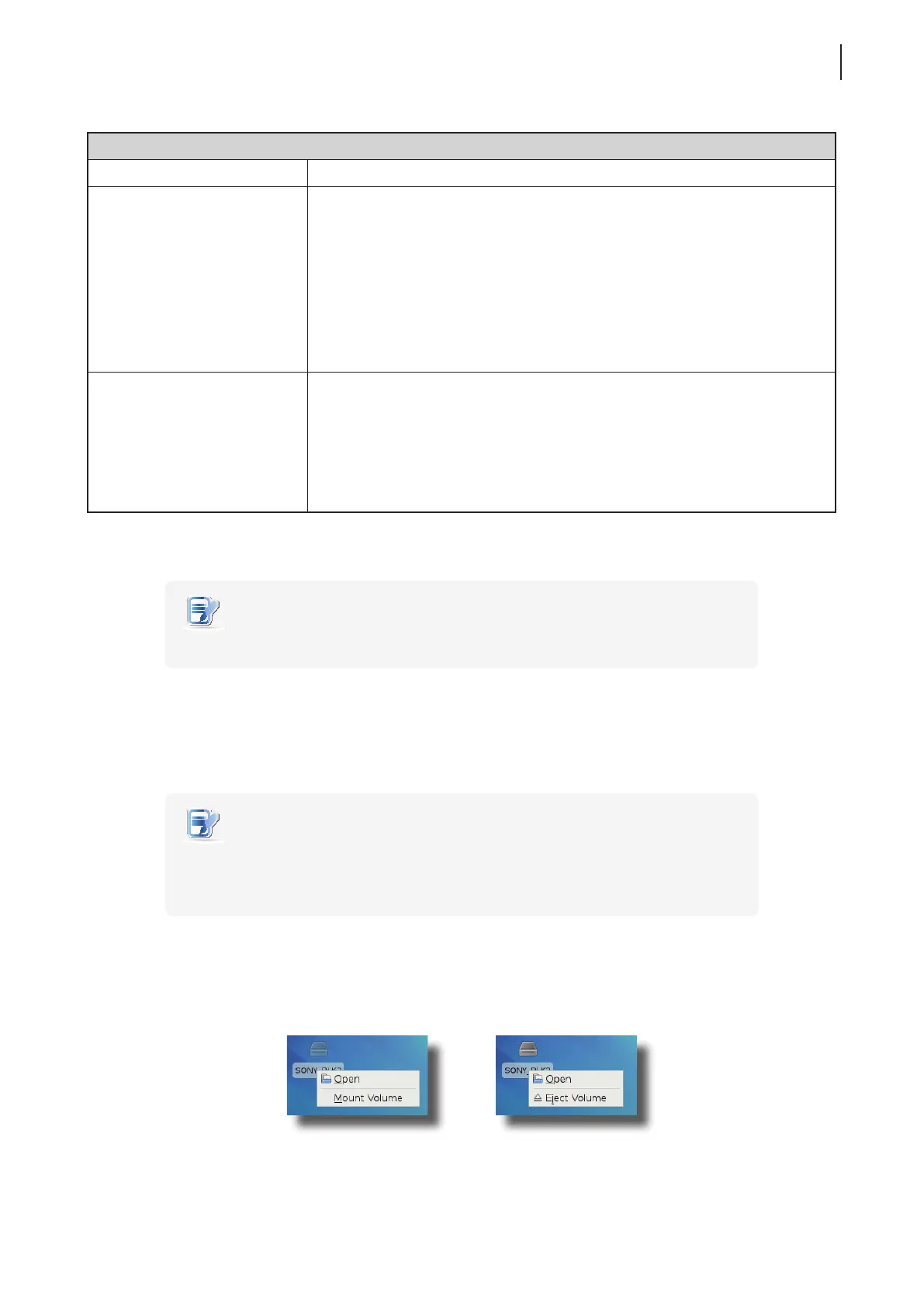
1. Right click the desktop icon of the attached USB storage device.
2. A popup menu appears.
3. Click to select Mount Volume/Eject Volume to mount\eject the attached USB storage device.



 To Next Page