Conguring Client Settings
Conguring External Device Settings
84
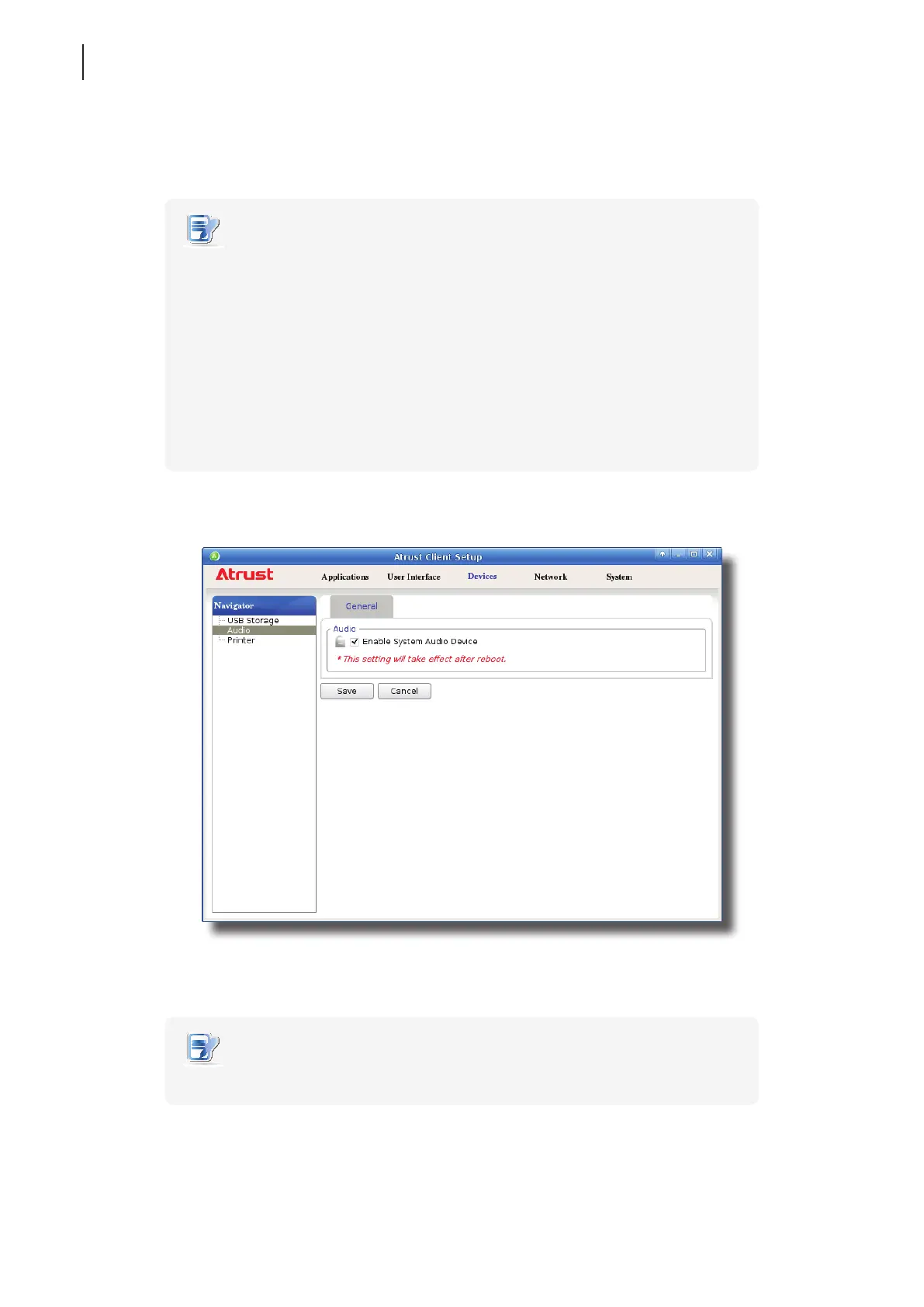
4.4.5 Disabling or Enabling Attached Audio Devices
To disable/enable attached audio devices, please do the following:
NOTE
• If you disable locally attached audio devices, client users are not allowed to perform
audio playback or recording with these devices in an RDP / ICA / View session.
• To perform audio playback or recording with local audio devices in an RDP / ICA /
View session, you need to enable locally attached audio devices here
(the Audio setting item under Devices tab) and congure audio related settings
in the RDP / ICA / View connection settings. For detailed instructions, please
refer to sections:
“4.6.5 Conguring Advanced RDP Connection Settings” on page 131
“4.6.11 Conguring Advanced ICA Connection Settings” on page 169
“4.6.14 Conguring Advanced View Connection Settings” on page 202
1. On Atrust Client Setup, click Devices > Audio.
2. Click to check/uncheck Enable System Audio Device.
3. Click Save to conrm your selection.
NOTE
• The change will not take eect until t180L/t180LB has been restarted.



 To Next Page