Conguring Client Settings
Conguring Network Settings
111
4.5.13 Conguring Wireless Connection Settings
Adjusting Connection settings for a Wireless Network
To adjust connection settings for a wireless network, please do the following:
1. On Atrust Client Setup, click Network > Wireless to open the Wireless Network list.
2. Click to check the desired wireless network which is currently connected. The Edit
button
appears on the top of the Wireless Network list.
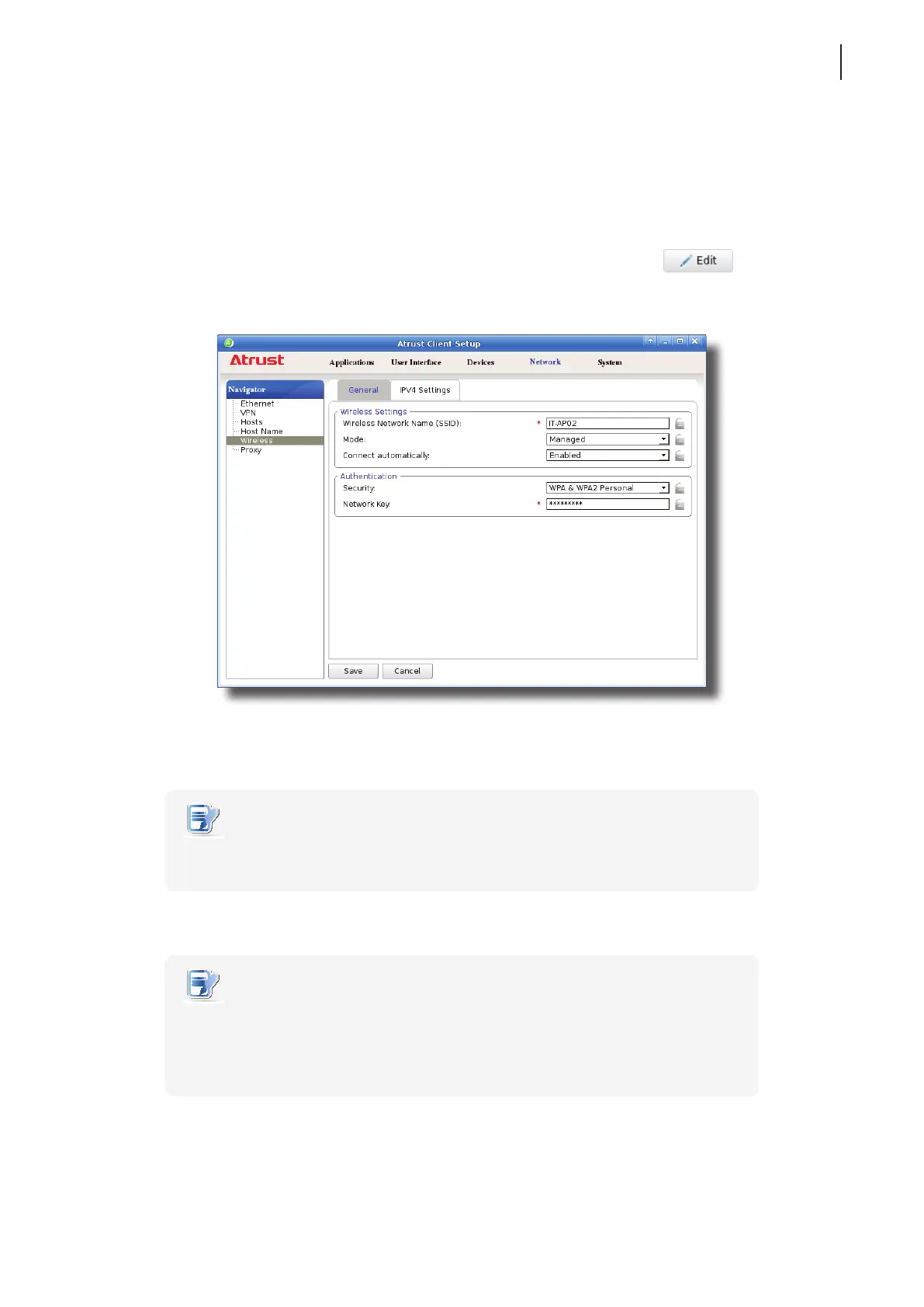
3. Click Edit to adjust the settings:
• On the General tab, click the drop-down menu to congure the automatic connection when this wireless
network is in range and other connection settings.
NOTE
• By default, your client will connect to a wireless network automatically if it ever
connected to that network successfully.
• On the IPV4 Settings tab, click the drop-down menu or type values in elds to congure IP settings.
NOTE
• For instructions on how to congure connection settings on the General tab, please
see section “4.5.12 Establishing and Stopping a Wireless Connection” on page 108.
For instructions on how to congure IP address settings on the IPV4 Settings tab,
please see section “4.5.3 Conguring Wired Network Settings” on page 92.
4. Click Save to apply.



 To Next Page