Conguring Client Settings
Conguring Service Access Settings
195
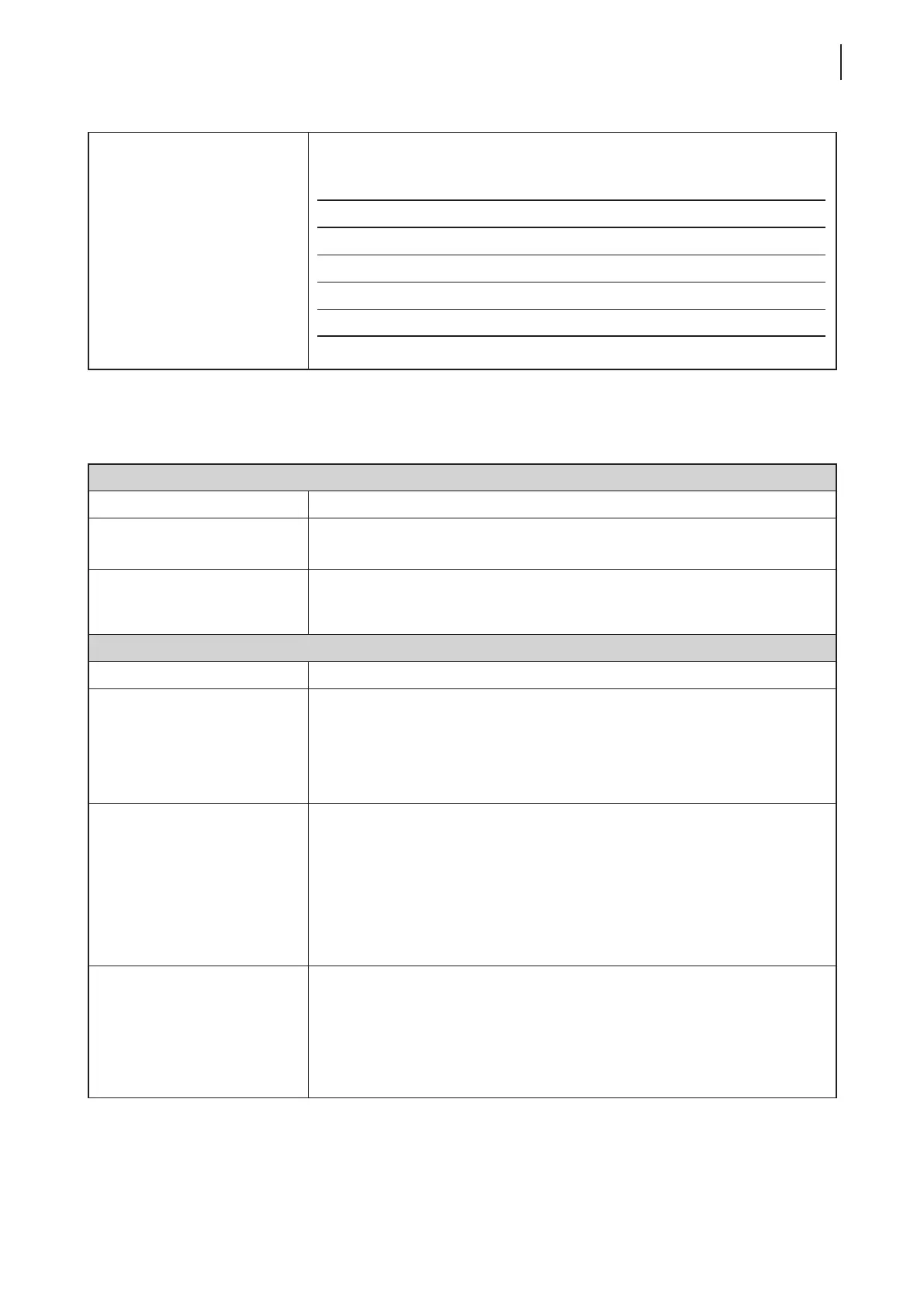
On Application Exit
Select what to do when a Citrix ICA session is ended. Four options are available:
Do Nothing, Restart Application, Reboot, and Shutdown.
Option Description
Do Nothing Returns to the Local Linux desktop.
Restart Application Opens an ICA session again.
Reboot Restarts your thin client.
Shutdown Turns off your thin client.
Options Sub-tab
Window Settings
Item Description
Color Depth
Click the drop-down menu to select the desired color quality for a Citrix ICA
session. Three options are available: 16 Bit, 24 Bit, and Automatic.
Window Size
Click the drop-down menu to select the desired window size of a Citrix ICA
session. Four options are available: Full Screen, 1280x1024, 1024x768, and
800x600.
Device Mapping
Item Description
Mapping Local USB Storage
Click the drop-down menu to enable/disable the mapping of the local USB drive(s) in a
Citrix ICA session.
NOTE: You need to enable local USB storage drive(s) as well. See section “4.4.3
Conguring Settings for USB Storage Devices” on page 82 for details.
Mapping Local Serial Ports
Click the drop-down menu to enable/disable the mapping of the local serial device(s)
in a Citrix ICA session. If Ye s is selected, the locally attached serial device(s) will become
available in launched Citrix ICA sessions.
NOTE: This setting item is not applicable to your t180L/t180LB. However, if you
use a serial-based barcode scanner, and attach it to your t180L/t180LB
with a serial-to-USB adapter, you need to enable this setting in order to
use the local barcode scanner in a virtual server desktop.
Mapping Local Printers
Click the drop-down menu to enable/disable the mapping of the local printer(s) in a
Citrix ICA session. If Ye s is selected, the locally attached printer(s) will become available
in launched Citrix ICA sessions.
NOTE: To enable locally attached printer(s), please refer to section “4.4.7
Adding a Local Printer” on page 86 for detailed instructions.



 To Next Page