Conguring Client Settings
Conguring User Interface Settings
74
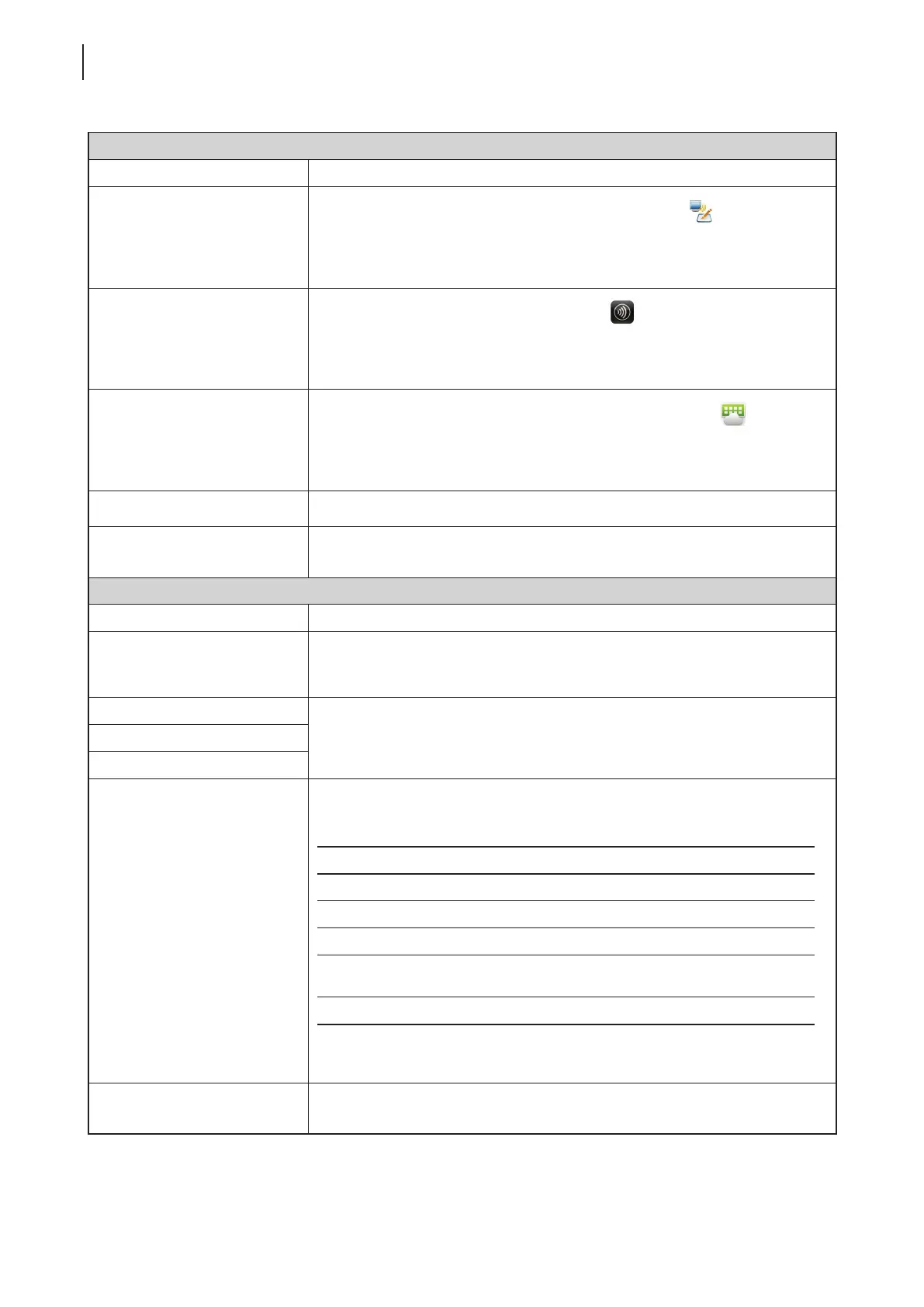
Desktop Icons
Item Description
Remote Desktop
Check/Uncheck to show/hide shortcuts Remote Desktop
on the START
menu and local Linux desktop for service quick access.
For more information, please refer to section “4.3.5 Hiding or Showing Quick
Access Shortcuts” on page 75.
Citrix
Check/Uncheck to show/hide shortcuts Citrix
on the START menu and local
Linux desktop for service quick access.
For more information, please refer to section “4.3.5 Hiding or Showing Quick
Access Shortcuts” on page 75.
VMware View
Check/Uncheck to show/hide desktop shortcuts VMware View
on the
START menu and local Linux desktop for service quick access.
For more information, please refer to section “4.3.5 Hiding or Showing Quick
Access Shortcuts” on page 75.
Icon Size Click the drop-down menu to select the desired size of desktop icons/shortcuts.
Icon Font Size
Click the drop-down menu to select the desired text label size of desktop
icons/shortcuts.
Desktop Background
Item Description
Enable Desktop Wallpaper
Check/Uncheck to enable/disable the use of Atrust wallpaper.
NOTE: If disabled, the solid color background (dark blue) will be used.
Enable Custom Wallpaper Check/Uncheck to enable/disable the use of a custom wallpaper. More settings
appear when checked.
For details, please refer to “4.3.6 Using a Custom Wallpaper” on page 76.
Download From
Custom Wallpaper File
Wallpaper Style
Click the drop-down menu to select the way to apply the wallpaper. Five options
are available: Centered, Tiled, Stretched, Scaled, and Zoomed.
Option Description
Centered Centers the original image on the screen.
Tiled Tiles the screen with the original image.
Stretched Centers and extends/shrinks the image to t the screen.
Scaled
Centers and sizes the image proportionally to t the screen
until the top-bottom or left-right sides t the screen.
Zoomed Centers and sizes the image proportionally to ll the screen.
NOTE: Depending on the size of the connected display, two options might have
the same effect.
Wallpaper
Click the drop-down menu to select the color of Atrust wallpaper. Four colors are
available: Green, Blue, Orange, and Cyan.
3. Click Save to apply.



 To Next Page