100
Step 10. Use your finger tip or a stylus to tap and continue pressing on the center of the symbol that
will appear on the top left portion for approximately five (5) seconds until the next symbol
appears on the top right portion. Perform the same step for this, as well as the symbol that
would appear on the lower left portion and lower right portion of your touch screen.
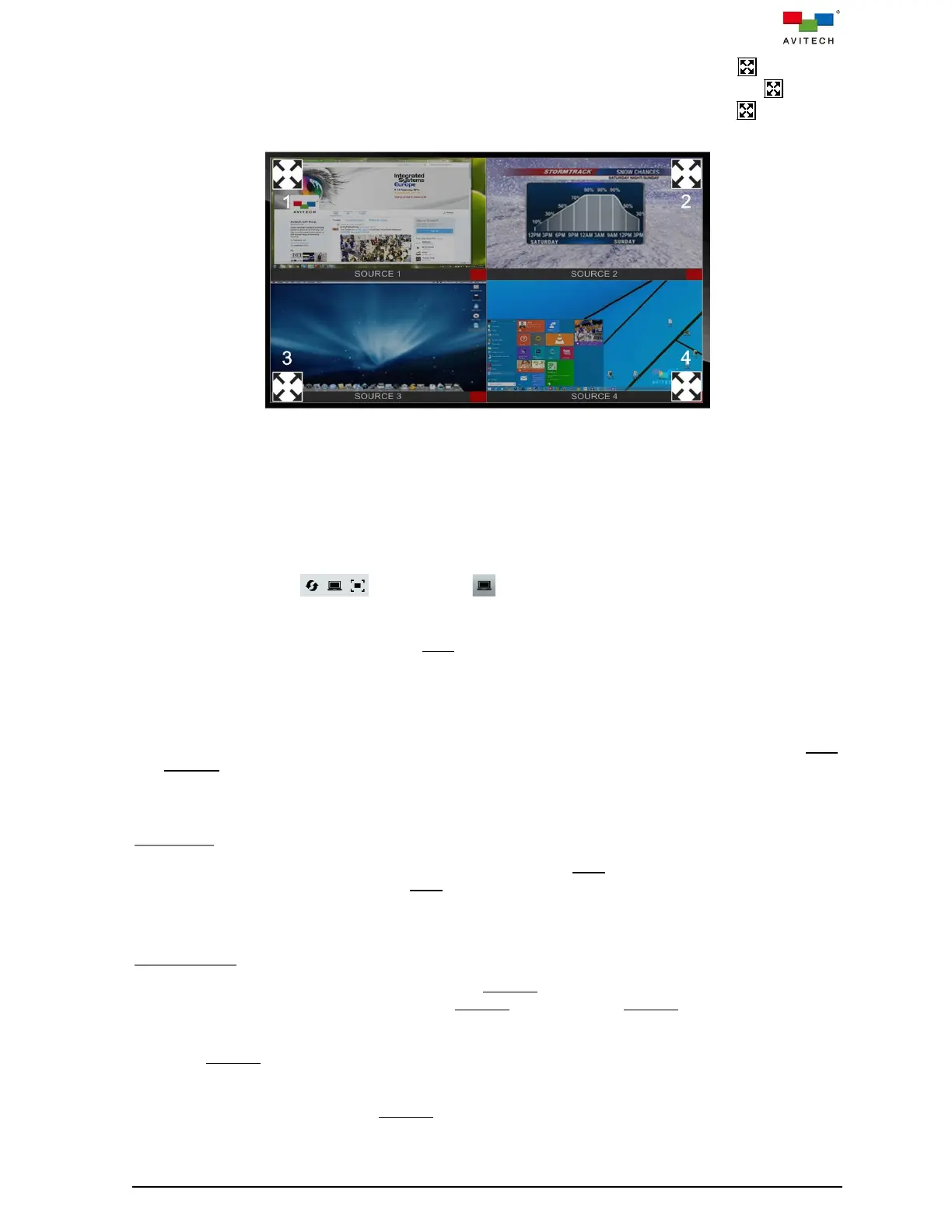
Figure B.1.3 Calibrate Touch Screen
Step 11. Repeat step 9 and step 10 for calibration for others touch screens connected to Sequoia
4K60.
Step 12. Upon completing touch screen calibration, tap anywhere on the touch screen or use keyboard
“Pause/Break” hotkey and the mouse pointer will appear on touch screen.
Step 13. Move the mouse pointer to the window’s top right portion of the particular computer. When the
pop-up menu appears, click icon.
You can now use the mouse or keyboard hotkeys to perform various tasks. The default mouse and
keyboard is located on the Sequoia 4K60 Host mode.
B.2 Basic Operation for Using Touch Screen(s)
The Sequoia 4K60 with touch screen function always operates in one of its two operating modes: Host
and Remote mode. Users are allowed to freely switch between these two modes anytime during the
operation for different uses. This chapter discusses these operating modes with touch screen function in
detail.
Host Mode
When a window in Sequoia 4K60 with touch screen function is in Host mode, the cursor will be controlled
by the tap of your finger on the window. Host mode provides a monitoring solution for the incoming
computer/video signals. Users can use one/two/three fingers to select and adjust window size, position,
close window and open window directly on the touch screen.
Remote Mode
Upon double-tapping a multi-view window to enter Remote mode, the window’s border will turn yellow,
this signifies that your Sequoia 4K60 is now in Remote mode. Entering Remote mode, your Sequoia
4K60 transfers keyboard and mouse and touch control to the selected computer system. You can then
control the computer as you regularly would within the window on the display. Your Sequoia 4K60 can
only enter Remote mode to take control of a computer when the correct USB Type-B port (1 – 4) on your
4K60's rear panel is properly connected to the USB Type-A port of that computer (using a standard USB
A/B cable). In addition, only windows corresponding to computer systems (as opposed to pure video
systems) can be accessed through Remote mode.



 To Next Page