59
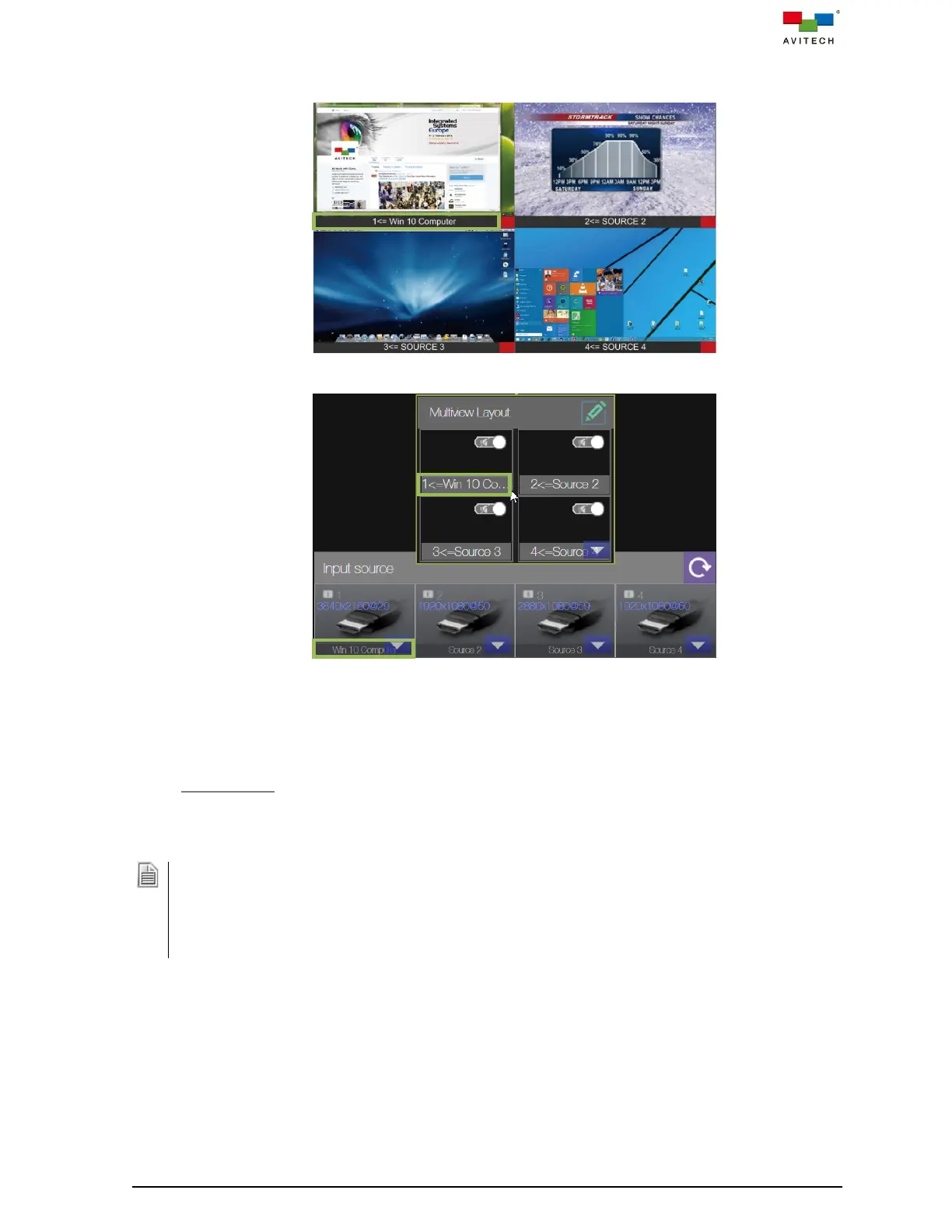
The names of the input ports appearing on the window and Web GUI (Input source control bar)
will both be updated accordingly.
Figure 4.2.4 Edit Label: Upload User-defined Label Names Appearing on Screen
Figure 4.2.5 Edit Label: Upload User-defined Label Names on Web GUI
Step 4. Click Close to exit label edit page.
4.2.1 Change Icon
The Change icon feature allows you to select an image file to replace the input signal icon in the input
control bar.
1. The allowed image file formats are: BMP/JPEG/JPG/PNG only.
2. It is highly recommended to use a PNG image file format with the background removed as icon.
3. Be aware that the image file selected to become your icon image will be scaled to a final resolution of
113×45.
4. When use Change Icon feature, the changed icons only appears on Input source control bar in
Web-browser GUI.
To replace the input signal icon, perform the following steps:
Step 1. Save the image file(s) into the computer controlled the Sequoia 4K60.



 To Next Page