98
Appendix B Using Touch Screen(s)
The Sequoia 4K60’s five HDMI 2.0 outputs and five USB-A ports can connect to up to five 4K UHD
multi-touch screens. On the single-view fullscreen monitors, the operator can use touch to quickly and
easily switch between the different input sources, with touch control of the source computers. On the
multiview, tap and drag to freely move the windows around and make them larger or smaller, and
double-tap on a window to switch touch control to a different source computer.
B.1 Basic Setup
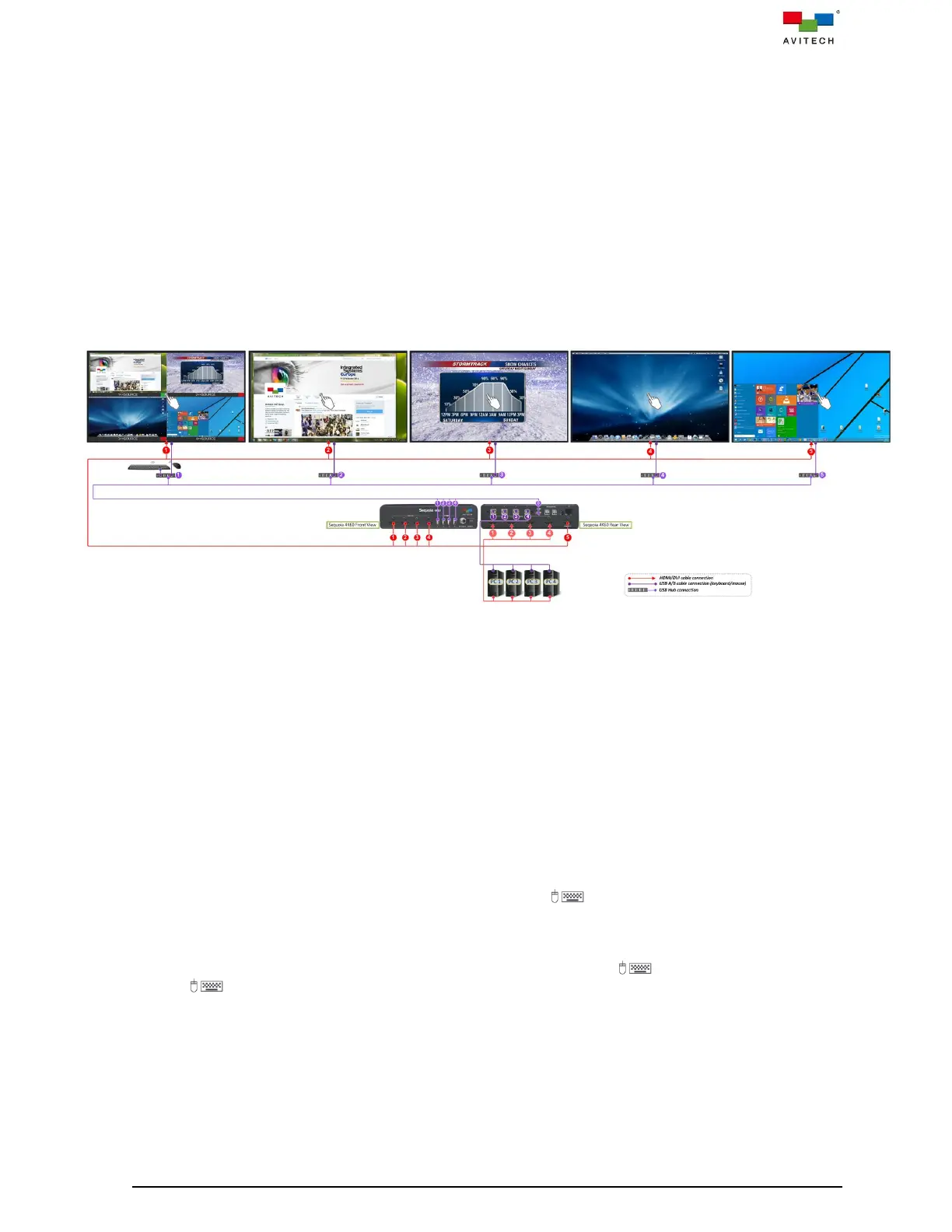
The following figure shows a typical setup with a Sequoia 4K60 that connect to four computer systems
and via five USB hubs to connect five touch screens. (Depending on your operation requirement, it is
optional to connect an extra set of keyboard and mouse)
Figure B.1.1 Sequoia 4K60 with Touch Screens Connection Diagram
Step 1. Connect one end of the USB A/B cable to the USB Type-B port marked 1 on the rear panel of
Sequoia 4K60. Connect the other end to the first computer’s USB Type-A port. Repeat this step
for all source computers to the USB Type-B ports marked 2 – 4.
Step 2. Connect the first computer’s display output to the port marked HDMI IN 1 on the rear panel of
Sequoia 4K60. Repeat this step for all source computers to the ports marked HDMI IN 2 – 4 of
the Sequoia 4K60.
Step 3. Connect one end of the HDMI signal cable to the port marked HDMI OUT 1 on the front panel of
Sequoia 4K60. Connect the other end to touch screen’s HDMI port. Repeat this step for all touch
screens to the ports marked HDMI OUT 2 – 4 on the front panel and HDMI OUT 5 on the rear
panel of the Sequoia 4K60.
Step 4. Connect a USB hub to the USB Type-A port marked 1 on the front panel of Sequoia 4K60
for connection to a set of wireless keyboard/mouse and touch screen; they will be used to
control the Workstation and the four computer sources.
Step 5. Connect other four USB hubs to the USB Type-A ports marked 2 – 4 on the front panel and
5 on the rear panel of Sequoia 4K60.



 To Next Page