77
Step 2. Use a standard CAT-5e/6 Ethernet cable to connect the control computer’s RJ-45 port and the
wireless router. Or turn on the Wi-Fi connection of your notebook or handheld touch device and
make sure to select the correct Wi-Fi network (The Wi-Fi name should be the name of the
wireless router connected with Sequoia 4K60).
Powering Up the Devices
Step 1. Connect power to/and boot-up the four video source devices.
Step 2. Connect power to the monitors and turn on the monitors.
Step 3. Connect the power adapter to the DC 12V/5A power in jack on the Sequoia 4K60, and press the
power switch so that the Sequoia 4K60 is turned on.
Step 4. The Avitech logo will appear briefly on the monitor, and after approximately 60 seconds the four
windows (each containing an image from one of the connected sources) will appear.
5.1.2 A 1x4 Video Wall Connection
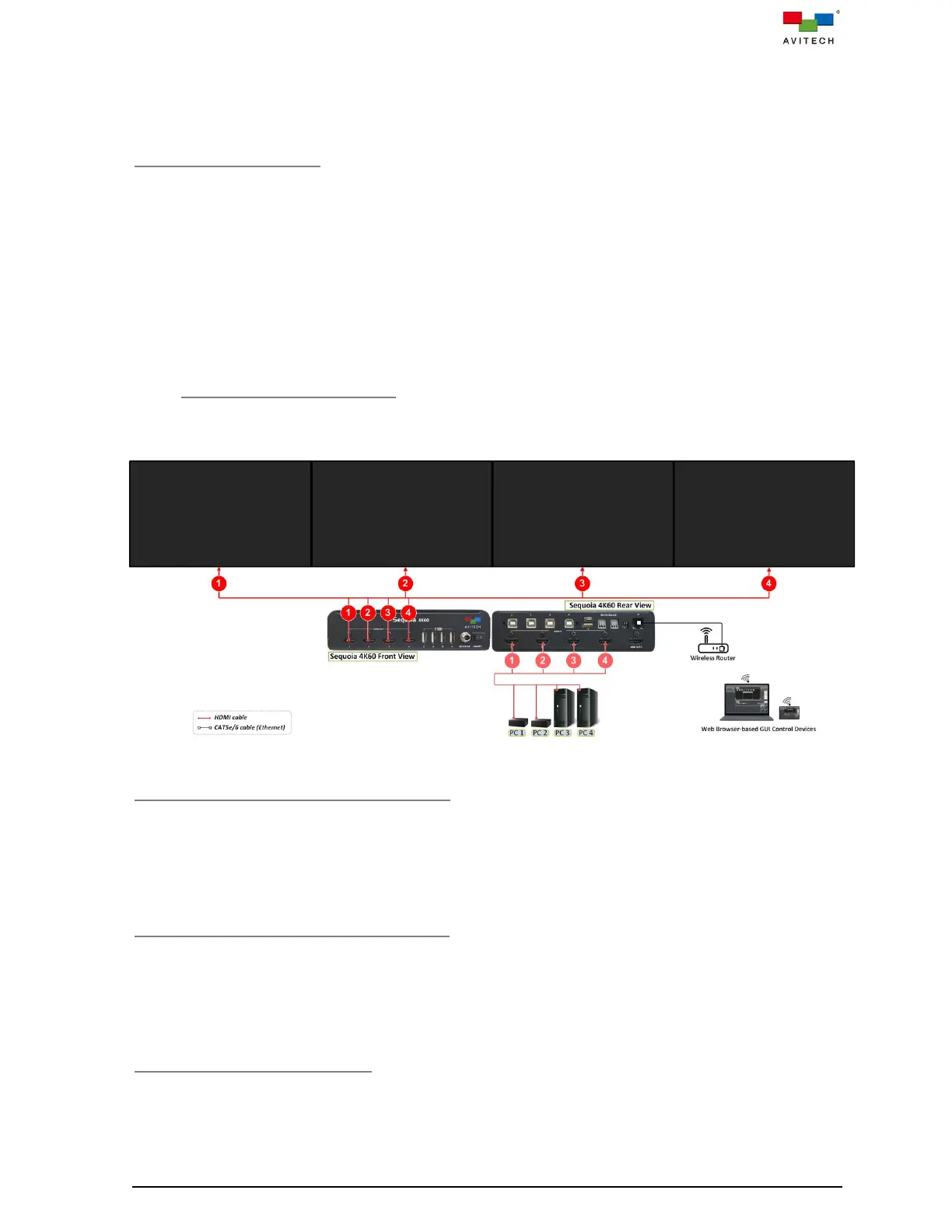
The following figure shows a typical setup with a single Sequoia 4K60 that supports 4K UHD in a 1x4 PiP
Video Wall.
Figure 5.1.2.1 A 1x4 Video Wall Connection Diagram
Four Source Connections to Sequoia 4K60
Step 1. Connect the first video source’s display output to the port marked HDMI IN 1 on the rear panel of
the Sequoia 4K60 using the appropriate signal cables.
Step 2. Repeat previous step for other three video sources connect to the ports marked HDMI IN 2 – 4 of
the Sequoia 4K60 using the appropriate signal cables.
Connections to Video Wall 4K UHD Screen
Step 1. Connect the port marked HDMI OUT 1 on front panel of Sequoia 4K60 to the corresponding
video wall screen 1 using the appropriate signal cable.
Step 2. Repeat previous step for other three ports marked HDMI OUT 2 – 4 on the front panel of
Sequoia 4K60 to the corresponding video wall screen 2 – 4 using appropriate signal cables.
Connection to Control Device(s)
Step 1. Connect a standard CAT-5e/6 Ethernet cable to the port marked IP (Ethernet) on rear panel of
Sequoia 4K60, and connect the other end of the cable to the wireless router.



 To Next Page