32
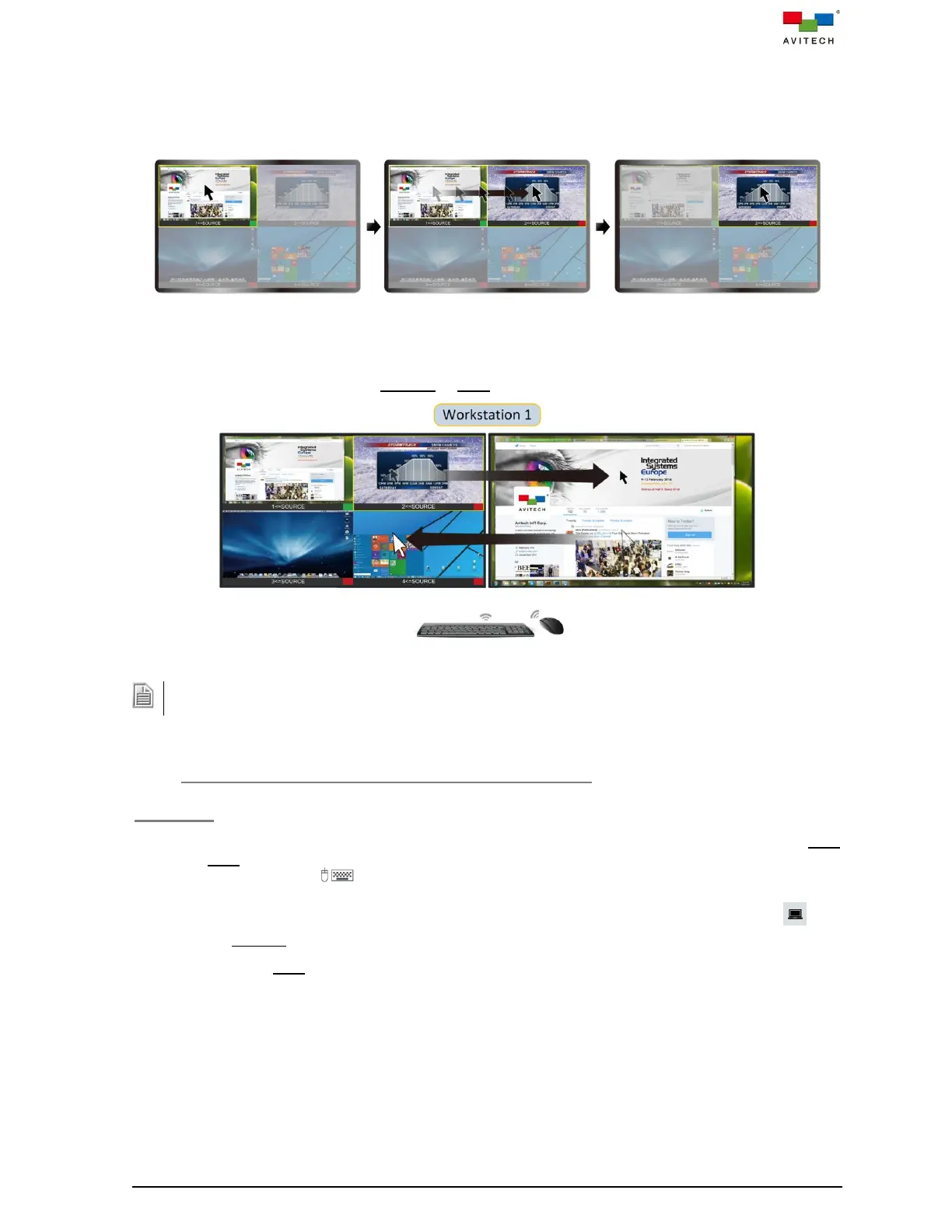
With the “Surfer” feature (default setting is ON) enabled. By moving your cursor out of your current
window's border toward the other window, your Sequoia 4K60’s keyboard and mouse control will
automatically switch to that computer. Below figure shows the window control switching action upon
moving the mouse to the window side. Moving the mouse from one window to another transfers control
from the former window to the target window.
Figure 3.3.1.3 “Surfer” Feature on Quad-View Layout
Move the cursor across displays to access computer sources shown on the two monitors. While in the
“Surfer” feature moving away from quad-view to the neighboring fullscreen monitor or vice versa the
mouse will remain in the respective Remote or Host modes.
Figure 3.3.1.4 “Surfer” Feature on Two Display Monitors
The keyboard/mouse control switching order will follow the sequence of HDMI OUT ports of Sequoia 4K60
when using the “Surfer” in a multiple monitor workstation operation.
3.3.2 Basic Operation for HDMI Out Port 2 to HDMI Out Port 5
Host Mode
The monitors connected to HDMI port marked OUT 2 to 5 of Sequoia 4K60 will display in fullscreen Host
mode, the Host cursor appears on the display upon connecting mouse devices to the corresponding
USB Type-A ports marked 2 to 5 of Sequoia 4K60. The cursor will be controlled by its locally
connected mouse.
Double-click the mouse left button on the fullscreen window or click the Enter remote mode icon
to enter the Remote mode.
To switch back to Host mode, use keyboard “Pause/Break” hotkey, or double-click the mouse scroll
button.
Use keyboard “Ctrl – (2 to 5) – (1 to 4)” hotkeys to route an input source to display on the
corresponding monitors. For example, use keyboard “Ctrl – 2 – 1” hotkey will load input source 1 to
display on the monitor of HDMI OUT 2; “Ctrl – 3 – 4” hotkey will load input source 4 to display on the
monitor of HDMI OUT 3; “Ctrl – 4 – 2” hotkey will load input source 2 to display on the monitor of HDMI
OUT 4; “Ctrl – 5 – 4” hotkey will load input source 4 to display on the monitor of HDMI OUT 5.



 To Next Page