33
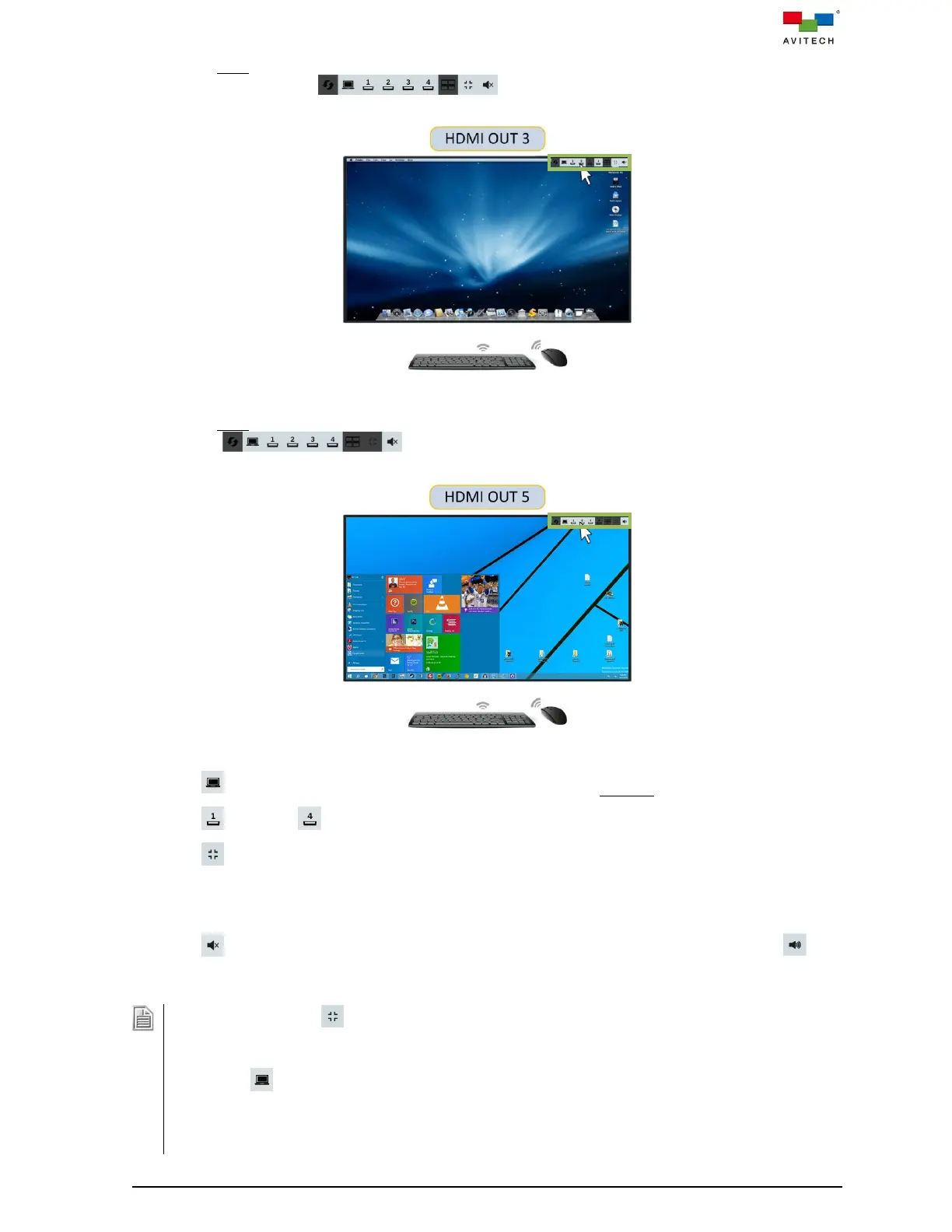
Move the Host cursor to the top-right position of the monitor connected to HDMI OUT 2 – HDMI OUT
4, the pop-up selections will appear. You can then switch source or enter
to control the remote computer.
Figure 3.3.2.1 Pop-up Selections for HDMI OUT 2 – HDMI OUT 4
Move the Host cursor to the top-right position of the monitor connected to HDMI OUT 5, the pop-up
selections will appear. You can then switch source or enter to control the
remote computer.
Figure 3.3.2.2 Pop-up Selections for HDMI OUT 5
Click icon or double-click the mouse left button to enter the Remote mode.
Click (input 1) – (input 4) icons to switch the input source.
Click icon for switching to display the duplicated quad-view source. The duplicated quad-view
source does not support mouse control function. You can use keyboard “Ctrl – (2 to 4) – (1 to 4)”
hotkeys to route any one of the input sources to display in fullscreen on the monitors. This icon is not
available for HDMI OUT 5.
Click icon (the audio currently in off state) to turn on the HDMI embedded audio. Click icon
(the audio currently is playing) to turn off the HDMI embedded audio.
1. The pop-up selection is not available for HDMI OUT 5 due to the HDMI OUT 5 does not support
displaying duplicate quad-view as HDMI OUT 2 – HDMI OUT 4.
2. When the INPUT # icon is greyed out, that means its source is currently displaying on the monitor.
3. When the icon is greyed out, that means the USB Type-B port of Sequoia 4K60 is not connected to a
computer's USB port.
4. The duplicated quad-view source is fixed at 3840x2160 resolution, please make sure the monitors
connected to HDMI OUT 2 – 4 support 4K UHD resolutions.



 To Next Page