35
3.4 Basic Operation for Workstations (Quad + 4 Singles) Configuration
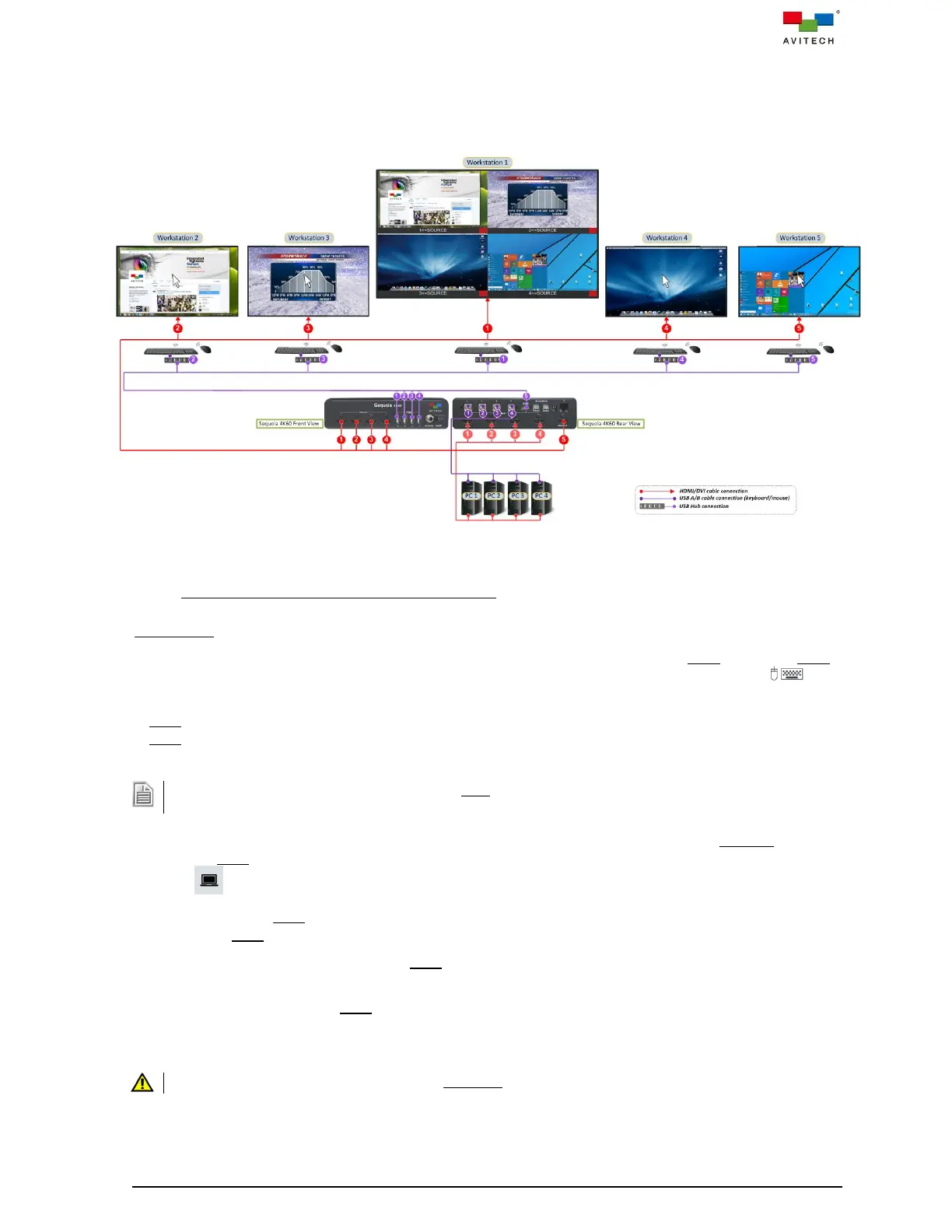
The following example figure shows a typical setup for Workstation (Quad + 4 Singles) configuration
display mode with a single Sequoia 4K60 for multiple operators at multiple workstations and control the
four computer systems.
Figure 3.4.1 Example for Workstation (Quad + 4 Singles) Configuration
3.4.1 Basic Operation of the First HDMI Out Port
Host Mode
When the monitor connected to HDMI port marked OUT 1 of Sequoia 4K60 is in Host mode, the Host
cursor appears on the display upon connecting a mouse device to USB Type-A port marked 1 of
Sequoia 4K60. The cursor will be controlled by this connected mouse.
Host mode provides a monitoring solution for the incoming computer/video signals. Users can use the
Host cursor to select and adjust window size, position, and display layout directly through the
on-screen interface.
Upon re-connecting a keyboard or mouse, the Host cursor may disappear. Move the mouse to allow it to
re-appear.
Double-click the mouse left button any area within that specific window to enter the Remote mode (or
move the Host cursor to the top-right corner of the targeted window and then click the Enter remote
mode icon).
To switch back to Host mode, use keyboard “Pause/Break” hotkey, or double-click the mouse scroll
button. The Host cursor will reappear.
To close a specific window, move the Host cursor on the window and double-click the mouse right
button to close it.
To add a window, move the Host cursor to the blank area, click and hold the mouse left button to draw
a rectangle outline (the minimum size of the rectangle is one-sixth of width/height of the output
resolution), then release the mouse left button, the newly added window will appear on the screen.
Please keep in mind the newly add window CANNOT overlay with the other three windows during creation.



 To Next Page