46
4. Setup Using the Web Browser-based GUI
The web browser-based GUI contains a collection of settings for the Sequoia 4K60. It provides multiview
display layout adjustment and advanced features include customized labeling, OSD options and basic
setting for system. It also allows easy and intuitive control from computers and handheld touch devices.
1. The IP address of the controlling computer must be in the same network mask as the Sequoia 4K60.
2. The default IP address of Sequoia 4K60 is 192.168.0.5, if more than two Sequoia 4K60 devices are on
the same network, please make sure each Sequoia 4K60 must have a unique IP address and all the
Sequoia 4K60 devices must be connected to the same network mask. For more information on changing
IP address, refer to section (4.3.2) “Network”.
3. As of the writing of this manual, only Microsoft Edge (version 16.x.xxxx.xx or later), Mozilla Firefox
(version 52.x.x or later), Google Chrome (version 106.x.xxxx.xx or later) and Safari (version 11.x or later)
web browsers are supported.
Before connecting the controlling computer or handheld touch devices to the Sequoia 4K60, the IP
address of the controlling computer will need to be changed to a static IP, and its subnet mask must be
set to a similar range as the Sequoia 4K60 (“192.168.0.5” – factory- default IP address). Or, the IP
address of the Sequoia 4K60 can be changed to a similar range as the controlling computer or handheld
touch devices.
To start using the controlling computer or handheld touch devices to manage the video wall of Sequoia
4K60, perform the following steps:
Step 1. Use the computer’s web browser and type “192.168.0.5” in the web browser URL bar (or
replace the numbers with the current IP address of your Sequoia 4K60), the web browser-based
GUI will appear and the Sequoia 4K60 is ready for operation in video switching/routing,
modifying multiview layout or system setting.
Or use the notebook or handheld touch device’s web browser, once the Wi-Fi connection is
made, then type “192.168.0.5” in the web browser URL bar (or replace the numbers with the
current IP address of your Sequoia 4K60), the web browser-based GUI will appear and the
Sequoia 4K60 is ready for operation in video switching/routing, modifying video wall layout or
system setting.
The IP address of the controlling computer (with Ethernet connection to Sequoia 4K60) must be in the
same network mask as the Sequoia 4K60. If you use a notebook or handheld touch device, please turn on
the Wi-Fi connection of your controlling device, search and select to connect the Wi-Fi network (password
may be required) that the Sequoia 4K60 is connected to.
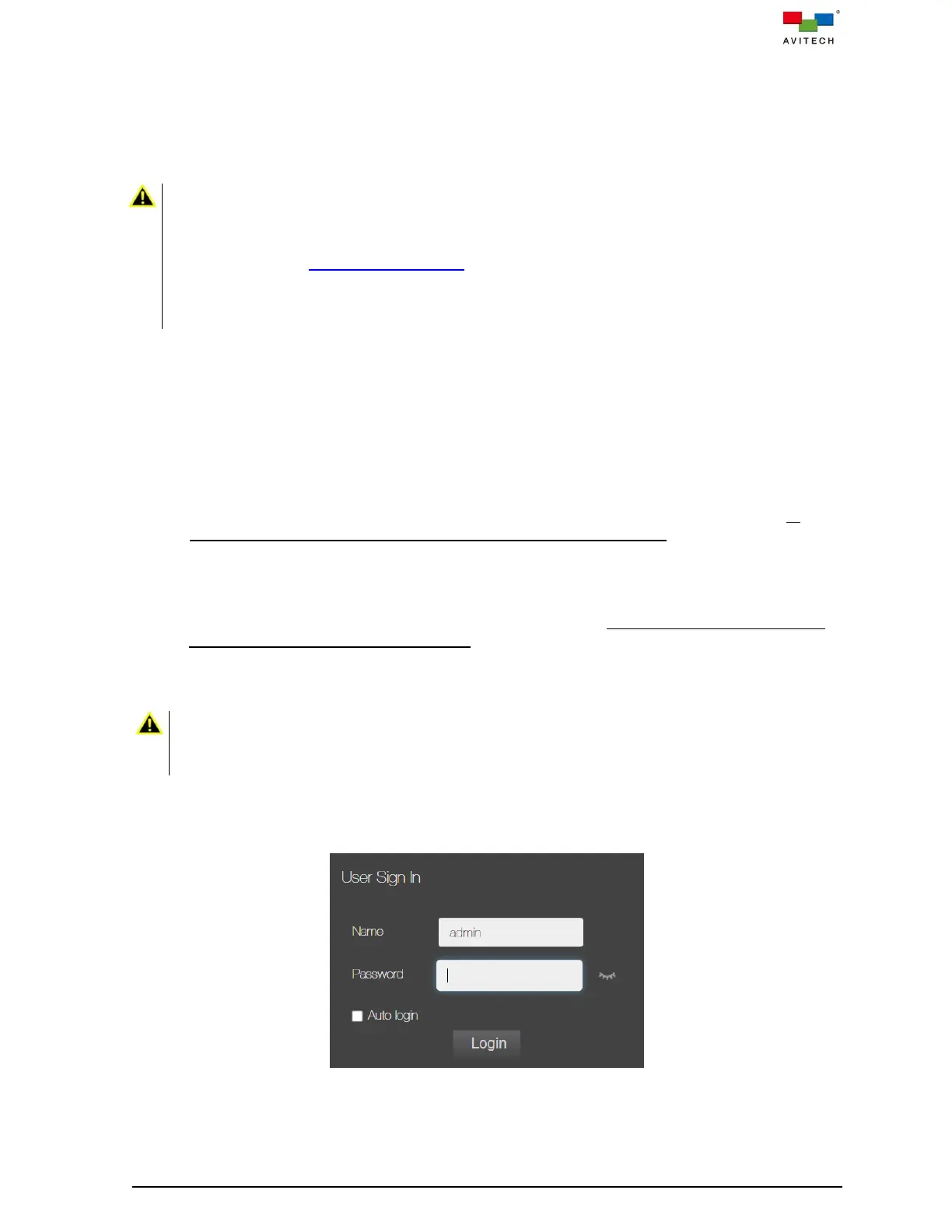
Step 2. When the User Sign In window appears on the webpage, enter the password (admin in lower
case) to login to control of the Sequoia 4K60.
Figure 4.1 User Sign In Window



 To Next Page