106
1. When you reset the Sequoia 4K60 to factory default settings, all of your settings and configurations are
deleted.
2. Before you reset the Sequoia 4K60, it is recommended to first back up your configuration, When you
finish resetting your Sequoia 4K60 to factory default state, you can restore the configuration to the
Sequoia 4K60.
3. When restore your configuration to the Sequoia 4K60, it’s recommended to change the IP address, or it
will stay 192.168.0.5. (the default IP address)
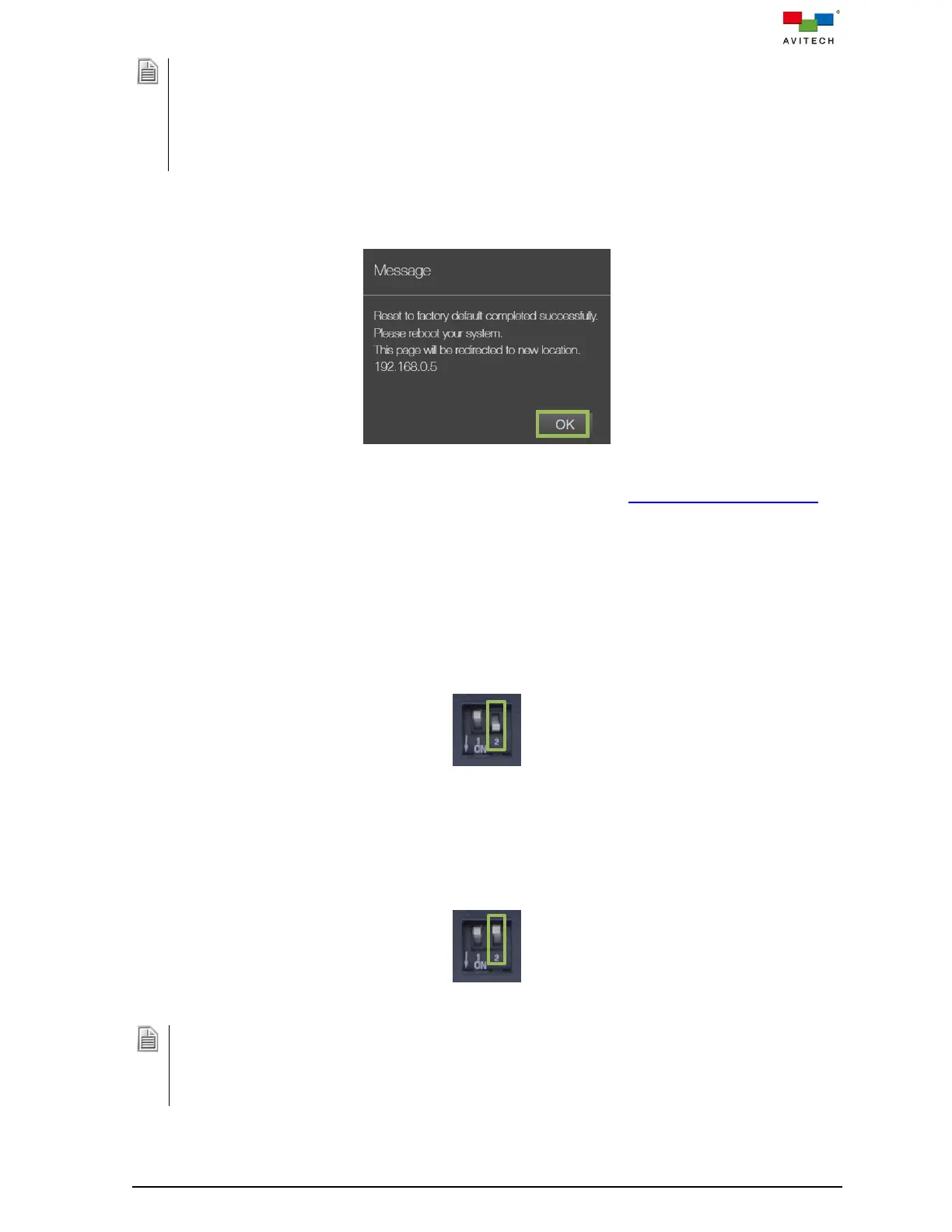
Step 4. When the images have appeared on each window, then click OK and the Web page will be
redirected to default IP address.
Figure C.1.4 Reboot to Complete Reset to Factory Default Process
Step 5. (Optional) Change the IP address of the Sequoia 4K60. Refer to section (4.4.2) “IP address” for
details.
C.2 Using the Dip Switch on Rear Panel
To reset your Sequoia 4K60 to its factory default state, perform the following steps:
Step 1. Power-off the Sequoia 4K60 by pressing the power switch.
Step 2. Push number 2 (right) dip switch located on Sequoia’s rear panel downwards to the ON position.
Figure C.2.1 Push down the Number 2 Dip Switch
Step 3. Power-on the Sequoia 4K60 by pressing the power switch.
Step 4. Then power-on the Sequoia 4K60 and wait until the images have appeared on each window.
Step 5. Push back the number 2 (right) dip switch upwards to the default position.
Figure C.2.2 Push Upward the Number 2 Dip Switch
Upon resetting your Sequoia 4K60 to its factory default state, your previously saved Label
name/Layout/System settings stored in the Sequoia 4K60’s flash memory will be automatically removed;
make sure to have your files saved externally before resetting the Sequoia 4K60 to the factory default state.
Or, you may use Web browser-based GUI to set the output resolution, create preset file(s) and configure
system setting again.



 To Next Page