29
Toggle “Surfer” feature off/on; moving mouse to a border shared with another
computer will cause the keyboard and mouse to control the other computer. By
default, the “Surfer” feature is enabled upon starting up the Sequoia 4K60. For
computers hosting Linux, or Android, or Embedded Operating System, you will need
to switch off “Surfer” feature by using keyboard “Ctrl + Alt + Shift + F8” hotkey or
pressing side-key of the mouse (if applicable) in order to control that computer.
When using the mouse in a workstation operation, there may be times when mouse
usage is not smooth or erratic behavior is observed. Use keyboard “Ctrl + Alt +
Shift + R” hotkey to reset the mouse cursor return to Host mode of HDMI port’s
monitor corresponding to the USB Type-A port connected the keyboard and mouse.
Table 3.2.1 Hotkeys of Remote Mode
1. A defined hotkey combination with a plus symbol (“+”) means the keys joined by a plus symbol need to be
pressed and held, before pressing the last key.
2. A defined hotkey combinations with a dash symbol (“–”) means the sequence needs to be followed
exactly to carry out a complete switching/routing action. Sequential hotkeys usually involve pressing and
releasing a dedicated key then pressing and releasing another key and so forth.
3.3 Basic Operation for Workstation (Default) Configuration
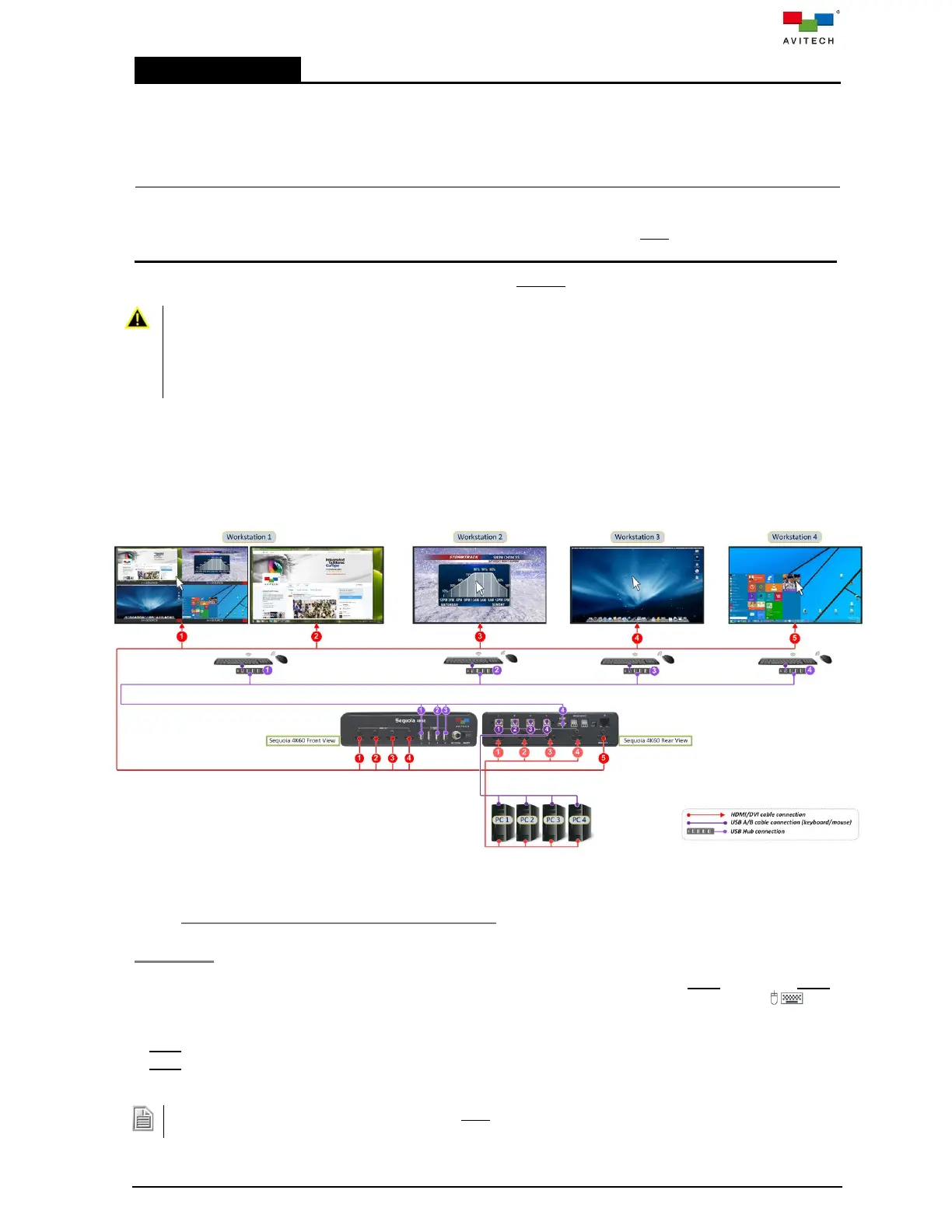
The following example figure shows a typical setup for Workstation (Default) configuration display mode
with a single Sequoia 4K60 for multiple operators at multiple workstations control of the four computer
systems.
Figure 3.3.1 Example for Workstation (Default) Configuration
3.3.1 Basic Operation of the First HDMI Out Port
Host Mode
When the monitor connected to HDMI port marked OUT 1 of Sequoia 4K60 is in Host mode, the Host
cursor appears on the display upon connecting a mouse device to USB Type-A port marked 1 of
Sequoia 4K60. The cursor will be controlled by this connected mouse.
Host mode provides a monitoring solution for the incoming computer/video signals. Users can use the
Host cursor to select and adjust window size, position, and display layout directly through the
on-screen interface.
Upon re-connecting a keyboard or mouse, the Host cursor may disappear. Move the mouse to allow it to
re-appear.



 To Next Page