27
3.1.2 Functions
The Sequoia 4K60 allows free window resize/reposition directly through its on-screen user interface.
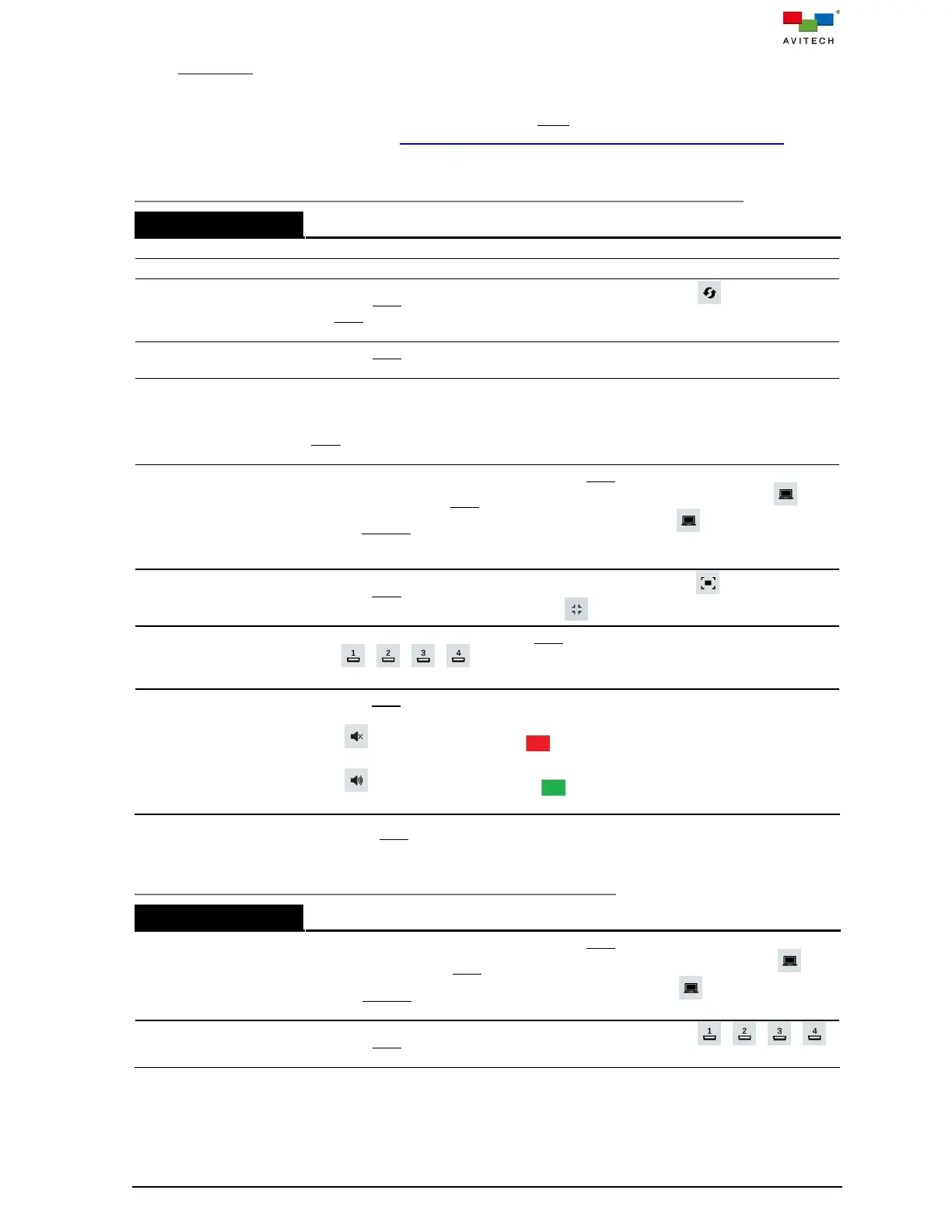
The following is a list of summarized functions available in Host mode for HDMI outputs of Sequoia
4K60; additional functions can refer to Chapter (4) “Setup Using the Web Browser-based GUI” in
details.
Available Functions in Host Mode of the Monitor Connected to First HDMI Out Port
Drag any of the four corners or edges of a window to a desired size.
Drag a window to a desired position.
Move the Host cursor to the top-right corner of a window; click icon. Then move
the Host cursor to another window and click anywhere to swap two windows'
including label’s positions.
Move the Host cursor on a specific window, and then double-click the mouse right
key to close the window.
On the blank area, click and hold the mouse left button to draw a rectangle outline,
then release the mouse left button, the newly added window will appear on the
display.
Note: The newly add window cannot overlay with other three windows during
creation.
Double-click the mouse left button when the Host cursor is on a remote computer
window. Or, move the Host cursor to the top-right corner of a window; click icon
to enter Remote mode to the corresponding computer. The icon will be disabled
if the USB Type-B port of Sequoia 4K60 is not connected to a computer's USB
Type-A port.
Move the Host cursor to the top-right corner of a window; click icon and then the
window will maximize to fullscreen. Click icon to return from fullscreen.
When in fullscreen mode, move the Host cursor to the top-right corner of a window;
click / / / icon and then the corresponding input source will display
on screen.
Enable/disable audio
output
Move the Host cursor to the top-right corner of a window; when the pop-up selection
appear:
Click (corresponds to red tally ) icon to enable the embedded audio of
corresponding source to output through HDMI OUT port to the monitor.
Click (corresponds to green tally ) icon to mute the embedded audio of
corresponding source.
Table 3.1.2.1 Host Mode Functions for the First HDMI Out Port
Available Functions in Host Mode of the 2
nd
to 5
th
HDMI Out Ports
Double-click the mouse left button when the Host cursor is on a remote computer
window. Or, move the Host cursor to the top-right corner of a window; click icon
to enter Remote mode to the corresponding computer. The icon will be disabled
if the USB Type-B port of Sequoia 4K60 is not connected to a computer's USB port.
Move the Host cursor to the top-right corner of a window; click / / /
icon and then the corresponding input source will display on screen.



 To Next Page