21
2.3 Display Mode: Projector (PiP)
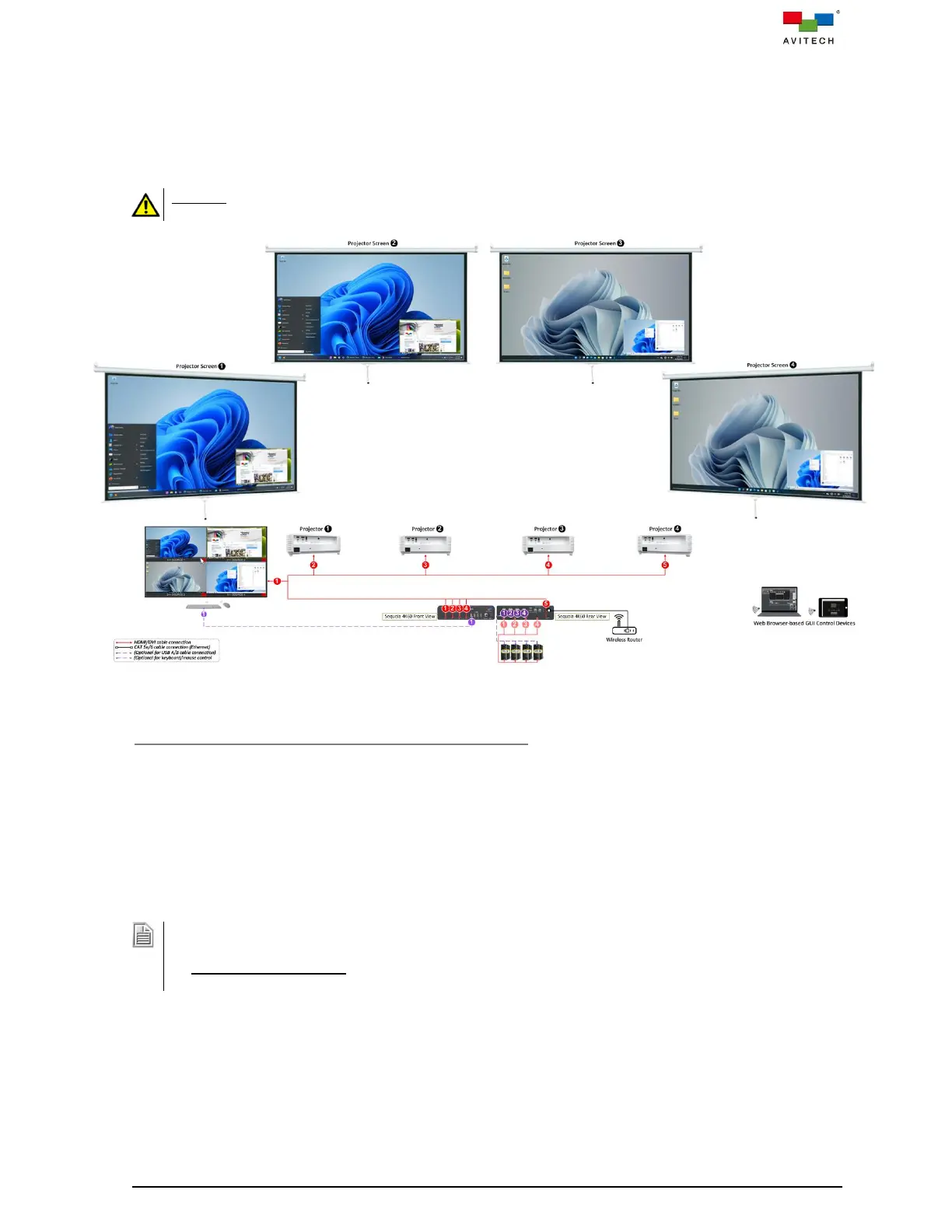
The following figure shows a typical setup with a single Sequoia 4K60 supporting one output with a
multiview display for controlling four systems and the four other outputs can duplicate two
picture-in-picture (PiP) images.
DO NOT block the vents on the front and side panels of the Sequoia 4K60. Doing so may impair its internal
components and/or its heat dissipation.
Figure 2.3.1 Projector (PiP) Display Mode Connection Diagram
Four Computer Source Connections to Sequoia 4K60
Step 1. Connect the first computer’s display output to the port marked HDMI IN 1 on the rear panel of
the Sequoia 4K60. Repeat this step for all source computers to the ports marked HDMI IN 2 – 4
of the Sequoia 4K60.
Step 2. (For video only application, you may skip this step) Connect a USB A/B cable to the first
computer’s USB Type-A port, and connect the other end to the USB Type-B port marked 1 on
the rear panel of the Sequoia 4K60. Repeat this step for all source computers to the USB
Type-B ports marked 2 – 4.
1. Be sure to connect the first computer to the USB Type-B port marked 1, the second computer to USB
Type-B port marked 2, and so forth.
2. (For Windows 2000 users) Upon connecting your Sequoia 4K60 to a computer through the USB interface
for the first time, perform the Windows' on-screen steps to initialize the USB connection.



 To Next Page