101
Tips on Navigating the Touch Screen Monitor Using the Sequoia 4K60
A maximum of four computers can be connected to a single Sequoia 4K60. The Sequoia 4K60
puts the images of four computers onto four windows and simultaneously displays them on the
touch screen.
Instant switching of inputs through the pop-up selection on the touch screen is supported when is
in fullscreen mode.
When Host mode is active, use two fingers to resize, one finger to reposition, three fingers to
close window and one finger to open window on the display (Details in a latter portion of this
chapter).
To switch from Host mode to Remote mode, tap (approximately two (2) seconds) the top-right
corner of the targeted window and then tap the Enter remote mode icon (or double-tap any
area within that window).
When entering Remote mode, your Sequoia 4K60 automatically transfers its keyboard and
mouse control to the selected computer. Use your fingers to control that computer as you
regularly would. Once in Remote mode, you can tap on other computer window directly to switch
keyboard and mouse control to that computer without exiting Remote mode.
To switch back to Host mode, press within half inch of the upper or lower edges of the touch
screen and hold for approximately two (2) seconds. The Sequoia 4K60 will return to Host mode
(Details in a latter portion of this chapter).
B.2.1 Pop-up Selection
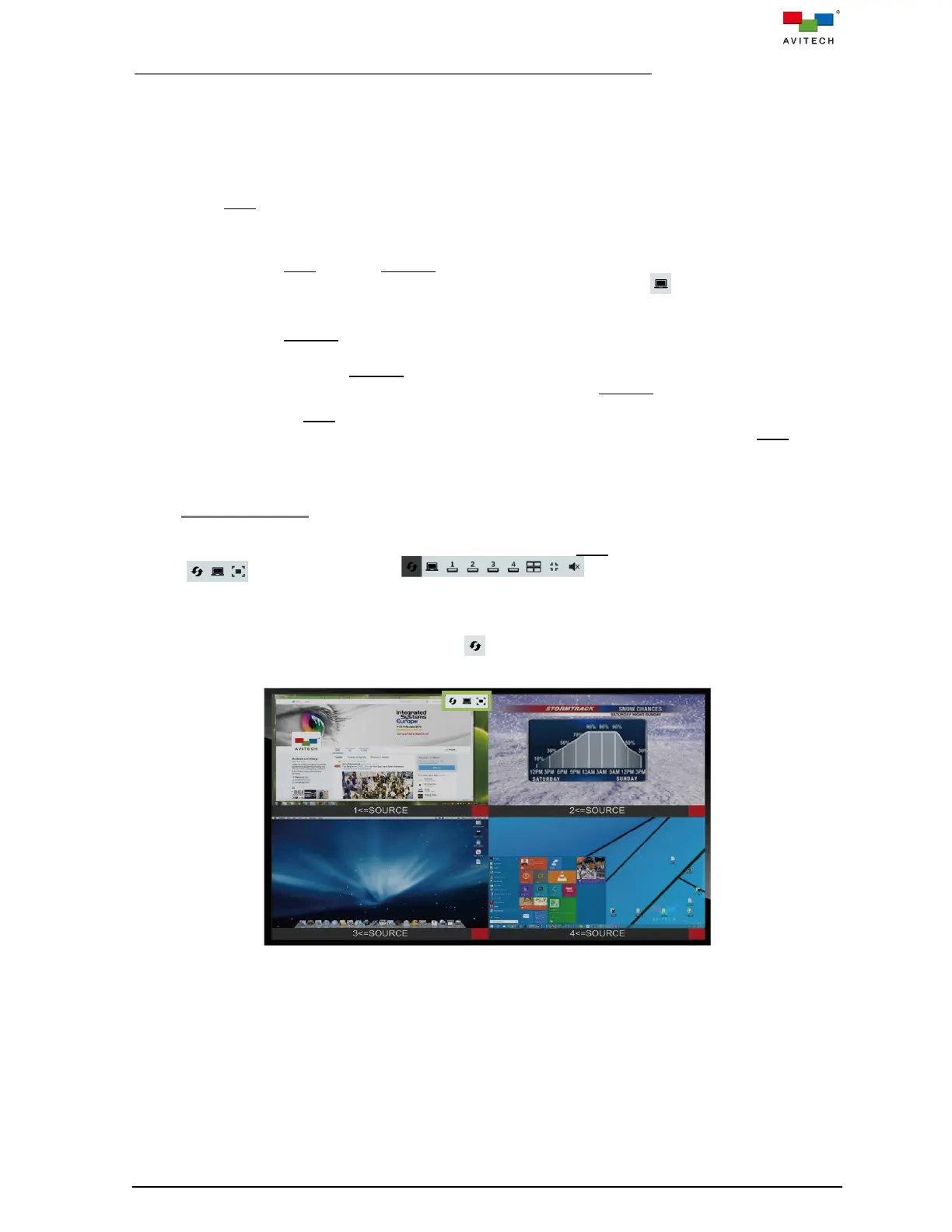
Use a stylus (or finger) to tap the top right corner of a window in Host mode and the following icons will
appear (in multiview layout) / (in fullscreen mode).
To execute an icon’s function press on it for approximately one (1) second.
To perform swap window function, press on the icon for one (1) second, and then tap on the
destination window.
Figure B.2.1.1 Touch Screen: Pop-up Selection



 To Next Page