63
Shows the current detected temperature of the Sequoia 4K60 system. If the
temperature is above the normal operating temperature threshold of 75
o
C, a
“System operating temperature is too high!” alert will appears on top-right
portion of monitor.
When a temperature alert occurs, it is important that steps be taken
immediately to find out the cause. Failure to address this problem
immediately may cause irreparable damage to system components.
When the Sequoia 4K60 is processing a lot of data it can become hot. If the
environment around the module is too warm, or the fans cannot do their job
properly, or the filters are blocked or clogged, the module can overheat. When the
module becomes hot and there is a risk of overheating, the performance of the
module is reduced to lower the amount of data processed and lower the
temperature of the module.
First try this:
1. Turn off your Sequoia 4K60. Allow your Sequoia 4K60 to cool down for at least
20 minutes.
2. Restart your Sequoia 4K60.
Then try this:
1. Place your hand near each fan outlet in turn and check that air is flowing out of
your Sequoia 4K60.
2. Check the environment around your Sequoia 4K60:
– Is there anything covering the fan outlets?
– Is the space large enough?
– Is there enough ventilation or cooling? For best results, make sure the air
around your Sequoia 4K60 is a maximum of 25
o
C.
– Is there an air gap all around your Sequoia 4K60?
3. If there are any issues with the environment around your Sequoia 4K60, switch
off your Sequoia 4K60 and allow it to cool down while you fix the issues.
Table 4.3.1.1 Alerts Display Functions
Display active window border
Display active window border allows you to easily identify the window which is currently in
keyboard/mouse operation. The active window border is turn on by default; you can disable this active
border indicator depending on your operation requirement. The active window border has two color, a
yellow active window border signifies that you are in “Surfer” mode; a red active window border signifies
that the “Surfer” feature is turn off.
4.3.2 Network
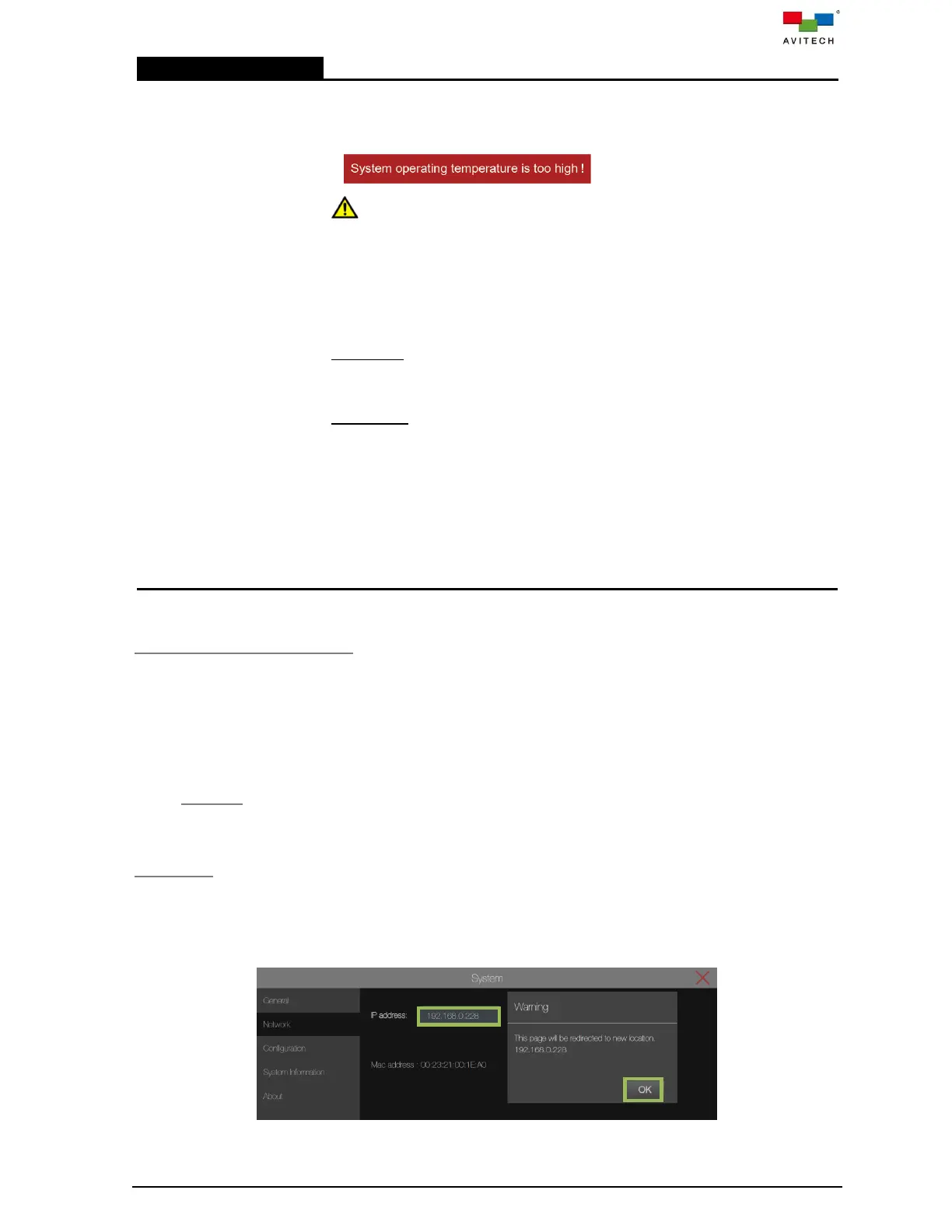
Select Network to set up the network connection.
IP address
The default IP address is 192.168.0.5. The Network settings must be manually entered. Set the
Network connection by entering the IP address to connect. This would be required for a network that
uses fixed IP addresses. Upon completing Network adjustment, locate Apply and click it. When the
warning window appears, click OK. This will apply the network setting to Sequoia 4K60.
Figure 4.3.2.1 System Page: Network IP Address



 To Next Page