48
4.1 Layout & Routing
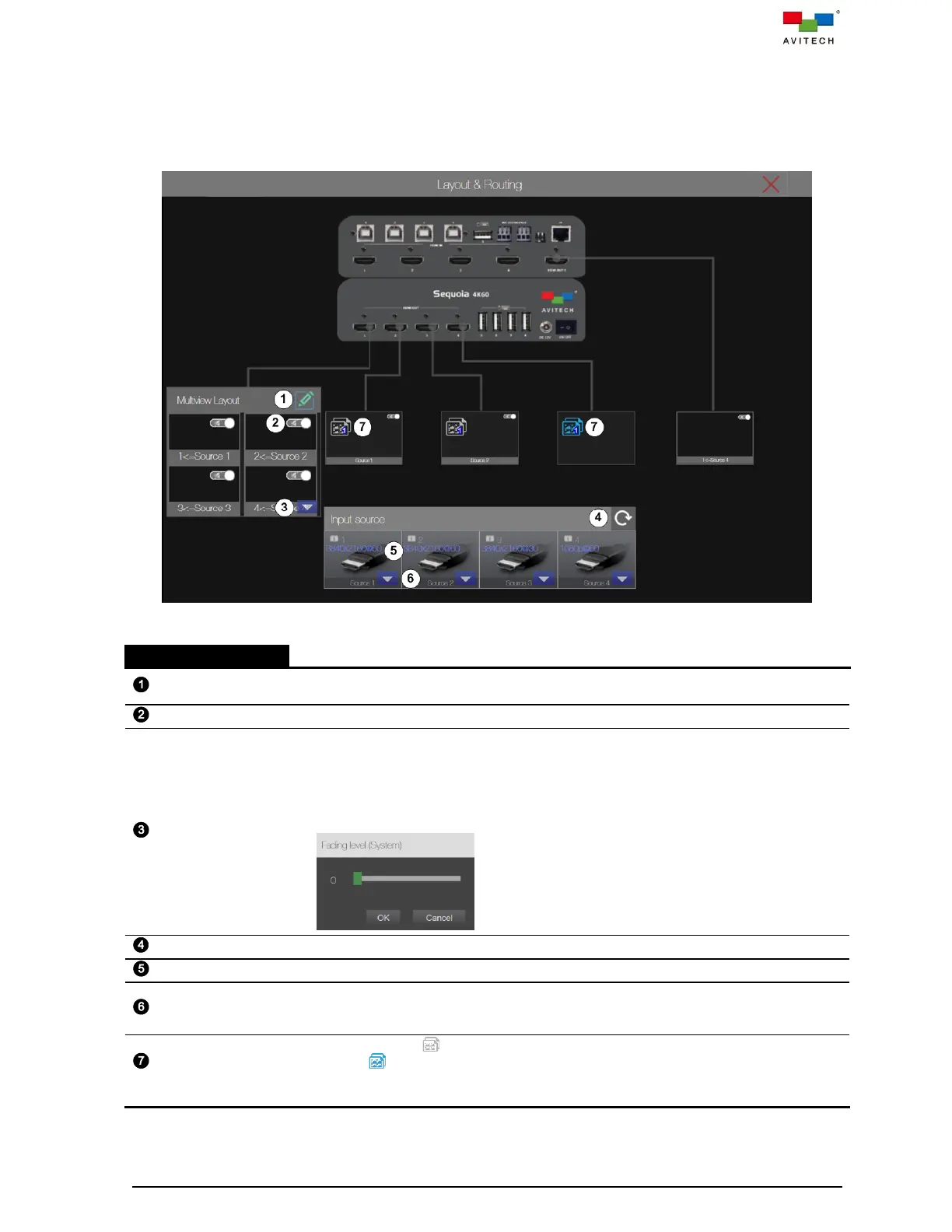
Layout & Routing provides an interface for user to adjust the multiview (window) layout, output
resolution, OSD setting, fullscreen control and other features of Sequoia 4K60 directly from the web
browser-based GUI. The table below provides information on each component of Layout & Routing.
Figure 4.1.1 Multiview Layout Control Interface and Components
Allows user to adjust the multiview layout / output resolution / OSD setting / fullscreen
control of Sequoia 4K60.
Allows user to enable/disable audio output through the HDMI port of Sequoia 4K60.
Allows user to set
Set fading level – allows you to set the speed when one fullscreen image switches to
another fullscreen image for seamless effect (one image fades from view while
another takes its place). Select Set fading level and then select the desired Fading
level (fading time) by using the slider (0 – 255 levels), where 0 (default) is for instant
switching while 255 corresponds to the slowest fading speed.
Allows user to update the input signal information.
Display the detected input signal information.
Allows user to enable (default disable) Mac PC function to set the video source display
correctly when connect a MacBook or Mac-mini video source to the input port of Sequoia
4K60, if the video source display a white noise or black image on-screen.
Allows user clicking icon to duplicate the display HDMI OUT 1. When the icon
changes to , it means that HDMI OUT is currently showing the same display of HDMI
OUT 1. You can route any input source to this output port by drag-and-drop the input
source icon to the HDMI OUT port.
Table 4.1.1 Layout & Routing Component and Description



 To Next Page